


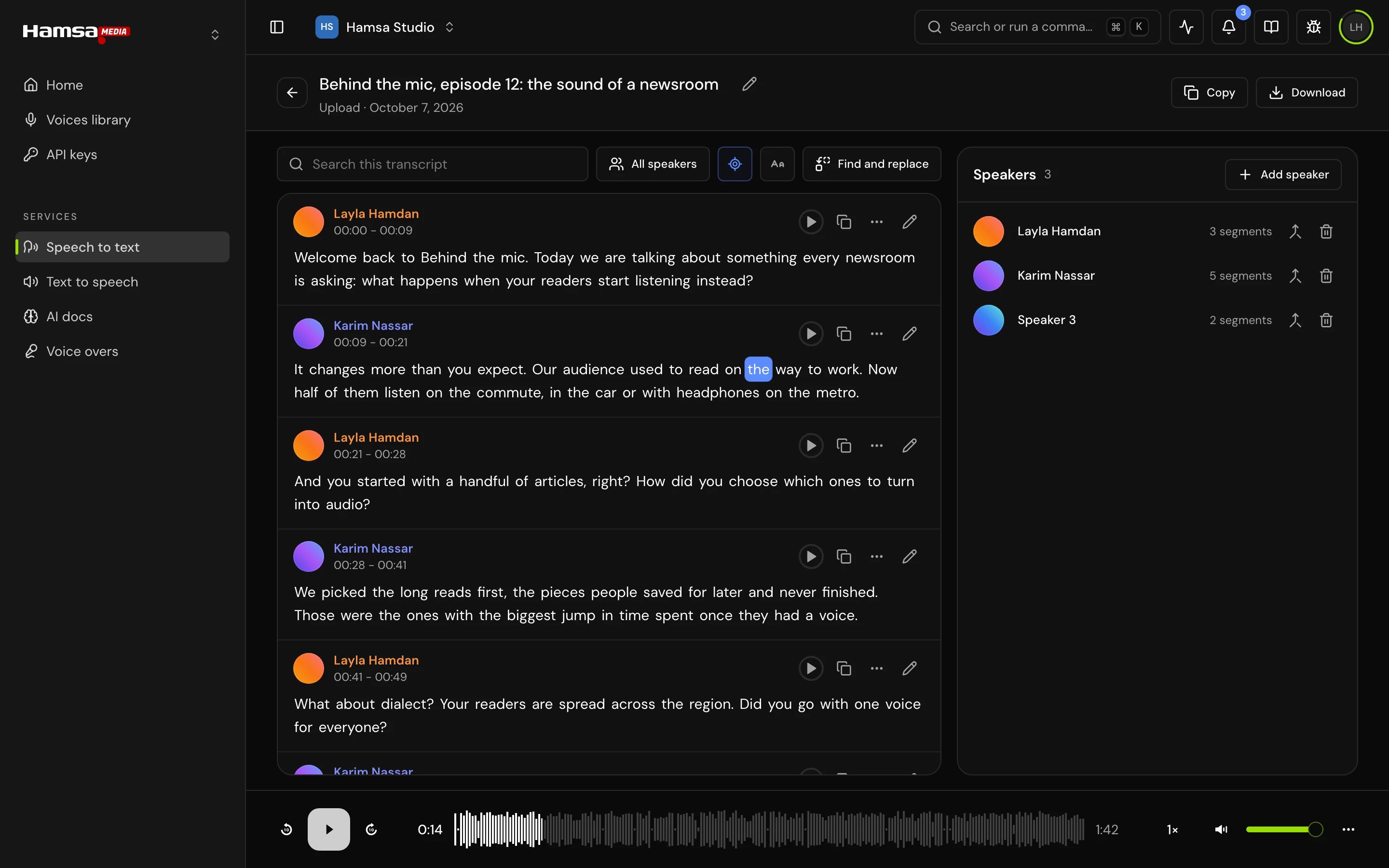
Read and play
The player at the bottom of the page plays the transcript’s audio or video. Its controls and keys are described in Lists and uploads.- Click a word to play from it. Click a segment’s time to play from the start of that segment.
- Follow playback (on by default) keeps the word being spoken in view. When you scroll away while it plays, following pauses and Back to playing appears; click it, or press B, to return to the spoken word.
- Text size sets the reading size: Small, Medium or Large. Your choice, like Follow playback, is remembered in this browser.
- “Search this transcript” shows only the segments that contain what you type.
- Show one speaker shows one speaker’s segments. See Speakers.


Edit a segment
1
Open it
Click the pencil (Edit segment) on the segment, or move to it with the arrow keys and press E.
2
Change it
Correct the text. To give the segment to another speaker, pick one in the speaker list at the top of the form; that change saves as soon as you pick.

3
Save
Click Save. Opened with E, Enter saves too (Shift+Enter starts a new line). Cancel or Escape leaves without saving.
- Add a segment after opens an empty segment below this one. Type its text, pick its speaker and save. A new segment has no word timings; it sits between its neighbours in time.
- Delete segment asks Delete segment? and removes the segment and its text.
Find and replace
Press Ctrl+F (Cmd+F on Mac) on the transcript page, or click Find and replace.1
Find
Type in “Find in transcript”. The bar shows where you are, for example “3 of 12”. Enter goes to the next match, Shift+Enter to the previous one.

2
Set the options
Match case and Whole word are off by default. Ignore harakat is on: a search without vowel marks also finds the word written with harakat (and tatweel).
3
Replace
Type in “Replace with”, then Replace changes the current match, or Replace all changes every one.


- A match in a segment you have open for editing. Save or cancel the edit to include it.
- A replacement that would leave a segment empty.
- A replacement that would make a segment longer than 10,000 characters.
Work from the keyboard
Click a segment (or Tab to it) and use these keys:
Space, K, J, L, the left and right arrows, M and the speed keys stay the player’s. Letter keys don’t fire while you type in a field, and they work on an Arabic keyboard layout too (by key position). Press ? to see every shortcut on the page; see Navigation.
Copy, link and select
- The copy button on a segment copies its text.
- A segment’s More actions menu has Copy with timestamp (
[01:24] Speaker 1: text) and Copy link at 01:24, a link that opens the transcript at that moment. - The Copy menu in the header has Copy transcript with timestamps (one line per segment, with time and speaker) and Copy link at the current playback time.
- Shift-click a segment to select it, then Shift-click another to select every segment between them. The bar above the list shows “7 segments selected”, with Copy selection, Send to and Clear selection.


Add a pronunciation
When a voice reads a word from your transcript wrong, save how it should be read to a dictionary. Voices then read it that way wherever that dictionary is on.1
Pick the word
Select a word or phrase in a segment and click Add pronunciation beside it. You can also use the segment’s More actions menu, press D, or search “Add pronunciation” in Cmd+K (Ctrl+K on Windows).
2
Say how it's read
Check Word or phrase and type Read as, how it should sound.
3
Pick the dictionary
Choose a Dictionary, or New dictionary and give it a name.
4
Save
Click Save. “Saved to …” names the dictionary. If the word is already in it, the dialog says so and saving replaces the old reading.


Send text to text to speech or a voice over
From the header’s Copy menu, a segment’s More actions menu or the selection bar, choose Send to text to speech or Use in a voice over. The text goes without times or names, each speaker’s turn as a paragraph.

- Text to speech takes up to 3,000 characters at a time and a voice over script up to 1,000. For longer text, Hamsa Media offers to use only the first characters up to the limit, or to send your selection instead.
- If you were already writing a script there, Hamsa Media asks before replacing it.
Rename the transcript
Click the title at the top of the page, type the new one (up to 150 characters) and press Enter. Escape cancels. The title can’t be empty.

Good to know
- Long transcripts load in pages as you scroll; find, export and copy fetch the whole transcript first.
- Edits save to the transcript at once. There is no history or undo for a segment edit; only Replace all has an undo.
- Every member of the project can edit transcripts, whatever their role. The permissions page has no switches for speech to text. See Roles and permissions.
Related
Speakers
Rename, add, merge and filter speakers.
Export a transcript
Subtitles, documents and data.
Dictionaries
Where pronunciations live and apply.
Lists and uploads
The media player and its keys.