

Overview
Creating a Text to Speech job involves entering text, selecting a voice, adjusting controls, and generating audio. The system processes your text and generates high-quality speech audio that you can preview, download, or use in other applications.TTS jobs are processed in real-time or near real-time. Most jobs complete within seconds to minutes depending on text length. You can preview audio while it’s being generated.
Step-by-Step Process
Step 1: Navigate to Text to Speech
- Click on Text to Speech in the navigation menu
- The TTS interface opens with the text editor and voice controls
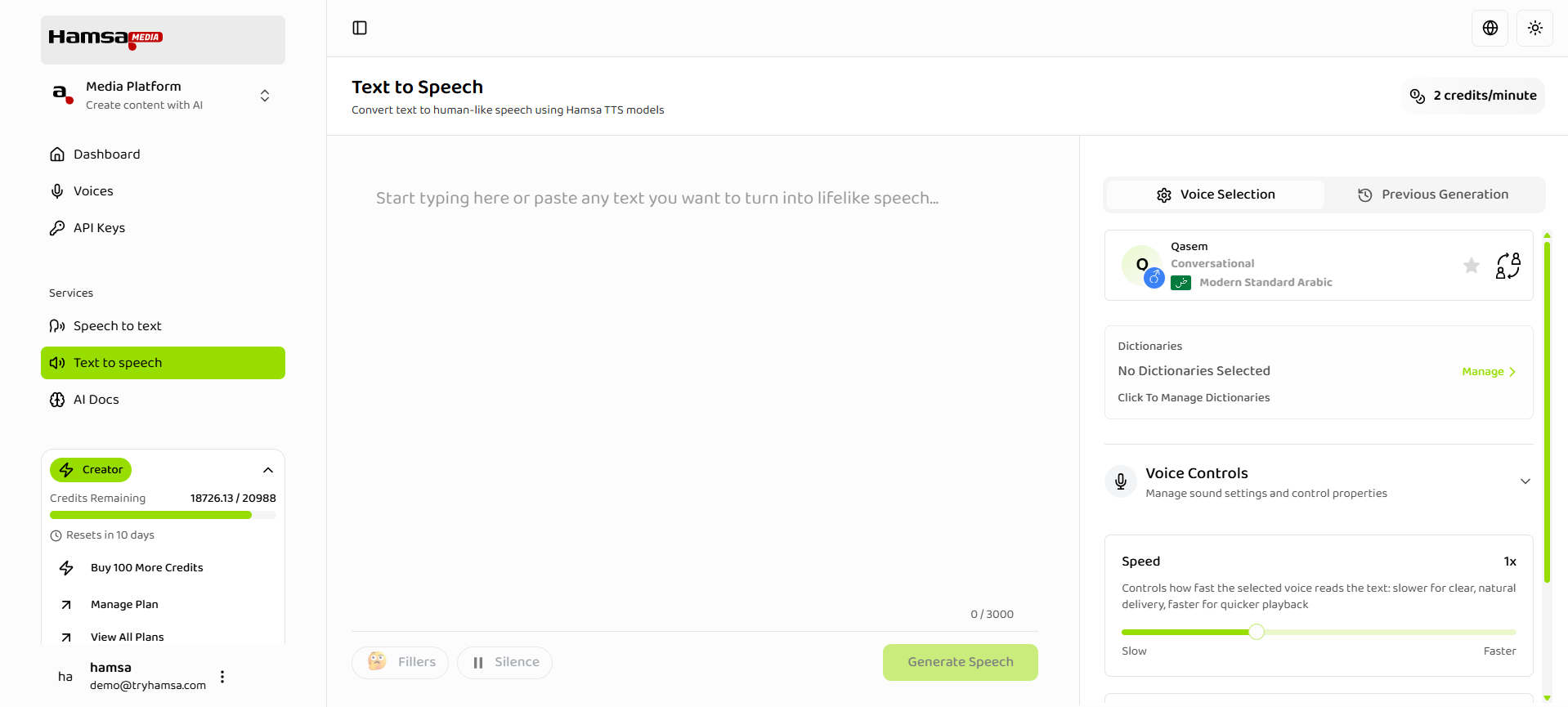
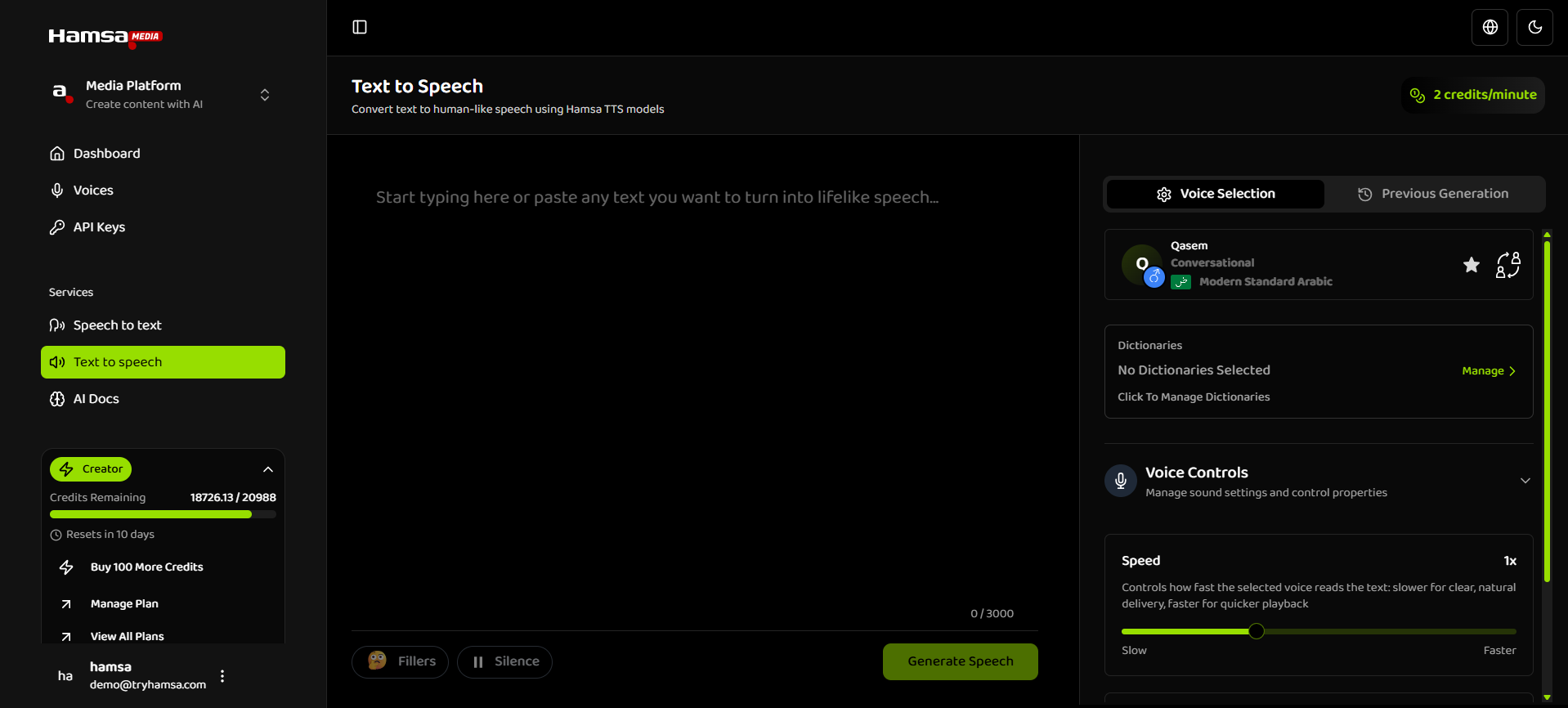
Step 2: Enter Text Content
Enter or paste the text you want to convert to speech: Text Input Options:- Type directly: Type text in the text editor
- Paste text: Copy and paste text from another source
- Use clear, well-formatted text
- Add punctuation for natural pauses
- Break long paragraphs into shorter ones
- Check spelling and grammar
Step 3: Select a Voice
Choose the voice you want to use for speech generation. Click on the voice selection area to open the voice selection modal. Modal tabs:- Explore: Handpicked collections by use case (e.g. Arabic Narration, Social Media, Studio Conversational, Character Voices) and a “Weekly spotlight - New Voices” list. Use this to discover voices by context.
- My Voices: Your favorite voices in one place for quick access.
- All Voices: Full voice library with infinite scroll.
- Search: Type a voice name in the search field for instant results.
- Filter: Narrow by language, gender, style, dialect, or use case. Use “Clear filters” to reset.
- Explore collections: On the Explore tab, click a collection card to see voices for that use case.
- Open the voice selection area to open the modal.
- Switch between Explore, My Voices, or All Voices as needed.
- Preview a voice by clicking the play icon on a voice row.
- Click the voice (or Select in the modal) to apply it to your job. The modal closes and the chosen voice is shown in the TTS interface.
- System voices: Pre-trained voices from the library (Arabic and English, multiple styles and dialects).
- Custom voices: Your cloned or custom voices, same controls as system voices.
- Favorites: Voices you’ve marked as favorites appear under My Voices.
You can preview any voice before selecting it. Click the play icon next to a voice to hear a sample.
Step 4: Adjust Voice Controls (Optional)
Fine-tune the voice characteristics: Expressiveness Control:- Range: 0 to 2 (default: 1)
- Adjustment: Drag slider or enter value
- Effect: Controls emotional range and variation
- Use cases: More neutral for consistency, more expressive for dynamics
Step 5: Configure Additional Settings (Optional)
Dictionaries (Optional):- Open Manage (or “Click To Manage Dictionaries”) in the Dictionaries section to open the Dictionaries modal
- Add a new dictionary with ”+ New Dictionary”; delete a dictionary using the trash icon next to it
- Add and edit words inside a dictionary: click the pencil (edit) icon on a dictionary to open the editor, then add word–pronunciation pairs and save
- Select which dictionaries apply to this TTS job by checking the box next to each dictionary in the list; selected dictionaries apply custom pronunciation rules
- Useful for technical terms, proper nouns, or brand names
Step 6: Generate Audio
Create the TTS job:- Review Settings
- Check text content
- Verify voice selection
- Review control settings
- Ensure everything is correct
- Click Generate
- Click “Generate Speech” button
- Job is created and processing starts
- Monitor Progress
- Live audio viewer shows progress while job is being generated
- Processing typically completes quickly
- Audio preview available when ready
- Job Completion
- Audio is available for playback
- Download and share options available
Text Input Details
Text Editor Features
Editing Capabilities:- Inline editing: Edit text directly in the editor
- Copy and paste: Full clipboard support
- Undo/redo: Standard text editing functions
- Character count: Real-time character counting
Voice Selection Details
Browsing Voices
Voice Library:- Scroll through available voices
- See voice names and metadata
- Preview voices with play button
- Filter and search options
- Name: Voice identifier
- Language: Supported language
- Dialect: Regional variant
- Gender: Male or female
- Style: Narrator, Conversational, etc.
Filtering Voices
Filter Options:- Language: Filter by language (Arabic, English, etc.)
- Gender: Filter by gender (Male, Female)
- Style: Filter by style (Narrator, Conversational)
- Dialect: Filter by regional dialect
- Search by voice name only
- Case-insensitive search
- Real-time results
- Clear search to reset
Voice Preview
Preview Features:- Click play icon to hear sample
- Sample audio plays automatically
- Compare different voices
- Helps choose right voice
- Preview multiple voices
- Compare similar voices
- Listen to sample quality
- Choose voice that matches content
Favorite Voices
Marking Favorites:- Click star icon on voice
- Voice added to favorites
- Quick access in favorites section
- Personal voice library
- Access favorites quickly
- Filter to show only favorites
- Organize frequently used voices
- Save time on voice selection
Voice Controls Details
Expressiveness Guidelines:- 0 - 0.5: Neutral, consistent delivery
- 0.6 - 1.0: Balanced, natural variation
- 1.1 - 1.5: Expressive, dynamic delivery
- 1.6 - 2.0: Very expressive, emotionally varied
- Neutral for formal content
- Balanced for general content
- Expressive for engaging content
- Very expressive for dramatic content
Job Creation and Processing
Job Creation
Job Information:- Job ID assigned automatically
- Title (if supported)
- Creation timestamp
- Job saved to history
- Accessible from jobs list
- Can be viewed, edited, or deleted
- Links to generated audio
- Typically seconds to minutes
- Depends on text length
- Real-time or near real-time for short text
- Longer for very long text
Audio Generation
Generation Process:- Text is processed
- Voice model applied
- Controls applied
- Audio generated
- Available for playback
- High-quality output
- Natural speech patterns
- Clear pronunciation
- Professional quality
Credit Usage
Cost Calculation
Credit Usage:- Based on audio duration
- Credits per minute displayed
- Total cost estimated before generation
- Actual cost shown after completion
- Audio length (minutes)
- Credit rate per minute
- Voice type (some voices may vary)
- No additional charges for controls
Best Practices
Text Preparation
Content Quality:- Use clear, well-written text
- Check spelling and grammar
- Add appropriate punctuation
- Break long text into paragraphs
- Use optimize button for Arabic
- Add punctuation for pauses
- Consider text length
- Review before generating
Voice Selection
Choosing the Right Voice:- Match voice to content type
- Consider target audience
- Preview multiple voices
- Use favorites for consistency
- Use same voice for series
- Mark frequently used voices as favorites
- Maintain voice across related content
- Create voice guidelines
Control Settings
Starting Point:- Begin with default settings
- Adjust based on content
- Test different settings
- Save preferred settings
- Speed: Match content pace
- Expressiveness: Match content tone
- Adjust gradually
- Preview before final generation
Job Management
Organization:- Use descriptive titles (if supported)
- Organize jobs by project
- Review job history regularly
- Delete unused jobs
- Preview audio before using
- Review generated audio
- Regenerate if needed
- Export high-quality versions
Troubleshooting
Text Input Issues
Problem: Text not accepted Solutions:- Check text length limits
- Verify text format
- Remove special characters if needed
- Try simpler text
Voice Selection Issues
Problem: Voice not available Solutions:- Check voice filters
- Clear search/filters
- Verify voice availability
- Try different voice
Generation Issues
Problem: Job fails to generate Solutions:- Check text content
- Verify voice selection
- Check credit balance
- Try again with simpler text
Audio Quality Issues
Problem: Audio quality poor Solutions:- Check text quality
- Try different voice
- Adjust controls
- Review text formatting
Next Steps
After creating a TTS job:- Voice Selection - Learn about voice options and selection
- Voice Controls - Understand control settings
- Managing Jobs - Organize and manage your TTS jobs
- Overview - Learn about Text to Speech features
Related Documentation
Voice Selection
Learn about voice options and selection
Voice Controls
Understand control settings and adjustments
Managing Jobs
Organize and manage your TTS jobs
Overview
Learn about Text to Speech features