> ## Documentation Index
> Fetch the complete documentation index at: https://docs.tryhamsa.com/llms.txt
> Use this file to discover all available pages before exploring further.
# Creating TTS Jobs
> Step-by-step guide to creating text-to-speech jobs
## Overview
Creating a Text to Speech job involves entering text, selecting a voice, adjusting controls, and generating audio. The system processes your text and generates high-quality speech audio that you can preview, download, or use in other applications.
TTS jobs are processed in real-time or near real-time. Most jobs complete within seconds to minutes depending on text length. You can preview audio while it's being generated.
## Step-by-Step Process
### Step 1: Navigate to Text to Speech
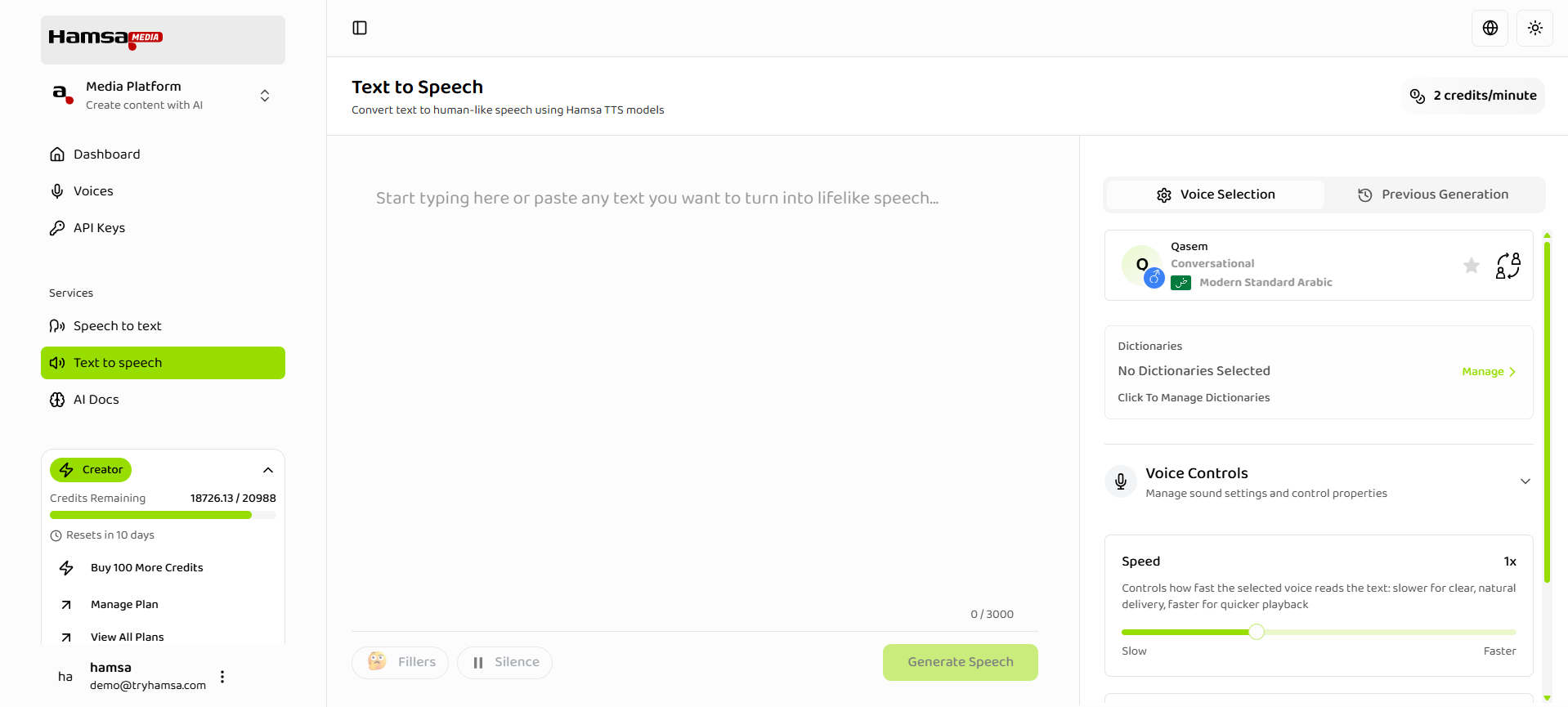
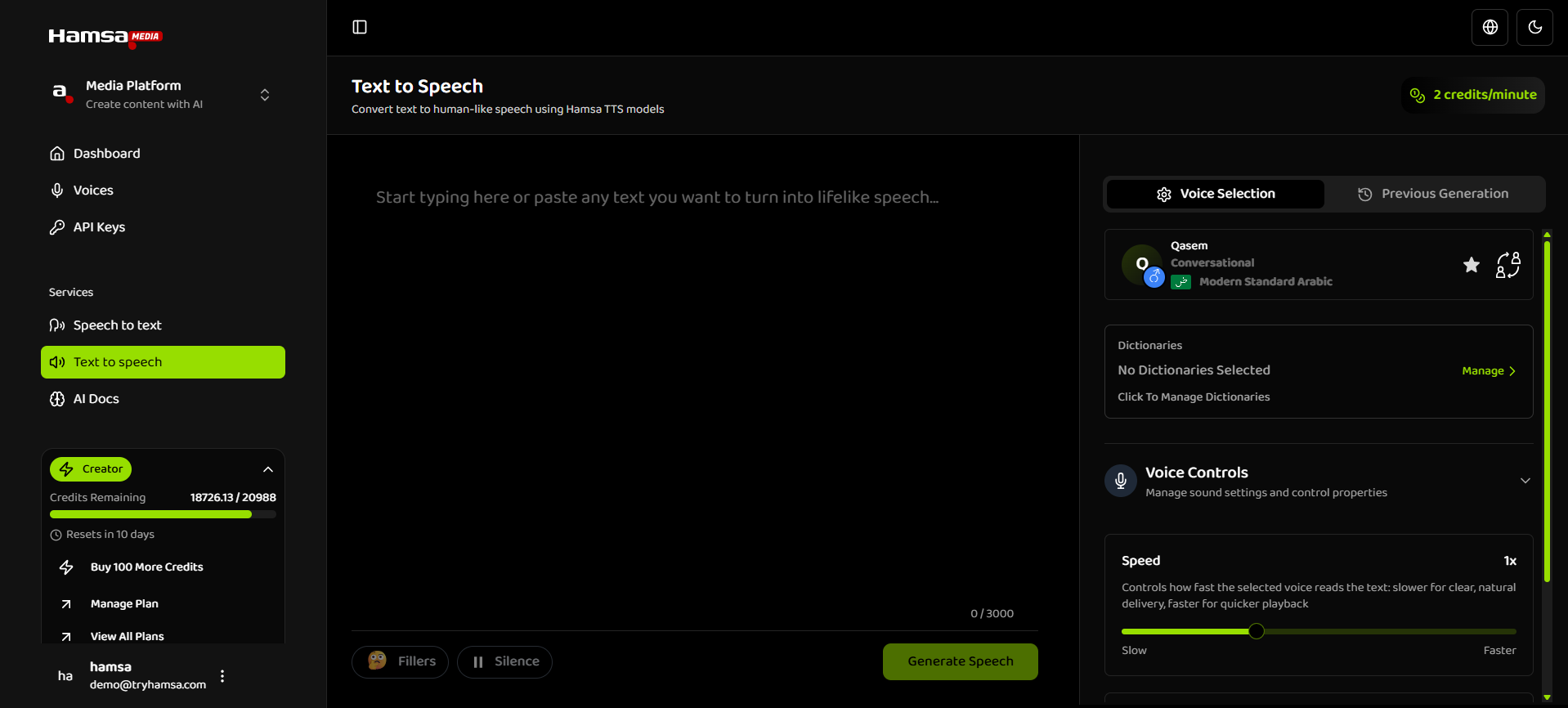
1. Click on **Text to Speech** in the navigation menu
2. The TTS interface opens with the text editor and voice controls
 ### Step 2: Enter Text Content
Enter or paste the text you want to convert to speech:
**Text Input Options:**
* **Type directly**: Type text in the text editor
* **Paste text**: Copy and paste text from another source
**Text Input Best Practices:**
* Use clear, well-formatted text
* Add punctuation for natural pauses
* Break long paragraphs into shorter ones
* Check spelling and grammar
Very long texts may take longer to process and consume more credits. Consider breaking very long content into multiple jobs if needed.
### Step 3: Select a Voice
Choose the voice you want to use for speech generation. Click on the voice selection area to open the **voice selection modal**.
**Modal tabs:**
* **Explore**: Handpicked collections by use case (e.g. Arabic Narration, Social Media, Studio Conversational, Character Voices) and a "Weekly spotlight - New Voices" list. Use this to discover voices by context.
* **My Voices**: Your favorite voices in one place for quick access.
* **All Voices**: Full voice library with infinite scroll.
**Finding voices:**
* **Search**: Type a voice name in the search field for instant results.
* **Filter**: Narrow by language, gender, style, dialect, or use case. Use "Clear filters" to reset.
* **Explore collections**: On the Explore tab, click a collection card to see voices for that use case.
**Selecting a voice:**
1. Open the voice selection area to open the modal.
2. Switch between **Explore**, **My Voices**, or **All Voices** as needed.
3. Preview a voice by clicking the **play** icon on a voice row.
4. Click the voice (or **Select** in the modal) to apply it to your job. The modal closes and the chosen voice is shown in the TTS interface.
**Voice types in the library:**
* **System voices**: Pre-trained voices from the library (Arabic and English, multiple styles and dialects).
* **Custom voices**: Your cloned or custom voices, same controls as system voices.
* **Favorites**: Voices you've marked as favorites appear under **My Voices**.
You can preview any voice before selecting it. Click the play icon next to a voice to hear a sample.
### Step 4: Adjust Voice Controls (Optional)
Fine-tune the voice characteristics:
**Expressiveness Control:**
* **Range**: 0 to 2 (default: 1)
* **Adjustment**: Drag slider or enter value
* **Effect**: Controls emotional range and variation
* **Use cases**: More neutral for consistency, more expressive for dynamics
Start with default settings and adjust based on your needs. You can always regenerate with different settings.
### Step 5: Configure Additional Settings (Optional)
**Dictionaries (Optional):**
* Open **Manage** (or "Click To Manage Dictionaries") in the Dictionaries section to open the Dictionaries modal
* **Add** a new dictionary with "+ New Dictionary"; **delete** a dictionary using the trash icon next to it
* **Add and edit words** inside a dictionary: click the pencil (edit) icon on a dictionary to open the editor, then add word–pronunciation pairs and save
* **Select** which dictionaries apply to this TTS job by checking the box next to each dictionary in the list; selected dictionaries apply custom pronunciation rules
* Useful for technical terms, proper nouns, or brand names
### Step 6: Generate Audio
Create the TTS job:
1. **Review Settings**
* Check text content
* Verify voice selection
* Review control settings
* Ensure everything is correct
2. **Click Generate**
* Click **"Generate Speech"** button
* Job is created and processing starts
3. **Monitor Progress**
* Live audio viewer shows progress while job is being generated
* Processing typically completes quickly
* Audio preview available when ready
4. **Job Completion**
* Audio is available for playback
* Download and share options available
## Text Input Details
### Text Editor Features
**Editing Capabilities:**
* **Inline editing**: Edit text directly in the editor
* **Copy and paste**: Full clipboard support
* **Undo/redo**: Standard text editing functions
* **Character count**: Real-time character counting
## Voice Selection Details
### Browsing Voices
**Voice Library:**
* Scroll through available voices
* See voice names and metadata
* Preview voices with play button
* Filter and search options
**Voice Information:**
* **Name**: Voice identifier
* **Language**: Supported language
* **Dialect**: Regional variant
* **Gender**: Male or female
* **Style**: Narrator, Conversational, etc.
### Filtering Voices
**Filter Options:**
* **Language**: Filter by language (Arabic, English, etc.)
* **Gender**: Filter by gender (Male, Female)
* **Style**: Filter by style (Narrator, Conversational)
* **Dialect**: Filter by regional dialect
**Search Voices:**
* Search by voice name only
* Case-insensitive search
* Real-time results
* Clear search to reset
### Voice Preview
**Preview Features:**
* Click play icon to hear sample
* Sample audio plays automatically
* Compare different voices
* Helps choose right voice
**Preview Best Practices:**
* Preview multiple voices
* Compare similar voices
* Listen to sample quality
* Choose voice that matches content
### Favorite Voices
**Marking Favorites:**
* Click star icon on voice
* Voice added to favorites
* Quick access in favorites section
* Personal voice library
**Using Favorites:**
* Access favorites quickly
* Filter to show only favorites
* Organize frequently used voices
* Save time on voice selection
## Voice Controls Details
**Expressiveness Guidelines:**
* **0 - 0.5**: Neutral, consistent delivery
* **0.6 - 1.0**: Balanced, natural variation
* **1.1 - 1.5**: Expressive, dynamic delivery
* **1.6 - 2.0**: Very expressive, emotionally varied
**Use Cases:**
* Neutral for formal content
* Balanced for general content
* Expressive for engaging content
* Very expressive for dramatic content
## Job Creation and Processing
### Job Creation
**Job Information:**
* Job ID assigned automatically
* Title (if supported)
* Creation timestamp
**Job Storage:**
* Job saved to history
* Accessible from jobs list
* Can be viewed, edited, or deleted
* Links to generated audio
**Processing Time:**
* Typically seconds to minutes
* Depends on text length
* Real-time or near real-time for short text
* Longer for very long text
### Audio Generation
**Generation Process:**
1. Text is processed
2. Voice model applied
3. Controls applied
4. Audio generated
5. Available for playback
**Audio Quality:**
* High-quality output
* Natural speech patterns
* Clear pronunciation
* Professional quality
## Credit Usage
### Cost Calculation
**Credit Usage:**
* Based on audio duration
* Credits per minute displayed
* Total cost estimated before generation
* Actual cost shown after completion
**Cost Factors:**
* Audio length (minutes)
* Credit rate per minute
* Voice type (some voices may vary)
* No additional charges for controls
## Best Practices
### Text Preparation
**Content Quality:**
* Use clear, well-written text
* Check spelling and grammar
* Add appropriate punctuation
* Break long text into paragraphs
**Text Optimization:**
* Use optimize button for Arabic
* Add punctuation for pauses
* Consider text length
* Review before generating
### Voice Selection
**Choosing the Right Voice:**
* Match voice to content type
* Consider target audience
* Preview multiple voices
* Use favorites for consistency
**Voice Consistency:**
* Use same voice for series
* Mark frequently used voices as favorites
* Maintain voice across related content
* Create voice guidelines
### Control Settings
**Starting Point:**
* Begin with default settings
* Adjust based on content
* Test different settings
* Save preferred settings
**Setting Guidelines:**
* Speed: Match content pace
* Expressiveness: Match content tone
* Adjust gradually
* Preview before final generation
### Job Management
**Organization:**
* Use descriptive titles (if supported)
* Organize jobs by project
* Review job history regularly
* Delete unused jobs
**Quality Control:**
* Preview audio before using
* Review generated audio
* Regenerate if needed
* Export high-quality versions
## Troubleshooting
### Text Input Issues
**Problem**: Text not accepted **Solutions**:
* Check text length limits
* Verify text format
* Remove special characters if needed
* Try simpler text
### Voice Selection Issues
**Problem**: Voice not available **Solutions**:
* Check voice filters
* Clear search/filters
* Verify voice availability
* Try different voice
### Generation Issues
**Problem**: Job fails to generate **Solutions**:
* Check text content
* Verify voice selection
* Check credit balance
* Try again with simpler text
### Audio Quality Issues
**Problem**: Audio quality poor **Solutions**:
* Check text quality
* Try different voice
* Adjust controls
* Review text formatting
## Next Steps
After creating a TTS job:
1. [**Voice Selection**](./voice-selection) - Learn about voice options and selection
2. [**Voice Controls**](./voice-controls) - Understand control settings
3. [**Managing Jobs**](./managing-jobs) - Organize and manage your TTS jobs
4. [**Overview**](./overview) - Learn about Text to Speech features
## Related Documentation
Learn about voice options and selection
Understand control settings and adjustments
Organize and manage your TTS jobs
Learn about Text to Speech features
### Step 2: Enter Text Content
Enter or paste the text you want to convert to speech:
**Text Input Options:**
* **Type directly**: Type text in the text editor
* **Paste text**: Copy and paste text from another source
**Text Input Best Practices:**
* Use clear, well-formatted text
* Add punctuation for natural pauses
* Break long paragraphs into shorter ones
* Check spelling and grammar
Very long texts may take longer to process and consume more credits. Consider breaking very long content into multiple jobs if needed.
### Step 3: Select a Voice
Choose the voice you want to use for speech generation. Click on the voice selection area to open the **voice selection modal**.
**Modal tabs:**
* **Explore**: Handpicked collections by use case (e.g. Arabic Narration, Social Media, Studio Conversational, Character Voices) and a "Weekly spotlight - New Voices" list. Use this to discover voices by context.
* **My Voices**: Your favorite voices in one place for quick access.
* **All Voices**: Full voice library with infinite scroll.
**Finding voices:**
* **Search**: Type a voice name in the search field for instant results.
* **Filter**: Narrow by language, gender, style, dialect, or use case. Use "Clear filters" to reset.
* **Explore collections**: On the Explore tab, click a collection card to see voices for that use case.
**Selecting a voice:**
1. Open the voice selection area to open the modal.
2. Switch between **Explore**, **My Voices**, or **All Voices** as needed.
3. Preview a voice by clicking the **play** icon on a voice row.
4. Click the voice (or **Select** in the modal) to apply it to your job. The modal closes and the chosen voice is shown in the TTS interface.
**Voice types in the library:**
* **System voices**: Pre-trained voices from the library (Arabic and English, multiple styles and dialects).
* **Custom voices**: Your cloned or custom voices, same controls as system voices.
* **Favorites**: Voices you've marked as favorites appear under **My Voices**.
You can preview any voice before selecting it. Click the play icon next to a voice to hear a sample.
### Step 4: Adjust Voice Controls (Optional)
Fine-tune the voice characteristics:
**Expressiveness Control:**
* **Range**: 0 to 2 (default: 1)
* **Adjustment**: Drag slider or enter value
* **Effect**: Controls emotional range and variation
* **Use cases**: More neutral for consistency, more expressive for dynamics
Start with default settings and adjust based on your needs. You can always regenerate with different settings.
### Step 5: Configure Additional Settings (Optional)
**Dictionaries (Optional):**
* Open **Manage** (or "Click To Manage Dictionaries") in the Dictionaries section to open the Dictionaries modal
* **Add** a new dictionary with "+ New Dictionary"; **delete** a dictionary using the trash icon next to it
* **Add and edit words** inside a dictionary: click the pencil (edit) icon on a dictionary to open the editor, then add word–pronunciation pairs and save
* **Select** which dictionaries apply to this TTS job by checking the box next to each dictionary in the list; selected dictionaries apply custom pronunciation rules
* Useful for technical terms, proper nouns, or brand names
### Step 6: Generate Audio
Create the TTS job:
1. **Review Settings**
* Check text content
* Verify voice selection
* Review control settings
* Ensure everything is correct
2. **Click Generate**
* Click **"Generate Speech"** button
* Job is created and processing starts
3. **Monitor Progress**
* Live audio viewer shows progress while job is being generated
* Processing typically completes quickly
* Audio preview available when ready
4. **Job Completion**
* Audio is available for playback
* Download and share options available
## Text Input Details
### Text Editor Features
**Editing Capabilities:**
* **Inline editing**: Edit text directly in the editor
* **Copy and paste**: Full clipboard support
* **Undo/redo**: Standard text editing functions
* **Character count**: Real-time character counting
## Voice Selection Details
### Browsing Voices
**Voice Library:**
* Scroll through available voices
* See voice names and metadata
* Preview voices with play button
* Filter and search options
**Voice Information:**
* **Name**: Voice identifier
* **Language**: Supported language
* **Dialect**: Regional variant
* **Gender**: Male or female
* **Style**: Narrator, Conversational, etc.
### Filtering Voices
**Filter Options:**
* **Language**: Filter by language (Arabic, English, etc.)
* **Gender**: Filter by gender (Male, Female)
* **Style**: Filter by style (Narrator, Conversational)
* **Dialect**: Filter by regional dialect
**Search Voices:**
* Search by voice name only
* Case-insensitive search
* Real-time results
* Clear search to reset
### Voice Preview
**Preview Features:**
* Click play icon to hear sample
* Sample audio plays automatically
* Compare different voices
* Helps choose right voice
**Preview Best Practices:**
* Preview multiple voices
* Compare similar voices
* Listen to sample quality
* Choose voice that matches content
### Favorite Voices
**Marking Favorites:**
* Click star icon on voice
* Voice added to favorites
* Quick access in favorites section
* Personal voice library
**Using Favorites:**
* Access favorites quickly
* Filter to show only favorites
* Organize frequently used voices
* Save time on voice selection
## Voice Controls Details
**Expressiveness Guidelines:**
* **0 - 0.5**: Neutral, consistent delivery
* **0.6 - 1.0**: Balanced, natural variation
* **1.1 - 1.5**: Expressive, dynamic delivery
* **1.6 - 2.0**: Very expressive, emotionally varied
**Use Cases:**
* Neutral for formal content
* Balanced for general content
* Expressive for engaging content
* Very expressive for dramatic content
## Job Creation and Processing
### Job Creation
**Job Information:**
* Job ID assigned automatically
* Title (if supported)
* Creation timestamp
**Job Storage:**
* Job saved to history
* Accessible from jobs list
* Can be viewed, edited, or deleted
* Links to generated audio
**Processing Time:**
* Typically seconds to minutes
* Depends on text length
* Real-time or near real-time for short text
* Longer for very long text
### Audio Generation
**Generation Process:**
1. Text is processed
2. Voice model applied
3. Controls applied
4. Audio generated
5. Available for playback
**Audio Quality:**
* High-quality output
* Natural speech patterns
* Clear pronunciation
* Professional quality
## Credit Usage
### Cost Calculation
**Credit Usage:**
* Based on audio duration
* Credits per minute displayed
* Total cost estimated before generation
* Actual cost shown after completion
**Cost Factors:**
* Audio length (minutes)
* Credit rate per minute
* Voice type (some voices may vary)
* No additional charges for controls
## Best Practices
### Text Preparation
**Content Quality:**
* Use clear, well-written text
* Check spelling and grammar
* Add appropriate punctuation
* Break long text into paragraphs
**Text Optimization:**
* Use optimize button for Arabic
* Add punctuation for pauses
* Consider text length
* Review before generating
### Voice Selection
**Choosing the Right Voice:**
* Match voice to content type
* Consider target audience
* Preview multiple voices
* Use favorites for consistency
**Voice Consistency:**
* Use same voice for series
* Mark frequently used voices as favorites
* Maintain voice across related content
* Create voice guidelines
### Control Settings
**Starting Point:**
* Begin with default settings
* Adjust based on content
* Test different settings
* Save preferred settings
**Setting Guidelines:**
* Speed: Match content pace
* Expressiveness: Match content tone
* Adjust gradually
* Preview before final generation
### Job Management
**Organization:**
* Use descriptive titles (if supported)
* Organize jobs by project
* Review job history regularly
* Delete unused jobs
**Quality Control:**
* Preview audio before using
* Review generated audio
* Regenerate if needed
* Export high-quality versions
## Troubleshooting
### Text Input Issues
**Problem**: Text not accepted **Solutions**:
* Check text length limits
* Verify text format
* Remove special characters if needed
* Try simpler text
### Voice Selection Issues
**Problem**: Voice not available **Solutions**:
* Check voice filters
* Clear search/filters
* Verify voice availability
* Try different voice
### Generation Issues
**Problem**: Job fails to generate **Solutions**:
* Check text content
* Verify voice selection
* Check credit balance
* Try again with simpler text
### Audio Quality Issues
**Problem**: Audio quality poor **Solutions**:
* Check text quality
* Try different voice
* Adjust controls
* Review text formatting
## Next Steps
After creating a TTS job:
1. [**Voice Selection**](./voice-selection) - Learn about voice options and selection
2. [**Voice Controls**](./voice-controls) - Understand control settings
3. [**Managing Jobs**](./managing-jobs) - Organize and manage your TTS jobs
4. [**Overview**](./overview) - Learn about Text to Speech features
## Related Documentation
Learn about voice options and selection
Understand control settings and adjustments
Organize and manage your TTS jobs
Learn about Text to Speech features