> ## Documentation Index
> Fetch the complete documentation index at: https://docs.tryhamsa.com/llms.txt
> Use this file to discover all available pages before exploring further.
# Creating Transcriptions
> Step-by-step guide to creating transcription jobs from files, YouTube links, or recordings
## Overview
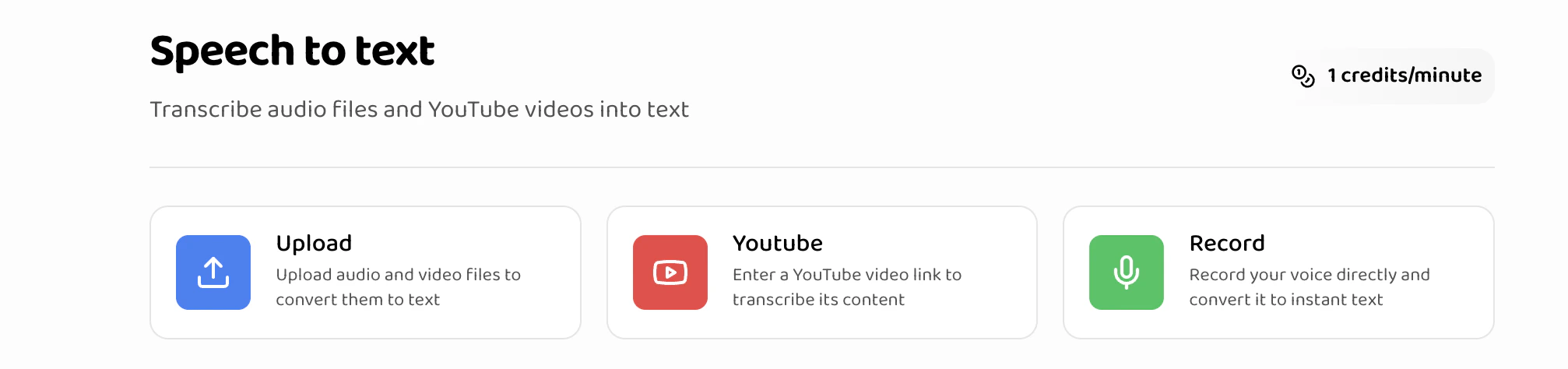
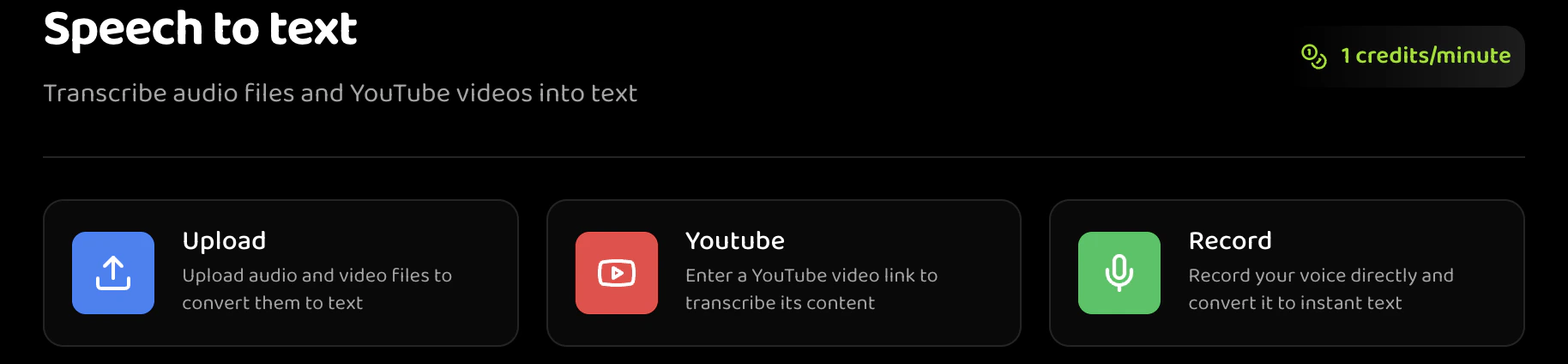
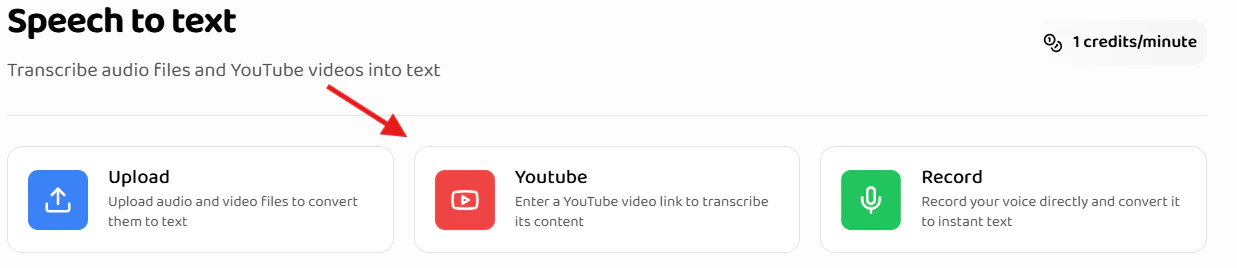
Speech to Text supports three methods for creating transcription jobs:
* **File Upload**: Upload audio or video files from your device
* **YouTube Link**: Transcribe videos directly from YouTube
* **Live Recording**: Record audio directly in your browser
 All transcription jobs are processed asynchronously. Processing time depends on file length, typically 1-5 minutes for most files. You can monitor
job status in real-time.
## Creating File Upload Transcriptions
File upload allows you to transcribe audio and video files stored on your device.
### When to Use File Upload
File upload is ideal for:
* Pre-recorded audio files
* Video files with audio tracks
* Archived recordings
* Files from your computer or mobile device
### Supported File Formats
| Format | Extension | Max Size | Recommended |
| ------------ | --------- | -------- | ------------------ |
| Audio - MP3 | `.mp3` | 200 MB | Best compatibility |
| Audio - WAV | `.wav` | 200 MB | High quality |
| Audio - WEBM | `.webm` | 200 MB | High quality |
| Audio - OGG | `.ogg` | 200 MB | High quality |
| Video - MP4 | `.mp4` | 200 MB | Most common |
| Video - MOV | `.mov` | 200 MB | Apple format |
### Requirements
| Field | Requirement | Validation |
| ------------ | ----------- | ----------------------------------- |
| **File** | Required | one file max size 200 MB |
| **Title** | Required | Auto-filled from filename, editable |
| **Language** | Required | Select from language dropdown |
### Step-by-Step Process
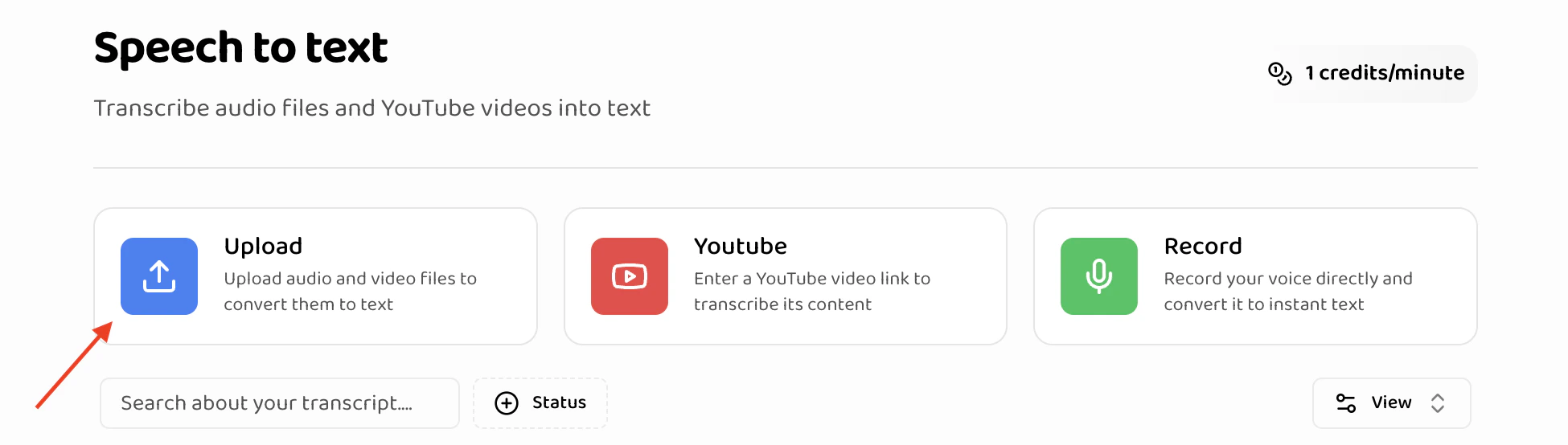
1. **Navigate to Speech to Text**
* Go to the Speech to Text section in your dashboard
* Click the **"Upload"** button in the action buttons area
All transcription jobs are processed asynchronously. Processing time depends on file length, typically 1-5 minutes for most files. You can monitor
job status in real-time.
## Creating File Upload Transcriptions
File upload allows you to transcribe audio and video files stored on your device.
### When to Use File Upload
File upload is ideal for:
* Pre-recorded audio files
* Video files with audio tracks
* Archived recordings
* Files from your computer or mobile device
### Supported File Formats
| Format | Extension | Max Size | Recommended |
| ------------ | --------- | -------- | ------------------ |
| Audio - MP3 | `.mp3` | 200 MB | Best compatibility |
| Audio - WAV | `.wav` | 200 MB | High quality |
| Audio - WEBM | `.webm` | 200 MB | High quality |
| Audio - OGG | `.ogg` | 200 MB | High quality |
| Video - MP4 | `.mp4` | 200 MB | Most common |
| Video - MOV | `.mov` | 200 MB | Apple format |
### Requirements
| Field | Requirement | Validation |
| ------------ | ----------- | ----------------------------------- |
| **File** | Required | one file max size 200 MB |
| **Title** | Required | Auto-filled from filename, editable |
| **Language** | Required | Select from language dropdown |
### Step-by-Step Process
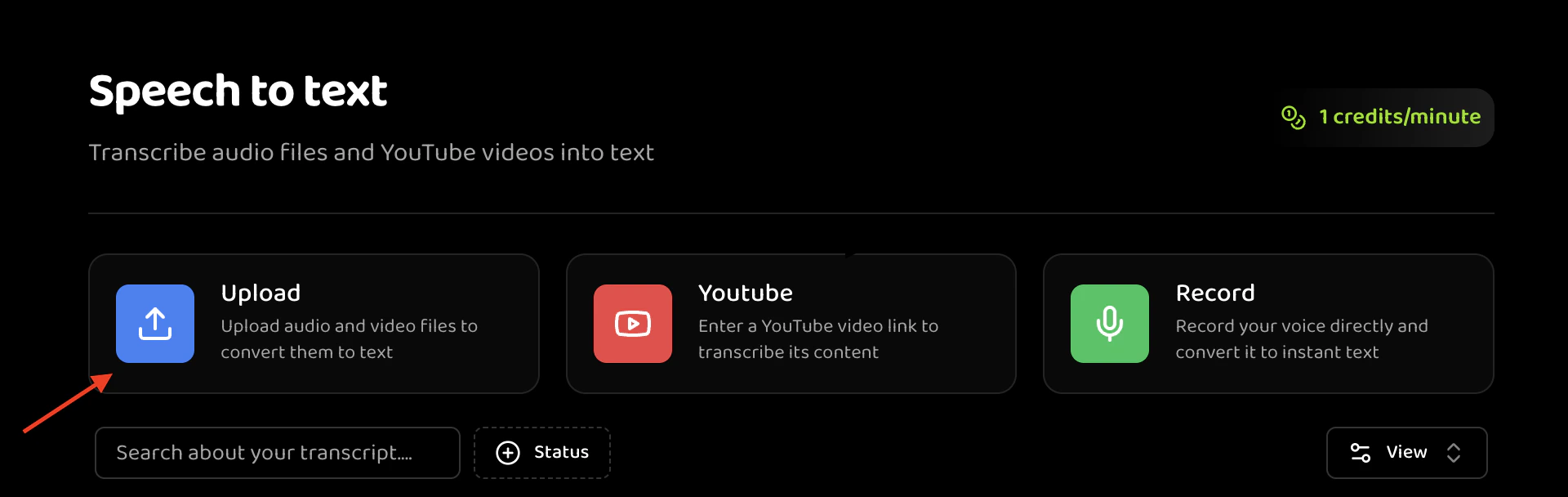
1. **Navigate to Speech to Text**
* Go to the Speech to Text section in your dashboard
* Click the **"Upload"** button in the action buttons area
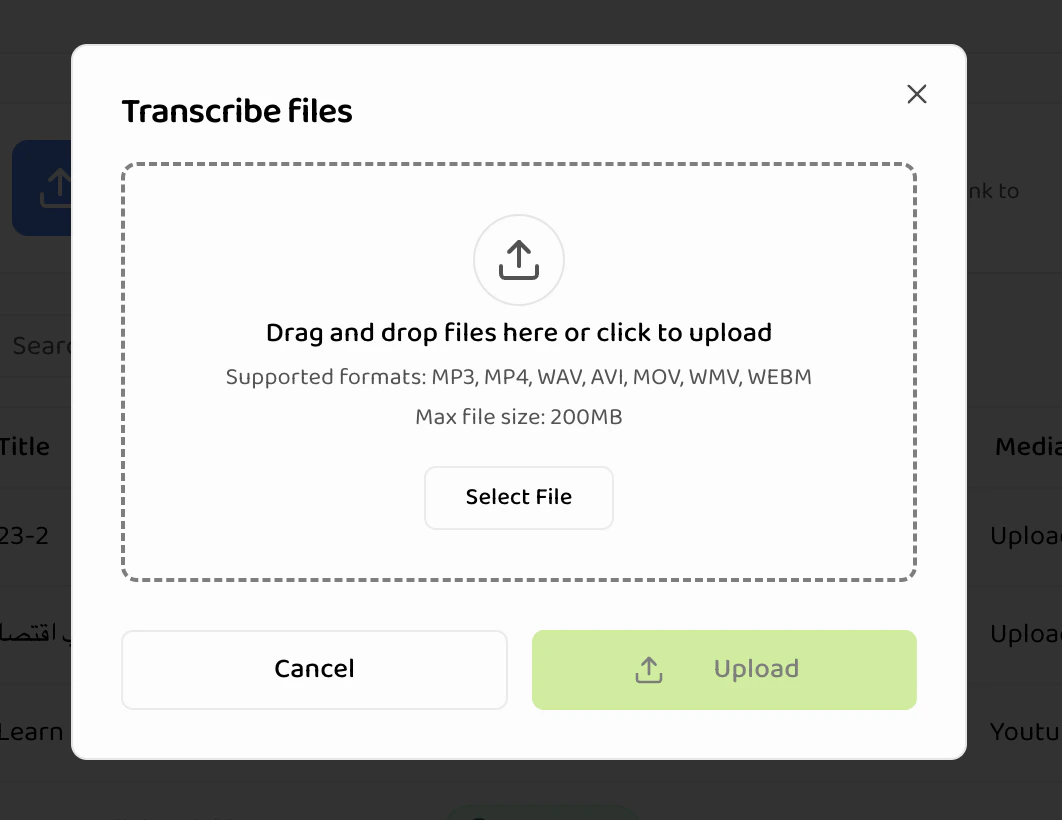
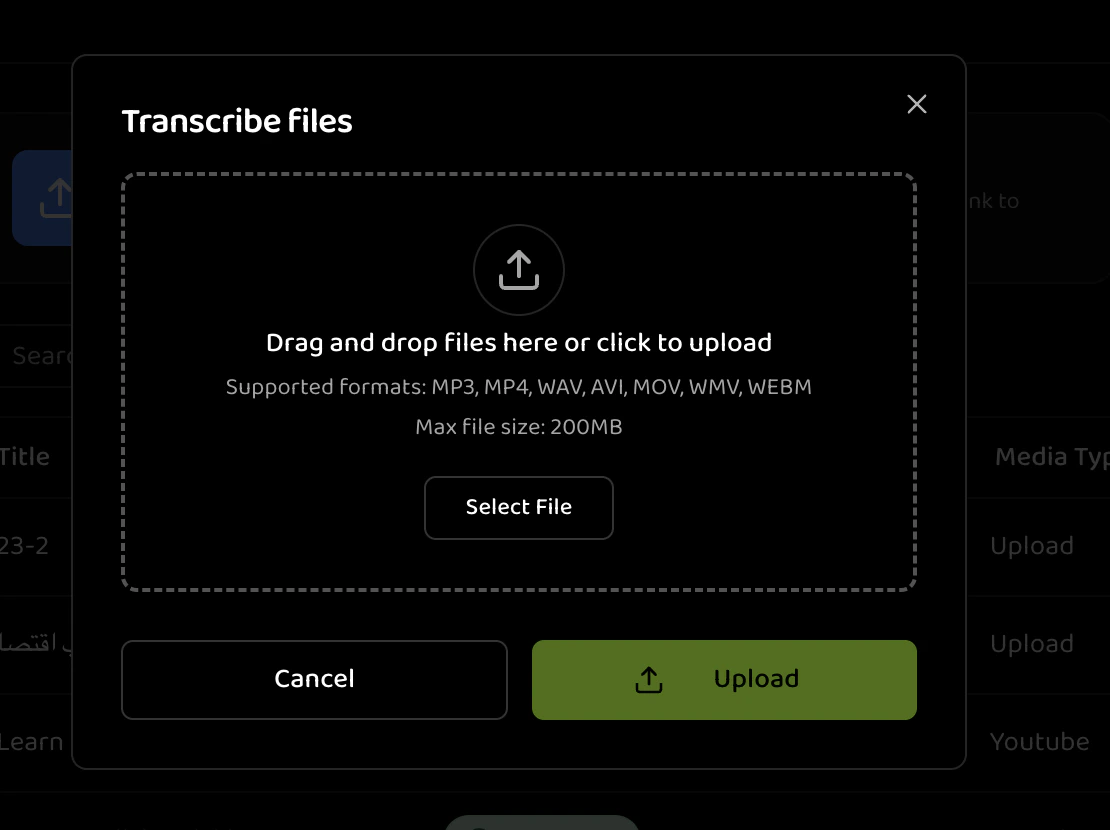
 2. **Open Upload Modal**
* The "Transcribe Files" modal opens
* You'll see a drag-and-drop area
2. **Open Upload Modal**
* The "Transcribe Files" modal opens
* You'll see a drag-and-drop area
 3. **Select File**
* **Drag and Drop**: Drag a file from your file explorer into the upload area
* **Click to Browse**: Click the upload area to open file picker
* **Single File**: Select one file at a time
* File appears below the upload area
4. **File Validation**
* System validates file format immediately
* Invalid files are rejected with error message
* File size is checked (must be under 200MB)
5. **Enter Job Details**
* **Title**: Auto-filled from filename, can be edited
* Example: "Meeting Recording - January 15"
* Example: "Customer Interview - Product Feedback"
* **Primary Language**: Select the language spoken in the audio
* Default: Arabic
* Options: Arabic, English
* Title field updates automatically when file is selected
6. **Review File**
* Check file name is correct
* Verify file details are accurate
* Remove file if needed (click X button)
7. **Submit for Processing**
* Click **"Upload"** button
* File uploads to the server
* Transcription job is created
* You're redirected to the jobs list
Once uploaded, file cannot be modified. Ensure you upload the correct file and enter accurate metadata before submitting.
### File Upload Best Practices
**File Preparation:**
* Ensure files are not corrupted or password-protected
* Verify audio quality is sufficient for transcription
* Use clear, descriptive filenames before uploading
* Compress very large files if possible (while maintaining quality)
**Content Quality:**
* Clear audio with minimal background noise
* Single language per file (multi-language may reduce accuracy)
* Adequate volume levels
* Minimal echo or distortion
**Example Filenames:**
```
Good: "Team_Meeting_2024_01_15.mp3"
Good: "Customer_Interview_Product_X.wav"
Bad: "recording.mp3"
Bad: "file_final_final_v2.mp4"
```
### File Upload Limitations
* **Maximum file size**: 200MB per file
* **Maximum files per upload**: 1 file
* **Processing time**: 1-5 minutes per file (depends on length)
* **File format**: Must match supported formats exactly
### Upload Process Details
After clicking "Upload", the system:
1. **Upload Phase**: File uploads to secure storage
* Progress indicator shows upload status
* Upload time depends on file size and connection speed
2. **Validation Phase**: System validates files
* Format verification
* Size verification
* Audio track detection (for video files)
3. **Job Creation**: Transcription job created
* Job ID assigned
* Status set to "PENDING"
* Job appears in jobs list
4. **Processing Starts**: Transcription begins automatically
* Status changes to "IN\_PROGRESS"
* Real-time status updates available
* Completion notification when done
Each uploaded file creates a separate transcription job. You can upload one file at a time to create transcription jobs.
## Creating YouTube Link Transcriptions
YouTube link transcription allows you to transcribe videos directly from YouTube without downloading them.
### When to Use YouTube Links
YouTube links are ideal for:
* Public YouTube videos
* Video content you don't have downloaded
* Online video transcription
* Quick transcription without file handling
* Videos already on YouTube
### Requirements
| Field | Requirement | Validation |
| --------------- | ----------- | -------------------------------------- |
| **YouTube URL** | Required | Valid YouTube video URL |
| **Title** | Required | Auto-filled from video title, editable |
| **Language** | Required | Select from language dropdown |
### URL Validation Rules
**Required Format:**
* Must be a valid YouTube URL
* Formats supported:
* `https://www.youtube.com/watch?v=VIDEO_ID`
* `https://youtu.be/VIDEO_ID`
* `https://youtube.com/watch?v=VIDEO_ID`
**Not Supported:**
* Private or unlisted videos (unless you have access)
* Videos with age restrictions
* Live streams (completed streams only)
* Videos longer than 2 hours (processing limitations)
### Step-by-Step Process
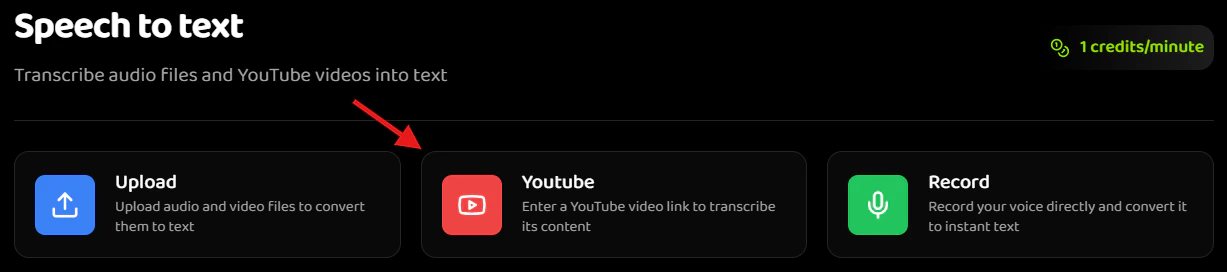
1. **Navigate to Speech to Text**
* Go to the Speech to Text section
* Click the **"YouTube"** button in the action buttons area
3. **Select File**
* **Drag and Drop**: Drag a file from your file explorer into the upload area
* **Click to Browse**: Click the upload area to open file picker
* **Single File**: Select one file at a time
* File appears below the upload area
4. **File Validation**
* System validates file format immediately
* Invalid files are rejected with error message
* File size is checked (must be under 200MB)
5. **Enter Job Details**
* **Title**: Auto-filled from filename, can be edited
* Example: "Meeting Recording - January 15"
* Example: "Customer Interview - Product Feedback"
* **Primary Language**: Select the language spoken in the audio
* Default: Arabic
* Options: Arabic, English
* Title field updates automatically when file is selected
6. **Review File**
* Check file name is correct
* Verify file details are accurate
* Remove file if needed (click X button)
7. **Submit for Processing**
* Click **"Upload"** button
* File uploads to the server
* Transcription job is created
* You're redirected to the jobs list
Once uploaded, file cannot be modified. Ensure you upload the correct file and enter accurate metadata before submitting.
### File Upload Best Practices
**File Preparation:**
* Ensure files are not corrupted or password-protected
* Verify audio quality is sufficient for transcription
* Use clear, descriptive filenames before uploading
* Compress very large files if possible (while maintaining quality)
**Content Quality:**
* Clear audio with minimal background noise
* Single language per file (multi-language may reduce accuracy)
* Adequate volume levels
* Minimal echo or distortion
**Example Filenames:**
```
Good: "Team_Meeting_2024_01_15.mp3"
Good: "Customer_Interview_Product_X.wav"
Bad: "recording.mp3"
Bad: "file_final_final_v2.mp4"
```
### File Upload Limitations
* **Maximum file size**: 200MB per file
* **Maximum files per upload**: 1 file
* **Processing time**: 1-5 minutes per file (depends on length)
* **File format**: Must match supported formats exactly
### Upload Process Details
After clicking "Upload", the system:
1. **Upload Phase**: File uploads to secure storage
* Progress indicator shows upload status
* Upload time depends on file size and connection speed
2. **Validation Phase**: System validates files
* Format verification
* Size verification
* Audio track detection (for video files)
3. **Job Creation**: Transcription job created
* Job ID assigned
* Status set to "PENDING"
* Job appears in jobs list
4. **Processing Starts**: Transcription begins automatically
* Status changes to "IN\_PROGRESS"
* Real-time status updates available
* Completion notification when done
Each uploaded file creates a separate transcription job. You can upload one file at a time to create transcription jobs.
## Creating YouTube Link Transcriptions
YouTube link transcription allows you to transcribe videos directly from YouTube without downloading them.
### When to Use YouTube Links
YouTube links are ideal for:
* Public YouTube videos
* Video content you don't have downloaded
* Online video transcription
* Quick transcription without file handling
* Videos already on YouTube
### Requirements
| Field | Requirement | Validation |
| --------------- | ----------- | -------------------------------------- |
| **YouTube URL** | Required | Valid YouTube video URL |
| **Title** | Required | Auto-filled from video title, editable |
| **Language** | Required | Select from language dropdown |
### URL Validation Rules
**Required Format:**
* Must be a valid YouTube URL
* Formats supported:
* `https://www.youtube.com/watch?v=VIDEO_ID`
* `https://youtu.be/VIDEO_ID`
* `https://youtube.com/watch?v=VIDEO_ID`
**Not Supported:**
* Private or unlisted videos (unless you have access)
* Videos with age restrictions
* Live streams (completed streams only)
* Videos longer than 2 hours (processing limitations)
### Step-by-Step Process
1. **Navigate to Speech to Text**
* Go to the Speech to Text section
* Click the **"YouTube"** button in the action buttons area
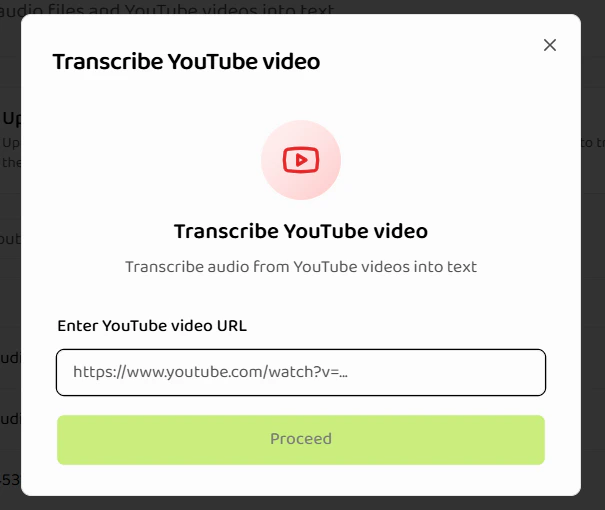
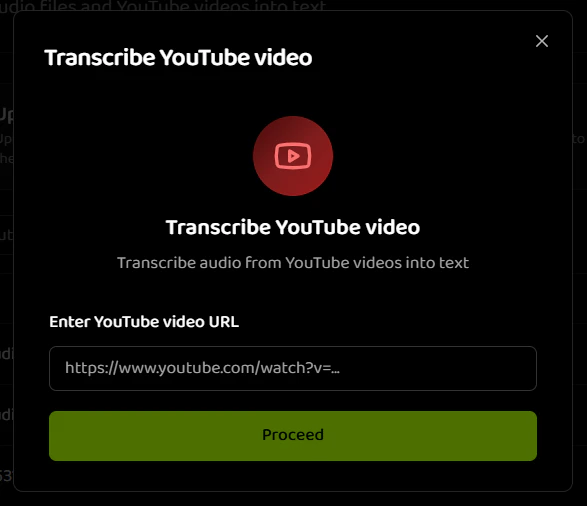
 2. **Open YouTube Modal**
* The "Transcribe YouTube Video" modal opens
* You'll see URL input field
2. **Open YouTube Modal**
* The "Transcribe YouTube Video" modal opens
* You'll see URL input field
 3. **Enter YouTube URL**
* Paste or type the YouTube video URL
* URL validation happens in real-time
* Valid URLs show green checkmark
* Invalid URLs show error message
4. **URL Validation**
* System validates URL format
* Checks if video is accessible
* Retrieves video metadata
* Status indicator shows validation progress
5. **Video Information**
* Video title is retrieved automatically
* Title field is auto-filled
* You can edit the title if needed
6. **Enter Job Details**
* **Title**: Auto-filled from video title, can be edited
* Example: "Product Demo Video - January 2024"
* Example: "Tutorial: Getting Started Guide"
* **Primary Language**: Select the language spoken in the video
* Default: Arabic
* Options: Arabic, English
7. **Submit for Processing**
* Click **"Submit"** button
* System extracts audio from video
* Transcription job is created
* You're redirected to the jobs list
YouTube videos must be publicly accessible. Private or unlisted videos may fail if you don't have proper access permissions.
### YouTube URL Examples
**Standard YouTube URL:**
```
https://www.youtube.com/watch?v=dQw4w9WgXcQ
```
**Short YouTube URL:**
```
https://youtu.be/dQw4w9WgXcQ
```
**With Timestamp:**
```
https://www.youtube.com/watch?v=dQw4w9WgXcQ&t=120s
(Note: Timestamp is ignored, entire video is transcribed)
```
### YouTube Processing Details
The system:
1. **Video Access**: Validates video is accessible
2. **Audio Extraction**: Downloads and extracts audio track
3. **Job Creation**: Creates transcription job
4. **Processing**: Transcribes extracted audio
5. **Completion**: Video title and metadata preserved
YouTube transcription uses the same processing pipeline as file uploads. The only difference is the source of the audio file.
## Creating Live Recording Transcriptions
Live recording allows you to record audio directly in your browser and transcribe it immediately.
### When to Use Live Recording
Live recording is ideal for:
* Quick voice notes
* Immediate transcription needs
* Testing and practice
* Interviews or conversations
* Real-time recording scenarios
### Requirements
| Field | Requirement | Notes |
| --------------------- | ----------- | ----------------------------- |
| **Recording** | Required | Minimum 30 seconds |
| **Title** | Required | Enter descriptive title |
| **Language** | Required | Select from language dropdown |
| **Microphone Access** | Required | Browser permission needed |
### Browser Compatibility
**Supported Browsers:**
* Chrome (recommended)
* Firefox
* Edge
* Safari (with limitations)
**Requirements:**
* Microphone access permission
* HTTPS connection (required for microphone access)
* Modern browser with MediaRecorder API support
### Step-by-Step Process
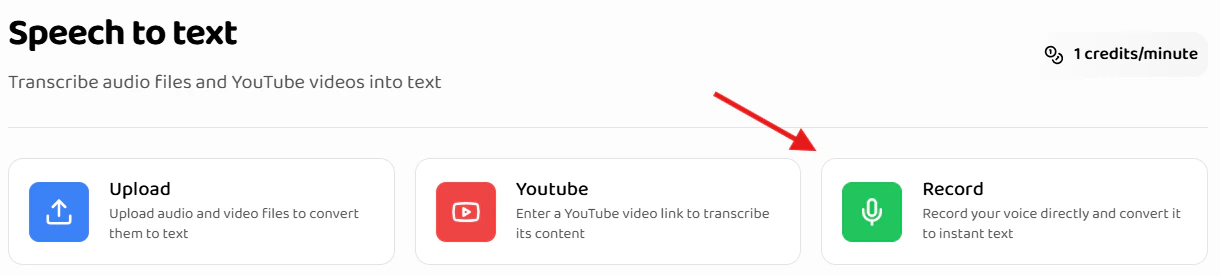
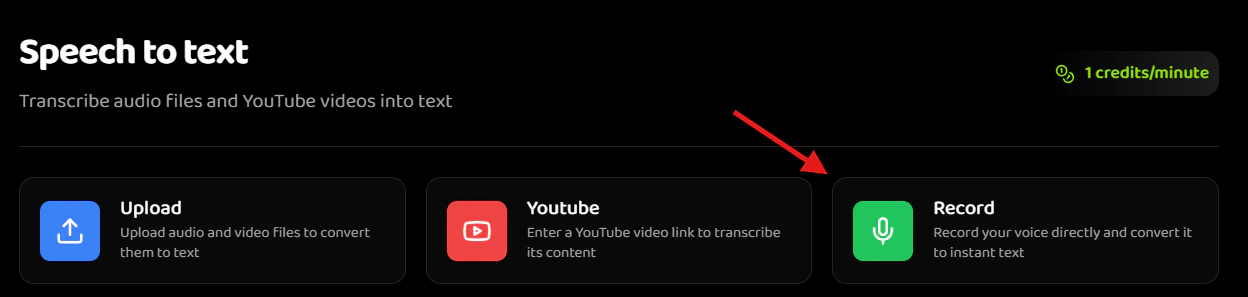
1. **Navigate to Speech to Text**
* Go to the Speech to Text section
* Click the **"Record"** button in the action buttons area
3. **Enter YouTube URL**
* Paste or type the YouTube video URL
* URL validation happens in real-time
* Valid URLs show green checkmark
* Invalid URLs show error message
4. **URL Validation**
* System validates URL format
* Checks if video is accessible
* Retrieves video metadata
* Status indicator shows validation progress
5. **Video Information**
* Video title is retrieved automatically
* Title field is auto-filled
* You can edit the title if needed
6. **Enter Job Details**
* **Title**: Auto-filled from video title, can be edited
* Example: "Product Demo Video - January 2024"
* Example: "Tutorial: Getting Started Guide"
* **Primary Language**: Select the language spoken in the video
* Default: Arabic
* Options: Arabic, English
7. **Submit for Processing**
* Click **"Submit"** button
* System extracts audio from video
* Transcription job is created
* You're redirected to the jobs list
YouTube videos must be publicly accessible. Private or unlisted videos may fail if you don't have proper access permissions.
### YouTube URL Examples
**Standard YouTube URL:**
```
https://www.youtube.com/watch?v=dQw4w9WgXcQ
```
**Short YouTube URL:**
```
https://youtu.be/dQw4w9WgXcQ
```
**With Timestamp:**
```
https://www.youtube.com/watch?v=dQw4w9WgXcQ&t=120s
(Note: Timestamp is ignored, entire video is transcribed)
```
### YouTube Processing Details
The system:
1. **Video Access**: Validates video is accessible
2. **Audio Extraction**: Downloads and extracts audio track
3. **Job Creation**: Creates transcription job
4. **Processing**: Transcribes extracted audio
5. **Completion**: Video title and metadata preserved
YouTube transcription uses the same processing pipeline as file uploads. The only difference is the source of the audio file.
## Creating Live Recording Transcriptions
Live recording allows you to record audio directly in your browser and transcribe it immediately.
### When to Use Live Recording
Live recording is ideal for:
* Quick voice notes
* Immediate transcription needs
* Testing and practice
* Interviews or conversations
* Real-time recording scenarios
### Requirements
| Field | Requirement | Notes |
| --------------------- | ----------- | ----------------------------- |
| **Recording** | Required | Minimum 30 seconds |
| **Title** | Required | Enter descriptive title |
| **Language** | Required | Select from language dropdown |
| **Microphone Access** | Required | Browser permission needed |
### Browser Compatibility
**Supported Browsers:**
* Chrome (recommended)
* Firefox
* Edge
* Safari (with limitations)
**Requirements:**
* Microphone access permission
* HTTPS connection (required for microphone access)
* Modern browser with MediaRecorder API support
### Step-by-Step Process
1. **Navigate to Speech to Text**
* Go to the Speech to Text section
* Click the **"Record"** button in the action buttons area
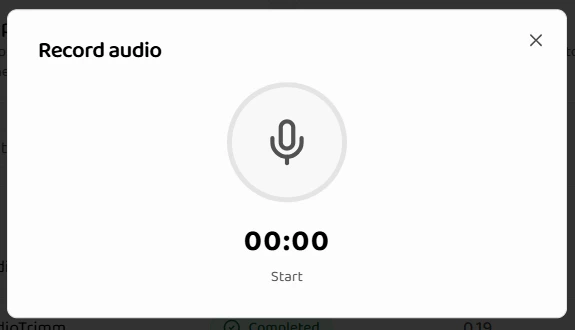
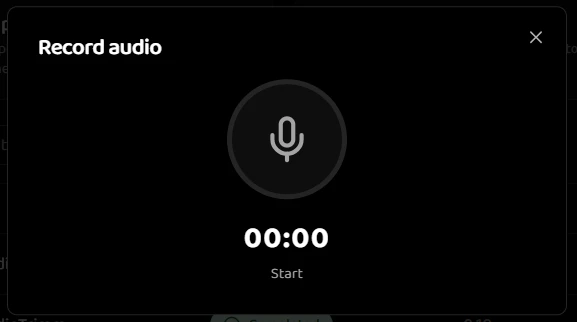
 2. **Open Record Modal**
* The "Record Audio" modal opens
* You'll see recording interface
2. **Open Record Modal**
* The "Record Audio" modal opens
* You'll see recording interface
 3. **Grant Microphone Permission**
* Browser requests microphone access
* Click **"Allow"** to grant permission
* Permission is remembered for future recordings
4. **Prepare for Recording**
* Ensure microphone is working
* Test audio levels (visual indicator)
* Find quiet environment if possible
* Position yourself near microphone
5. **Start Recording**
* Click the **"Record"** button (microphone icon)
* Recording starts immediately
* Timer shows recording duration
* Visual indicator shows recording is active
6. **During Recording**
* **Pause**: Click pause button to temporarily stop
* **Resume**: Click resume to continue recording
* **Stop**: Click stop when finished
* Minimum recording: 30 seconds
* Maximum recommended: 2 hours
3. **Grant Microphone Permission**
* Browser requests microphone access
* Click **"Allow"** to grant permission
* Permission is remembered for future recordings
4. **Prepare for Recording**
* Ensure microphone is working
* Test audio levels (visual indicator)
* Find quiet environment if possible
* Position yourself near microphone
5. **Start Recording**
* Click the **"Record"** button (microphone icon)
* Recording starts immediately
* Timer shows recording duration
* Visual indicator shows recording is active
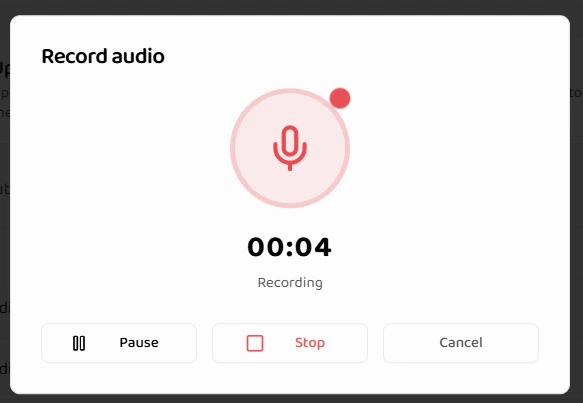
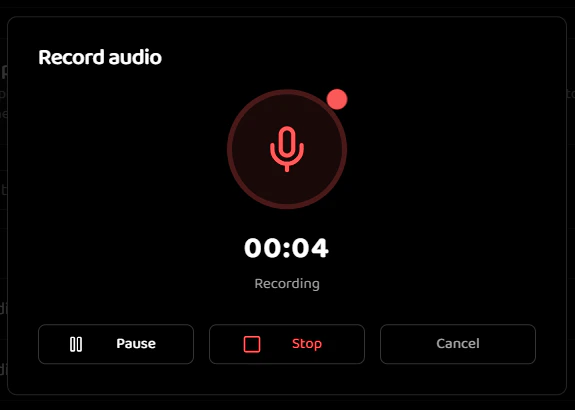
6. **During Recording**
* **Pause**: Click pause button to temporarily stop
* **Resume**: Click resume to continue recording
* **Stop**: Click stop when finished
* Minimum recording: 30 seconds
* Maximum recommended: 2 hours
 7. **Stop Recording**
* Click **"Stop"** button
* Recording is finalized
* Audio preview is available
* You can review before submitting
8. **Review Recording**
* Playback available to review
* Check audio quality
* Delete and re-record if needed
* Recording duration displayed
7. **Stop Recording**
* Click **"Stop"** button
* Recording is finalized
* Audio preview is available
* You can review before submitting
8. **Review Recording**
* Playback available to review
* Check audio quality
* Delete and re-record if needed
* Recording duration displayed
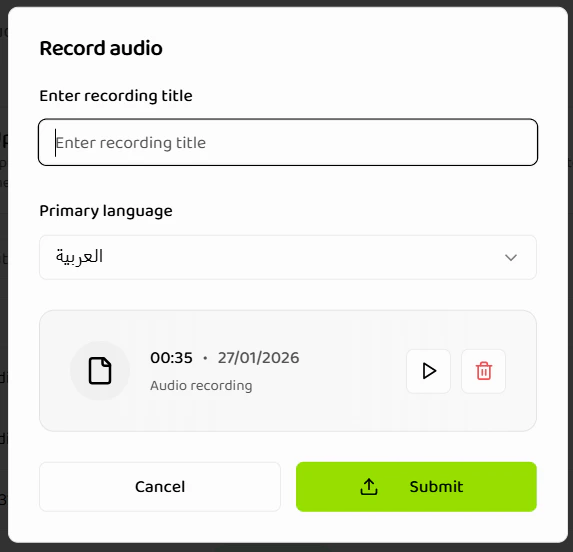
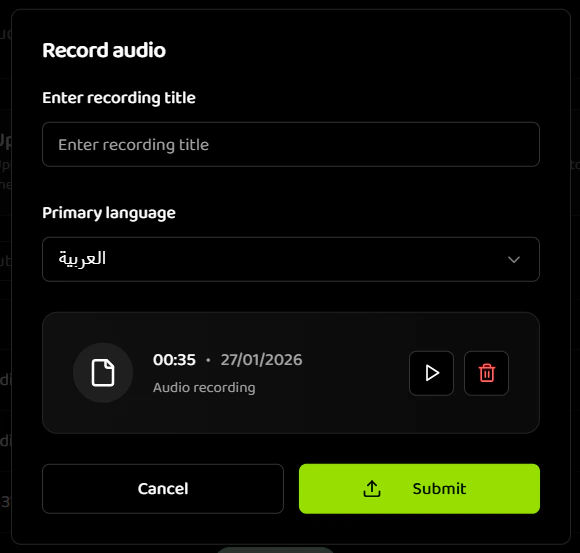 9. **Enter Job Details**
* **Title**: Enter descriptive title
* Example: "Voice Note - Project Ideas"
* Example: "Interview Recording - Candidate Name"
* **Primary Language**: Select language spoken
* Default: Arabic
* Options: Arabic, English
10. **Submit for Processing**
* Click **"Submit"** button
* Recording is saved and uploaded
* Transcription job is created
* You're redirected to the jobs list
Browser-based recording quality depends on your microphone and environment. For best results, use a good quality microphone in a quiet environment.
### Recording Controls
**Record Button:**
* Starts recording session
* Changes to pause/stop when active
* Visual feedback (pulsing animation)
**Pause/Resume:**
* Temporarily stops recording
* Resumes from same point
* Timer pauses during pause
**Stop Button:**
* Finalizes recording
* Prepares audio for submission
* Cannot resume after stopping
**Delete Recording:**
* Removes current recording
* Returns to start state
* Must re-record to continue
### Recording Best Practices
**Environment:**
* Use quiet room with minimal background noise
* Close windows to reduce external noise
* Turn off notifications on devices
* Use headset microphone if available
**Speaking:**
* Speak clearly and at moderate pace
* Maintain consistent distance from microphone
* Avoid covering microphone
* Pause naturally between thoughts
**Technical:**
* Test microphone before important recordings
* Check browser permissions
* Ensure stable internet connection
* Close unnecessary browser tabs
### Recording Limitations
* **Minimum duration**: 30 seconds
* **Maximum duration**: 2 hours (recommended)
* **Quality**: Depends on microphone and browser
* **Format**: Browser-encoded audio format
* **Network**: Requires stable connection for upload
## Language Selection
All transcription methods require selecting the primary language.
### Available Languages
* **Arabic** (default)
* **English**
### Language Selection Guidelines
**Single Language:**
* Select the primary language spoken
* Best accuracy when one language is dominant
* Mixed language may reduce accuracy
**Language Detection:**
* System attempts automatic detection
* Manual selection recommended for accuracy
* Incorrect language selection affects quality
Selecting the correct language significantly improves transcription accuracy. Choose the language that represents the majority of spoken content.
## Job Status and Processing
After creating a transcription job, it goes through these states:
### Processing States
| Status | Description | Duration | Actions Available |
| ------------- | ------------------------- | --------------------- | -------------------------- |
| **PENDING** | Transcription in progress | 1-5 minutes (typical) | Wait, view progress |
| **COMPLETED** | Transcription finished | - | View, edit, export, delete |
| **FAILED** | Processing error occurred | - | View error, delete, retry |
### Monitoring Job Status
**Jobs List:**
* View all transcription jobs
* Status indicator for each job
* Sort and filter by status
* Real-time status updates
**Job Details:**
* Detailed status information
* Processing progress (if available)
* Error messages (if failed)
* Completion timestamp
### Processing Time Estimates
| File Length | Estimated Processing Time |
| ------------- | ------------------------- |
| 1-5 minutes | 1-2 minutes |
| 5-15 minutes | 2-4 minutes |
| 15-30 minutes | 4-8 minutes |
| 30-60 minutes | 8-15 minutes |
| 1-2 hours | 15-30 minutes |
Processing times are estimates. Actual time depends on audio quality, language complexity, and system load. Very long files (2+ hours) may take
significantly longer.
## Validation and Error Handling
### File Upload Validation
**File Format Errors:**
* "Invalid file type" - File extension not supported
* "File too large" - Exceeds 200MB limit
* "Corrupted file" - File cannot be read
**Solutions:**
* Verify file format matches supported types
* Compress large files or split into smaller files
* Re-export corrupted files from source
### YouTube URL Validation
**URL Errors:**
* "Invalid YouTube URL" - URL format incorrect
* "Video not accessible" - Private or restricted video
* "Video too long" - Exceeds processing limits
**Solutions:**
* Verify URL format matches YouTube URL patterns
* Ensure video is publicly accessible
* Use shorter videos or split long videos
### Recording Validation
**Recording Errors:**
* "Microphone access denied" - Permission not granted
* "Recording too short" - Less than 30 seconds
* "Audio quality insufficient" - Poor recording quality
**Solutions:**
* Grant microphone permissions in browser settings
* Record for at least 30 seconds
* Improve recording environment and equipment
### Processing Errors
**Common Processing Errors:**
* "Audio extraction failed" - Cannot extract audio from video
* "Transcription failed" - Processing error occurred
* "Language detection failed" - Cannot determine language
**Solutions:**
* Check file is not corrupted
* Verify language selection is correct
* Try re-uploading with different settings
* Contact support if errors persist
## Best Practices
### File Organization
**Naming Conventions:**
* Use descriptive, consistent names
* Include dates for chronological organization
* Use clear naming patterns
**Examples:**
```
Good: "Team_Meeting_2024_01_15.mp3"
Good: "Customer_Interview_Product_Feedback.wav"
Bad: "recording1.mp3"
Bad: "audio_final_v3.mp4"
```
### Content Preparation
**Audio Quality:**
* Use clear, high-quality recordings
* Minimize background noise
* Ensure adequate volume levels
* Avoid echo and distortion
**File Management:**
* Keep original files as backup
* Organize files before uploading
* Verify file integrity before upload
* Archive completed transcriptions
### Workflow Optimization
**Batch Processing:**
* Upload one file at a time
* Process files sequentially
* Use consistent naming for organization
* Track processing status
**Quality Control:**
* Review transcriptions after completion
* Edit transcripts for accuracy
* Organize speakers properly
* Export in appropriate formats
## Next Steps
After creating transcription jobs:
1. **[Managing Transcripts](./managing-transcripts)** - Organize and manage your transcription jobs
2. **[Speaker Management](./speaker-management)** - Work with speaker separation and identification
3. **[Export Options](./export-options)** - Export transcripts in various formats
4. **[Overview](./overview)** - Learn about Speech to Text features
## Related Documentation
Organize and manage your transcription jobs
Work with speaker separation and identification
Export transcripts in multiple formats
Learn about Speech to Text features
9. **Enter Job Details**
* **Title**: Enter descriptive title
* Example: "Voice Note - Project Ideas"
* Example: "Interview Recording - Candidate Name"
* **Primary Language**: Select language spoken
* Default: Arabic
* Options: Arabic, English
10. **Submit for Processing**
* Click **"Submit"** button
* Recording is saved and uploaded
* Transcription job is created
* You're redirected to the jobs list
Browser-based recording quality depends on your microphone and environment. For best results, use a good quality microphone in a quiet environment.
### Recording Controls
**Record Button:**
* Starts recording session
* Changes to pause/stop when active
* Visual feedback (pulsing animation)
**Pause/Resume:**
* Temporarily stops recording
* Resumes from same point
* Timer pauses during pause
**Stop Button:**
* Finalizes recording
* Prepares audio for submission
* Cannot resume after stopping
**Delete Recording:**
* Removes current recording
* Returns to start state
* Must re-record to continue
### Recording Best Practices
**Environment:**
* Use quiet room with minimal background noise
* Close windows to reduce external noise
* Turn off notifications on devices
* Use headset microphone if available
**Speaking:**
* Speak clearly and at moderate pace
* Maintain consistent distance from microphone
* Avoid covering microphone
* Pause naturally between thoughts
**Technical:**
* Test microphone before important recordings
* Check browser permissions
* Ensure stable internet connection
* Close unnecessary browser tabs
### Recording Limitations
* **Minimum duration**: 30 seconds
* **Maximum duration**: 2 hours (recommended)
* **Quality**: Depends on microphone and browser
* **Format**: Browser-encoded audio format
* **Network**: Requires stable connection for upload
## Language Selection
All transcription methods require selecting the primary language.
### Available Languages
* **Arabic** (default)
* **English**
### Language Selection Guidelines
**Single Language:**
* Select the primary language spoken
* Best accuracy when one language is dominant
* Mixed language may reduce accuracy
**Language Detection:**
* System attempts automatic detection
* Manual selection recommended for accuracy
* Incorrect language selection affects quality
Selecting the correct language significantly improves transcription accuracy. Choose the language that represents the majority of spoken content.
## Job Status and Processing
After creating a transcription job, it goes through these states:
### Processing States
| Status | Description | Duration | Actions Available |
| ------------- | ------------------------- | --------------------- | -------------------------- |
| **PENDING** | Transcription in progress | 1-5 minutes (typical) | Wait, view progress |
| **COMPLETED** | Transcription finished | - | View, edit, export, delete |
| **FAILED** | Processing error occurred | - | View error, delete, retry |
### Monitoring Job Status
**Jobs List:**
* View all transcription jobs
* Status indicator for each job
* Sort and filter by status
* Real-time status updates
**Job Details:**
* Detailed status information
* Processing progress (if available)
* Error messages (if failed)
* Completion timestamp
### Processing Time Estimates
| File Length | Estimated Processing Time |
| ------------- | ------------------------- |
| 1-5 minutes | 1-2 minutes |
| 5-15 minutes | 2-4 minutes |
| 15-30 minutes | 4-8 minutes |
| 30-60 minutes | 8-15 minutes |
| 1-2 hours | 15-30 minutes |
Processing times are estimates. Actual time depends on audio quality, language complexity, and system load. Very long files (2+ hours) may take
significantly longer.
## Validation and Error Handling
### File Upload Validation
**File Format Errors:**
* "Invalid file type" - File extension not supported
* "File too large" - Exceeds 200MB limit
* "Corrupted file" - File cannot be read
**Solutions:**
* Verify file format matches supported types
* Compress large files or split into smaller files
* Re-export corrupted files from source
### YouTube URL Validation
**URL Errors:**
* "Invalid YouTube URL" - URL format incorrect
* "Video not accessible" - Private or restricted video
* "Video too long" - Exceeds processing limits
**Solutions:**
* Verify URL format matches YouTube URL patterns
* Ensure video is publicly accessible
* Use shorter videos or split long videos
### Recording Validation
**Recording Errors:**
* "Microphone access denied" - Permission not granted
* "Recording too short" - Less than 30 seconds
* "Audio quality insufficient" - Poor recording quality
**Solutions:**
* Grant microphone permissions in browser settings
* Record for at least 30 seconds
* Improve recording environment and equipment
### Processing Errors
**Common Processing Errors:**
* "Audio extraction failed" - Cannot extract audio from video
* "Transcription failed" - Processing error occurred
* "Language detection failed" - Cannot determine language
**Solutions:**
* Check file is not corrupted
* Verify language selection is correct
* Try re-uploading with different settings
* Contact support if errors persist
## Best Practices
### File Organization
**Naming Conventions:**
* Use descriptive, consistent names
* Include dates for chronological organization
* Use clear naming patterns
**Examples:**
```
Good: "Team_Meeting_2024_01_15.mp3"
Good: "Customer_Interview_Product_Feedback.wav"
Bad: "recording1.mp3"
Bad: "audio_final_v3.mp4"
```
### Content Preparation
**Audio Quality:**
* Use clear, high-quality recordings
* Minimize background noise
* Ensure adequate volume levels
* Avoid echo and distortion
**File Management:**
* Keep original files as backup
* Organize files before uploading
* Verify file integrity before upload
* Archive completed transcriptions
### Workflow Optimization
**Batch Processing:**
* Upload one file at a time
* Process files sequentially
* Use consistent naming for organization
* Track processing status
**Quality Control:**
* Review transcriptions after completion
* Edit transcripts for accuracy
* Organize speakers properly
* Export in appropriate formats
## Next Steps
After creating transcription jobs:
1. **[Managing Transcripts](./managing-transcripts)** - Organize and manage your transcription jobs
2. **[Speaker Management](./speaker-management)** - Work with speaker separation and identification
3. **[Export Options](./export-options)** - Export transcripts in various formats
4. **[Overview](./overview)** - Learn about Speech to Text features
## Related Documentation
Organize and manage your transcription jobs
Work with speaker separation and identification
Export transcripts in multiple formats
Learn about Speech to Text features