> ## Documentation Index
> Fetch the complete documentation index at: https://docs.tryhamsa.com/llms.txt
> Use this file to discover all available pages before exploring further.
# Status Lifecycle and Processing
> Understand item processing states, status tracking, and error handling
## Overview
Knowledge base items automatically progress through processing states until they reach a terminal state. Understanding these states helps you monitor item creation and troubleshoot issues.
Processing happens automatically after item creation. You don't need to manually trigger processing - the system handles it for you.
## Processing States
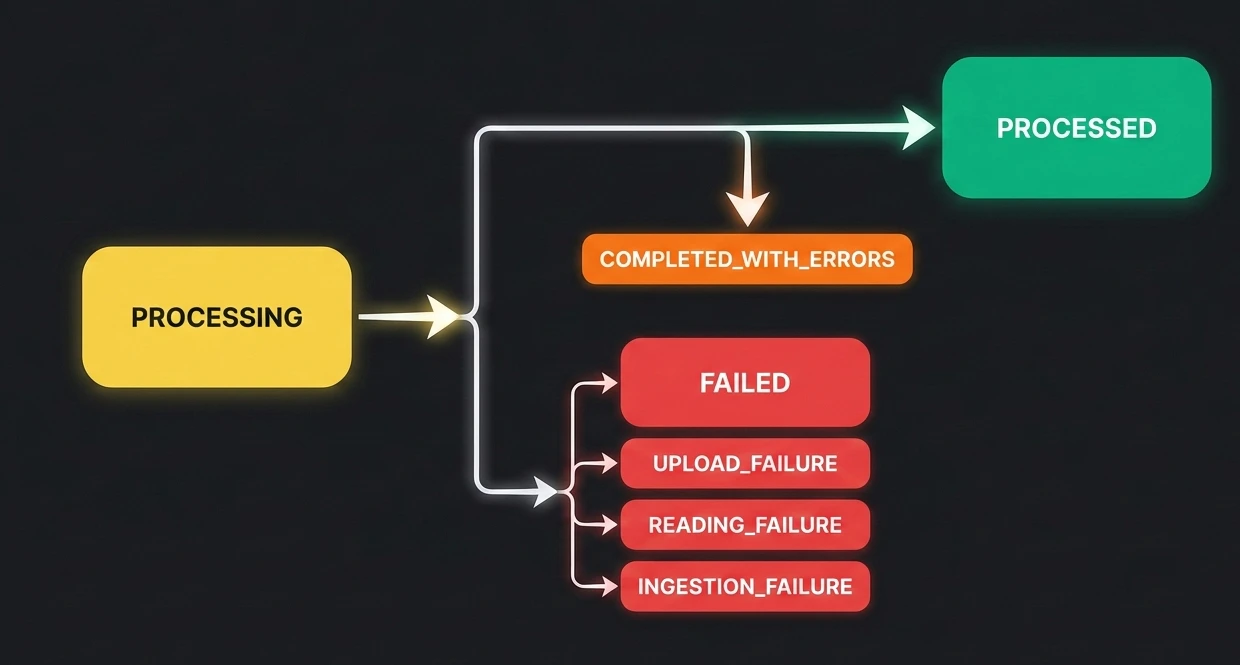
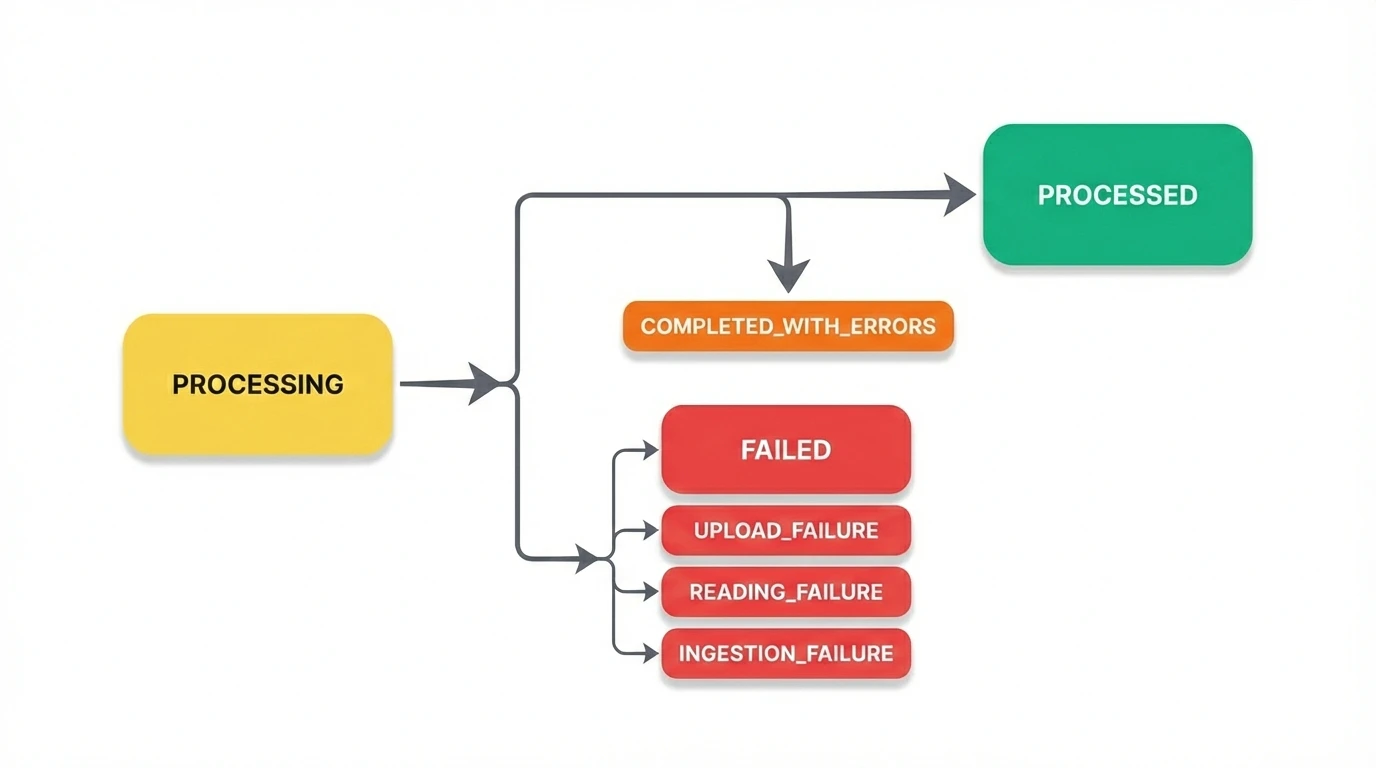
Knowledge base items move through the following states:
 ### Terminal States
These are final states that items reach after processing:
| Status | Description | Action Required |
| --------------------------- | ----------------------------------------------------------------------------------------------------------- | ---------------------- |
| **PROCESSED** | Item processed successfully and ready (shown as "completed" in dashboard, returned as `PROCESSED` from API) | None - ready to use |
| **FAILED** | Fatal processing error | Review error and retry |
| **COMPLETED\_WITH\_ERRORS** | Processing completed with some errors | Review warnings |
| **UPLOAD\_FAILURE** | File upload failed | Check file and retry |
| **READING\_FAILURE** | Failed to read file | Verify file format |
| **INGESTION\_FAILURE** | Failed to ingest content | Check content quality |
### Intermediate States
| Status | Description | Duration |
| --------------------- | ----------------------- | -------------- |
| **PROCESSING** (null) | Item is being processed | Varies by type |
## Status by Item Type
### Text Items
**Processing Flow:**
1. **PROCESSING** → **PROCESSED** (instant)
**Common Issues:**
* None (text items process instantly)
### File Items
**Processing Flow:**
1. **PROCESSING** (Upload) → **PROCESSING** (Reading) → **PROCESSING** (Ingestion) → **PROCESSED**
**Duration:**
* Depends on the uploaded file (varies by size and complexity)
**Common Failure Points:**
* **UPLOAD\_FAILURE**: Network issues, file too large
* **READING\_FAILURE**: Corrupted file, unsupported format, password-protected
* **INGESTION\_FAILURE**: Content extraction issues, complex formatting
### URL Items
**Processing Flow:**
1. **PROCESSING** (Scraping) → **PROCESSED** or **FAILED**
**Duration:**
* Depends on the content and nested links (varies by page complexity and number of links)
**Common Failure Points:**
* **FAILED**: URL not accessible, requires authentication, blocked by site
* **COMPLETED\_WITH\_ERRORS**: Some URLs failed, others succeeded
## Status Details
### PROCESSED
**Meaning:** Item has been successfully processed and is ready for use.
**Characteristics:**
* ✅ Green status indicator
* Available for selection in agents
* Content is indexed and searchable
* No action required
**What Happens:**
* Content is extracted and indexed
* Item appears in knowledge base list
* Can be assigned to agents
* Ready for retrieval during conversations
### PROCESSING
**Meaning:** Item is currently being processed.
**Characteristics:**
* 🟡 Yellow status indicator
* Not yet available for use
* Processing in progress
* Wait for PROCESSED status (shown as "completed" in dashboard)
**What Happens:**
* System is extracting content
* Content is being indexed
* Processing stages vary by type
**For File Items:**
1. **Upload Stage**: File is being uploaded to server
2. **Reading Stage**: Content is being extracted from file
3. **Ingestion Stage**: Content is being indexed for retrieval
**For URL Items:**
1. **Scraping Stage**: Web page content is being fetched
2. **Extraction Stage**: Text content is being extracted
3. **Indexing Stage**: Content is being indexed
Processing times vary based on item size and complexity. Large files or complex web pages take longer to process.
### FAILED
**Meaning:** Fatal error occurred during processing.
**Characteristics:**
* 🔴 Red status indicator
* Item cannot be used
* Error message displayed
* Action required
**Common Causes:**
* **URL Items**: Site blocked scraping, requires authentication, URL not accessible
* **File Items**: Corrupted file, unsupported format
* **Network Issues**: Connection timeout, server error
**Resolution:**
1. Review error message in item details
2. Check item content/source
3. Fix the issue (if possible)
4. Delete failed item and recreate
Failed items cannot be used in agents. You must fix the issue and recreate the item.
### COMPLETED\_WITH\_ERRORS
**Meaning:** Processing completed but some parts failed.
**Characteristics:**
* 🟠 Orange status indicator
* Partially usable
* Some content may be missing
* Review recommended
**Common Scenarios:**
* **URL Items**: Some URLs in a multi-URL item failed
* **File Items**: Some pages/sections couldn't be extracted
**Resolution:**
1. Review item details for specific errors
2. Check which parts failed
3. Decide if item is usable as-is
4. Delete and recreate if too many errors
### UPLOAD\_FAILURE
**Meaning:** File upload to server failed.
**Characteristics:**
* 🔴 Red status indicator
* File never reached server
* Upload stage failed
**Common Causes:**
* File size exceeds 21MB limit
* Network connection interrupted
* Server temporarily unavailable
* File corruption during upload
**Resolution:**
1. Check file size (must be \< 21MB)
2. Verify network connection
3. Try uploading again
4. Compress file if too large
### READING\_FAILURE
**Meaning:** System couldn't read/extract content from file.
**Characteristics:**
* 🔴 Red status indicator
* File uploaded but content couldn't be extracted
* Reading stage failed
**Common Causes:**
* File is password-protected
* File is corrupted
* Unsupported file format
* File contains only images (no extractable text)
* Complex formatting that parser can't handle
**Resolution:**
1. Remove password protection
2. Verify file opens correctly on your computer
3. Ensure file is in supported format
4. Save file in simpler format (e.g., .txt)
5. Ensure file contains extractable text
### INGESTION\_FAILURE
**Meaning:** Content extracted but couldn't be indexed.
**Characteristics:**
* 🔴 Red status indicator
* Content read but indexing failed
* Ingestion stage failed
**Common Causes:**
* Content quality issues
* Extremely complex formatting
* Content too large for processing
* Server-side processing error
**Resolution:**
1. Check content quality
2. Simplify file formatting
3. Break into smaller items
4. Try recreating with different format
## Status Tracking
### Real-Time Updates
Status updates happen in real-time:
* Status changes automatically
* No page refresh needed
* Visual indicators update immediately
### Status Indicators
**Visual Colors:**
* 🟢 **Green**: Success (PROCESSED)
* 🟡 **Yellow**: In Progress (PROCESSING)
* 🔴 **Red**: Failed (FAILED, UPLOAD\_FAILURE, READING\_FAILURE, INGESTION\_FAILURE)
* 🟠 **Orange**: Warning (COMPLETED\_WITH\_ERRORS)
### Status in List View
The list view shows:
* Current status with color indicator
* Status text label
* Quick visual reference
### Status in Details Drawer
The details drawer shows:
* Current status
* Detailed status information
* Error messages (if failed)
* Processing history (if available)
## Error Handling
### Error Messages
When an item fails, you'll see:
* **Status**: Failed state (FAILED, UPLOAD\_FAILURE, etc.)
* **Error Message**: Brief description of the issue
* **Failure Reason**: Detailed explanation (in drawer)
### Common Error Messages
**File Upload Errors:**
* "File size exceeds 21MB limit"
* "Upload failed. Please try again."
* "Network error during upload"
**File Reading Errors:**
* "File is password-protected"
* "Could not read file format"
* "File appears to be corrupted"
* "No extractable text found in file"
**URL Scraping Errors:**
* "URL is not accessible"
* "Site requires authentication"
* "Scraping blocked by website"
* "Invalid URL format"
* "Media URL not supported"
**Content Ingestion Errors:**
* "Content could not be indexed"
* "Processing timeout"
* "Content format not supported"
### Error Resolution
**Step 1: Review Error**
* Open item details drawer
* Read error message and failure reason
* Understand what went wrong
**Step 2: Identify Cause**
* Check item source/content
* Verify requirements are met
* Test item independently (open file, visit URL)
**Step 3: Fix Issue**
* Address the root cause
* Modify content if needed
* Ensure item meets requirements
**Step 4: Retry**
* Delete failed item
* Recreate with fixed content
* Monitor processing status
## Monitoring Processing
### During Creation
**What to Watch:**
* Status changes from PROCESSING to terminal state
* Processing time (varies by type and size)
* Any error messages
**Expected Behavior:**
* Text: Instant processing
* URL: Depends on content and nested links
* File: Depends on the uploaded file
### After Creation
**Check Status:**
* View list to see all item statuses
* Filter by status to find issues
* Open details for more information
**Regular Monitoring:**
* Review failed items weekly
* Check processing times
* Monitor for unusual patterns
## Troubleshooting
### Item Stuck in PROCESSING
**Possible Causes:**
* Very large file taking time
* Network issues
* Server processing delay
**Solutions:**
* Wait longer (up to 5 minutes for large files)
* Check network connection
* Refresh page to see updated status
* Contact support if stuck > 10 minutes
### Multiple Failures
**Possible Causes:**
* Systematic issue (network, server)
* Content quality problems
* Format incompatibility
**Solutions:**
* Check system status
* Review content quality
* Try different format
* Contact support if persistent
### Inconsistent Status
**Possible Causes:**
* Page not refreshed
* Cache issues
* Real-time update delay
**Solutions:**
* Refresh page
* Clear browser cache
* Wait a few seconds for updates
## Next Steps
* **[Managing Items](./managing-items)** - Organize and filter your items
* **[Creating Items](./creating-items)** - Learn how to create items properly
* **[Best Practices](./best-practices)** - Optimize your knowledge base
## Related Documentation
Learn how to create items that process successfully
Filter and manage items by status
Avoid common processing issues
### Terminal States
These are final states that items reach after processing:
| Status | Description | Action Required |
| --------------------------- | ----------------------------------------------------------------------------------------------------------- | ---------------------- |
| **PROCESSED** | Item processed successfully and ready (shown as "completed" in dashboard, returned as `PROCESSED` from API) | None - ready to use |
| **FAILED** | Fatal processing error | Review error and retry |
| **COMPLETED\_WITH\_ERRORS** | Processing completed with some errors | Review warnings |
| **UPLOAD\_FAILURE** | File upload failed | Check file and retry |
| **READING\_FAILURE** | Failed to read file | Verify file format |
| **INGESTION\_FAILURE** | Failed to ingest content | Check content quality |
### Intermediate States
| Status | Description | Duration |
| --------------------- | ----------------------- | -------------- |
| **PROCESSING** (null) | Item is being processed | Varies by type |
## Status by Item Type
### Text Items
**Processing Flow:**
1. **PROCESSING** → **PROCESSED** (instant)
**Common Issues:**
* None (text items process instantly)
### File Items
**Processing Flow:**
1. **PROCESSING** (Upload) → **PROCESSING** (Reading) → **PROCESSING** (Ingestion) → **PROCESSED**
**Duration:**
* Depends on the uploaded file (varies by size and complexity)
**Common Failure Points:**
* **UPLOAD\_FAILURE**: Network issues, file too large
* **READING\_FAILURE**: Corrupted file, unsupported format, password-protected
* **INGESTION\_FAILURE**: Content extraction issues, complex formatting
### URL Items
**Processing Flow:**
1. **PROCESSING** (Scraping) → **PROCESSED** or **FAILED**
**Duration:**
* Depends on the content and nested links (varies by page complexity and number of links)
**Common Failure Points:**
* **FAILED**: URL not accessible, requires authentication, blocked by site
* **COMPLETED\_WITH\_ERRORS**: Some URLs failed, others succeeded
## Status Details
### PROCESSED
**Meaning:** Item has been successfully processed and is ready for use.
**Characteristics:**
* ✅ Green status indicator
* Available for selection in agents
* Content is indexed and searchable
* No action required
**What Happens:**
* Content is extracted and indexed
* Item appears in knowledge base list
* Can be assigned to agents
* Ready for retrieval during conversations
### PROCESSING
**Meaning:** Item is currently being processed.
**Characteristics:**
* 🟡 Yellow status indicator
* Not yet available for use
* Processing in progress
* Wait for PROCESSED status (shown as "completed" in dashboard)
**What Happens:**
* System is extracting content
* Content is being indexed
* Processing stages vary by type
**For File Items:**
1. **Upload Stage**: File is being uploaded to server
2. **Reading Stage**: Content is being extracted from file
3. **Ingestion Stage**: Content is being indexed for retrieval
**For URL Items:**
1. **Scraping Stage**: Web page content is being fetched
2. **Extraction Stage**: Text content is being extracted
3. **Indexing Stage**: Content is being indexed
Processing times vary based on item size and complexity. Large files or complex web pages take longer to process.
### FAILED
**Meaning:** Fatal error occurred during processing.
**Characteristics:**
* 🔴 Red status indicator
* Item cannot be used
* Error message displayed
* Action required
**Common Causes:**
* **URL Items**: Site blocked scraping, requires authentication, URL not accessible
* **File Items**: Corrupted file, unsupported format
* **Network Issues**: Connection timeout, server error
**Resolution:**
1. Review error message in item details
2. Check item content/source
3. Fix the issue (if possible)
4. Delete failed item and recreate
Failed items cannot be used in agents. You must fix the issue and recreate the item.
### COMPLETED\_WITH\_ERRORS
**Meaning:** Processing completed but some parts failed.
**Characteristics:**
* 🟠 Orange status indicator
* Partially usable
* Some content may be missing
* Review recommended
**Common Scenarios:**
* **URL Items**: Some URLs in a multi-URL item failed
* **File Items**: Some pages/sections couldn't be extracted
**Resolution:**
1. Review item details for specific errors
2. Check which parts failed
3. Decide if item is usable as-is
4. Delete and recreate if too many errors
### UPLOAD\_FAILURE
**Meaning:** File upload to server failed.
**Characteristics:**
* 🔴 Red status indicator
* File never reached server
* Upload stage failed
**Common Causes:**
* File size exceeds 21MB limit
* Network connection interrupted
* Server temporarily unavailable
* File corruption during upload
**Resolution:**
1. Check file size (must be \< 21MB)
2. Verify network connection
3. Try uploading again
4. Compress file if too large
### READING\_FAILURE
**Meaning:** System couldn't read/extract content from file.
**Characteristics:**
* 🔴 Red status indicator
* File uploaded but content couldn't be extracted
* Reading stage failed
**Common Causes:**
* File is password-protected
* File is corrupted
* Unsupported file format
* File contains only images (no extractable text)
* Complex formatting that parser can't handle
**Resolution:**
1. Remove password protection
2. Verify file opens correctly on your computer
3. Ensure file is in supported format
4. Save file in simpler format (e.g., .txt)
5. Ensure file contains extractable text
### INGESTION\_FAILURE
**Meaning:** Content extracted but couldn't be indexed.
**Characteristics:**
* 🔴 Red status indicator
* Content read but indexing failed
* Ingestion stage failed
**Common Causes:**
* Content quality issues
* Extremely complex formatting
* Content too large for processing
* Server-side processing error
**Resolution:**
1. Check content quality
2. Simplify file formatting
3. Break into smaller items
4. Try recreating with different format
## Status Tracking
### Real-Time Updates
Status updates happen in real-time:
* Status changes automatically
* No page refresh needed
* Visual indicators update immediately
### Status Indicators
**Visual Colors:**
* 🟢 **Green**: Success (PROCESSED)
* 🟡 **Yellow**: In Progress (PROCESSING)
* 🔴 **Red**: Failed (FAILED, UPLOAD\_FAILURE, READING\_FAILURE, INGESTION\_FAILURE)
* 🟠 **Orange**: Warning (COMPLETED\_WITH\_ERRORS)
### Status in List View
The list view shows:
* Current status with color indicator
* Status text label
* Quick visual reference
### Status in Details Drawer
The details drawer shows:
* Current status
* Detailed status information
* Error messages (if failed)
* Processing history (if available)
## Error Handling
### Error Messages
When an item fails, you'll see:
* **Status**: Failed state (FAILED, UPLOAD\_FAILURE, etc.)
* **Error Message**: Brief description of the issue
* **Failure Reason**: Detailed explanation (in drawer)
### Common Error Messages
**File Upload Errors:**
* "File size exceeds 21MB limit"
* "Upload failed. Please try again."
* "Network error during upload"
**File Reading Errors:**
* "File is password-protected"
* "Could not read file format"
* "File appears to be corrupted"
* "No extractable text found in file"
**URL Scraping Errors:**
* "URL is not accessible"
* "Site requires authentication"
* "Scraping blocked by website"
* "Invalid URL format"
* "Media URL not supported"
**Content Ingestion Errors:**
* "Content could not be indexed"
* "Processing timeout"
* "Content format not supported"
### Error Resolution
**Step 1: Review Error**
* Open item details drawer
* Read error message and failure reason
* Understand what went wrong
**Step 2: Identify Cause**
* Check item source/content
* Verify requirements are met
* Test item independently (open file, visit URL)
**Step 3: Fix Issue**
* Address the root cause
* Modify content if needed
* Ensure item meets requirements
**Step 4: Retry**
* Delete failed item
* Recreate with fixed content
* Monitor processing status
## Monitoring Processing
### During Creation
**What to Watch:**
* Status changes from PROCESSING to terminal state
* Processing time (varies by type and size)
* Any error messages
**Expected Behavior:**
* Text: Instant processing
* URL: Depends on content and nested links
* File: Depends on the uploaded file
### After Creation
**Check Status:**
* View list to see all item statuses
* Filter by status to find issues
* Open details for more information
**Regular Monitoring:**
* Review failed items weekly
* Check processing times
* Monitor for unusual patterns
## Troubleshooting
### Item Stuck in PROCESSING
**Possible Causes:**
* Very large file taking time
* Network issues
* Server processing delay
**Solutions:**
* Wait longer (up to 5 minutes for large files)
* Check network connection
* Refresh page to see updated status
* Contact support if stuck > 10 minutes
### Multiple Failures
**Possible Causes:**
* Systematic issue (network, server)
* Content quality problems
* Format incompatibility
**Solutions:**
* Check system status
* Review content quality
* Try different format
* Contact support if persistent
### Inconsistent Status
**Possible Causes:**
* Page not refreshed
* Cache issues
* Real-time update delay
**Solutions:**
* Refresh page
* Clear browser cache
* Wait a few seconds for updates
## Next Steps
* **[Managing Items](./managing-items)** - Organize and filter your items
* **[Creating Items](./creating-items)** - Learn how to create items properly
* **[Best Practices](./best-practices)** - Optimize your knowledge base
## Related Documentation
Learn how to create items that process successfully
Filter and manage items by status
Avoid common processing issues