> ## Documentation Index
> Fetch the complete documentation index at: https://docs.tryhamsa.com/llms.txt
> Use this file to discover all available pages before exploring further.
# Quick Start
> Get started with Knowledge Base in 4 simple steps
## Overview
Get up and running with Knowledge Base quickly. Follow these steps to create your first knowledge base item and add it to your agents.
## Prerequisites
Before getting started, ensure you have:
* An active project selected
* Appropriate permissions to manage knowledge base items
* Available storage quota (check your plan limits)
## Quick Start Steps
1. **Navigate to Knowledge Base**
* Go to the [Knowledge Base section](https://agents.tryhamsa.com/app/knowledge-base) in your dashboard
* Click the appropriate button based on your content type:
* **"Add Free Text"** for text content
* **"Add Document"** for file uploads
* **"Add URL"** for web content

 2. **Follow the Creation Wizard**
* Complete the form for your chosen content type
3. **Monitor Processing**
* Watch the status indicator as your item processes
* Wait for "PROCESSED" status (shown as "completed" in dashboard) before using in agents
4. **Add to Agents**
* Open your agent configuration
* Navigate to Knowledge Base section
2. **Follow the Creation Wizard**
* Complete the form for your chosen content type
3. **Monitor Processing**
* Watch the status indicator as your item processes
* Wait for "PROCESSED" status (shown as "completed" in dashboard) before using in agents
4. **Add to Agents**
* Open your agent configuration
* Navigate to Knowledge Base section
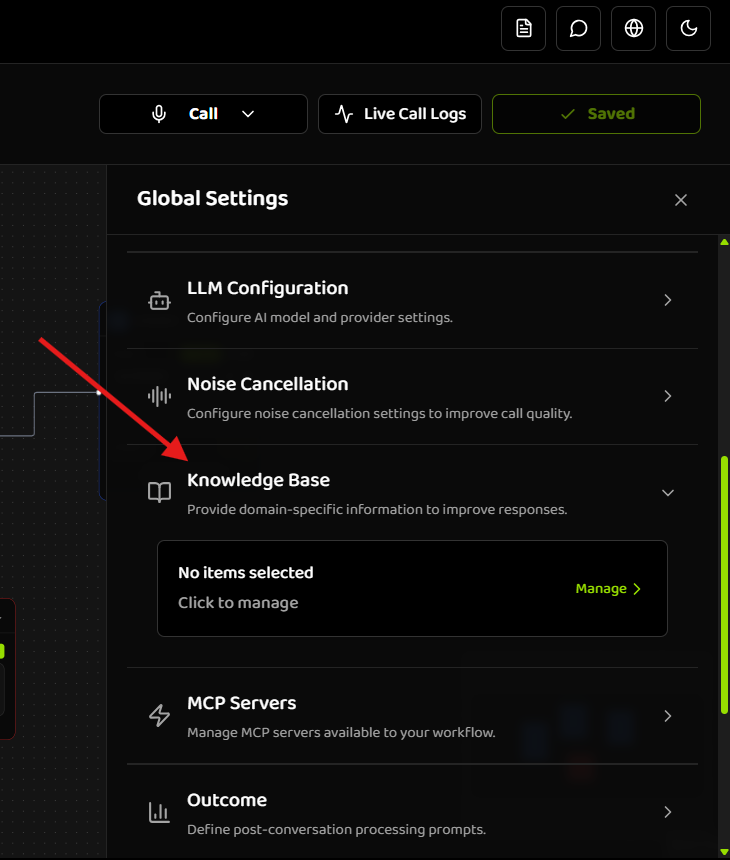
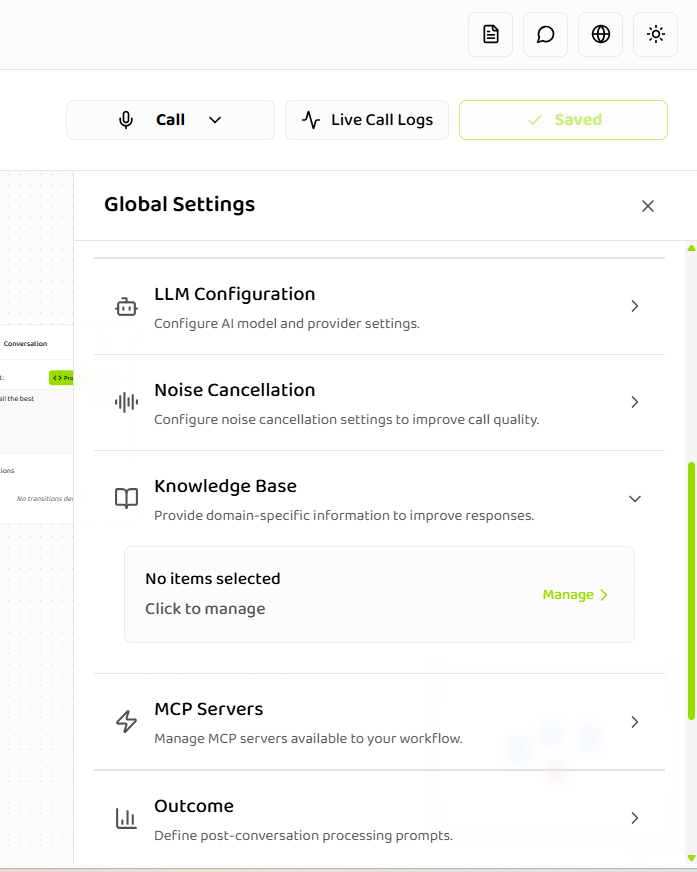 * Click **"Manage"** to open the item selection modal
* Select the items you want to use
* Click **"Manage"** to open the item selection modal
* Select the items you want to use
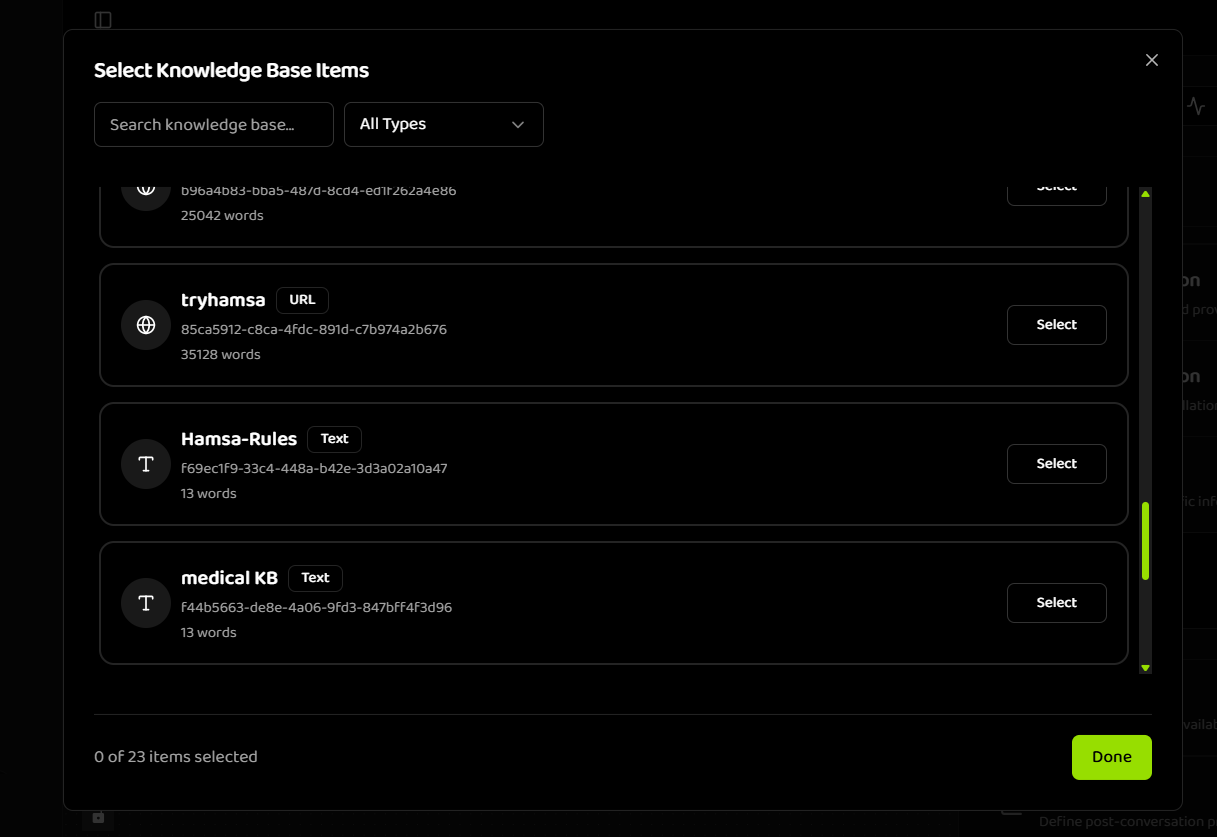
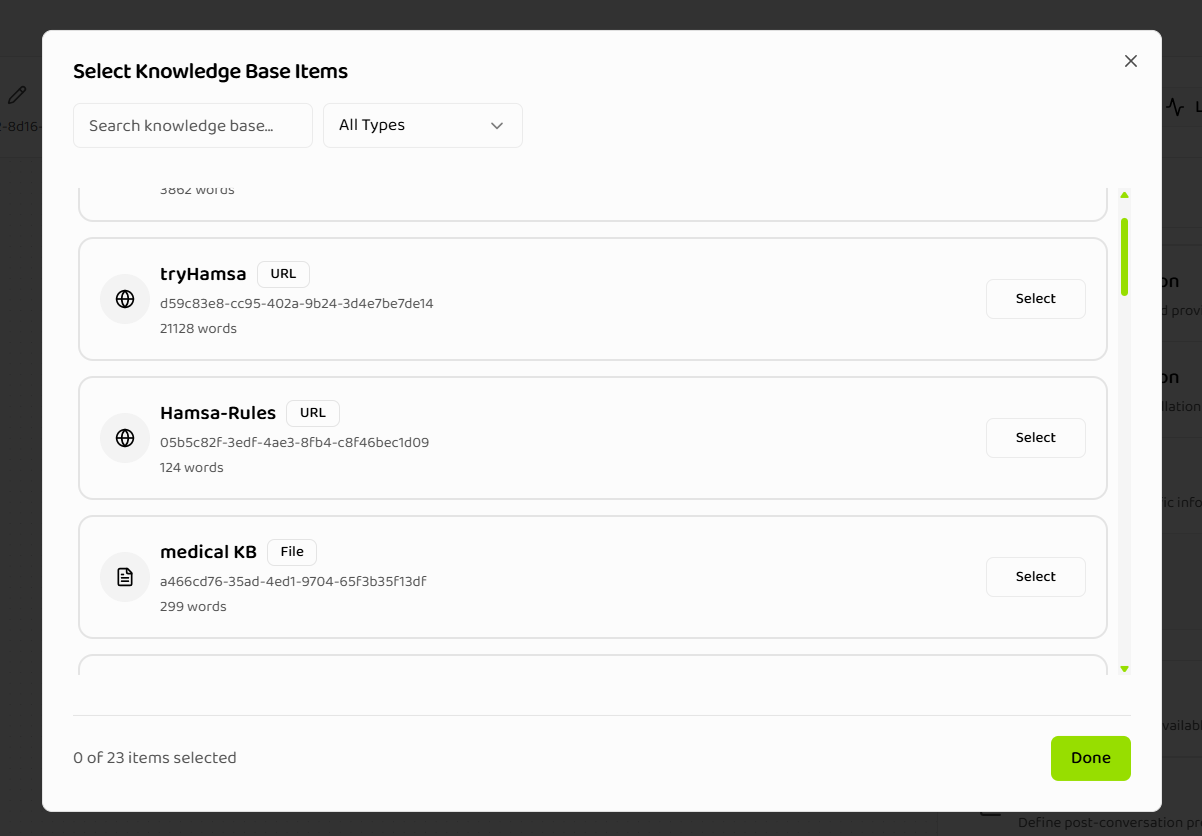 * Click **"Done"** to save your selection
## Next Steps
Now that you've created your first knowledge base item:
* **[Creating Items](./creating-items)** - Learn detailed steps for creating different item types
* **[Managing Items](./managing-items)** - Organize, search, and filter your items
* **[Status Lifecycle](./status-lifecycle)** - Understand processing states and troubleshooting
* **[Best Practices](./best-practices)** - Optimize your knowledge base for best results
## Related Documentation
Learn more about Knowledge Base features and capabilities
Detailed guide on creating text, file, and URL items
How to organize and manage your knowledge base
* Click **"Done"** to save your selection
## Next Steps
Now that you've created your first knowledge base item:
* **[Creating Items](./creating-items)** - Learn detailed steps for creating different item types
* **[Managing Items](./managing-items)** - Organize, search, and filter your items
* **[Status Lifecycle](./status-lifecycle)** - Understand processing states and troubleshooting
* **[Best Practices](./best-practices)** - Optimize your knowledge base for best results
## Related Documentation
Learn more about Knowledge Base features and capabilities
Detailed guide on creating text, file, and URL items
How to organize and manage your knowledge base