> ## Documentation Index
> Fetch the complete documentation index at: https://docs.tryhamsa.com/llms.txt
> Use this file to discover all available pages before exploring further.
# Managing Items
> Organize, search, filter, and manage your items
## Overview
The Knowledge Base list view provides comprehensive management capabilities:
* **Search** items by name
* **Filter** by type, status, extension, usage, and active state
* **Sort** by date, word count, or file size
* **Edit** item titles
* **Delete** items (with protection for items in use)
* **Download** items (Text and File types)
* **View** item details in drawer
All management actions are available from the Knowledge Base list view. Click any item to open the details drawer for more information.
## List View Overview
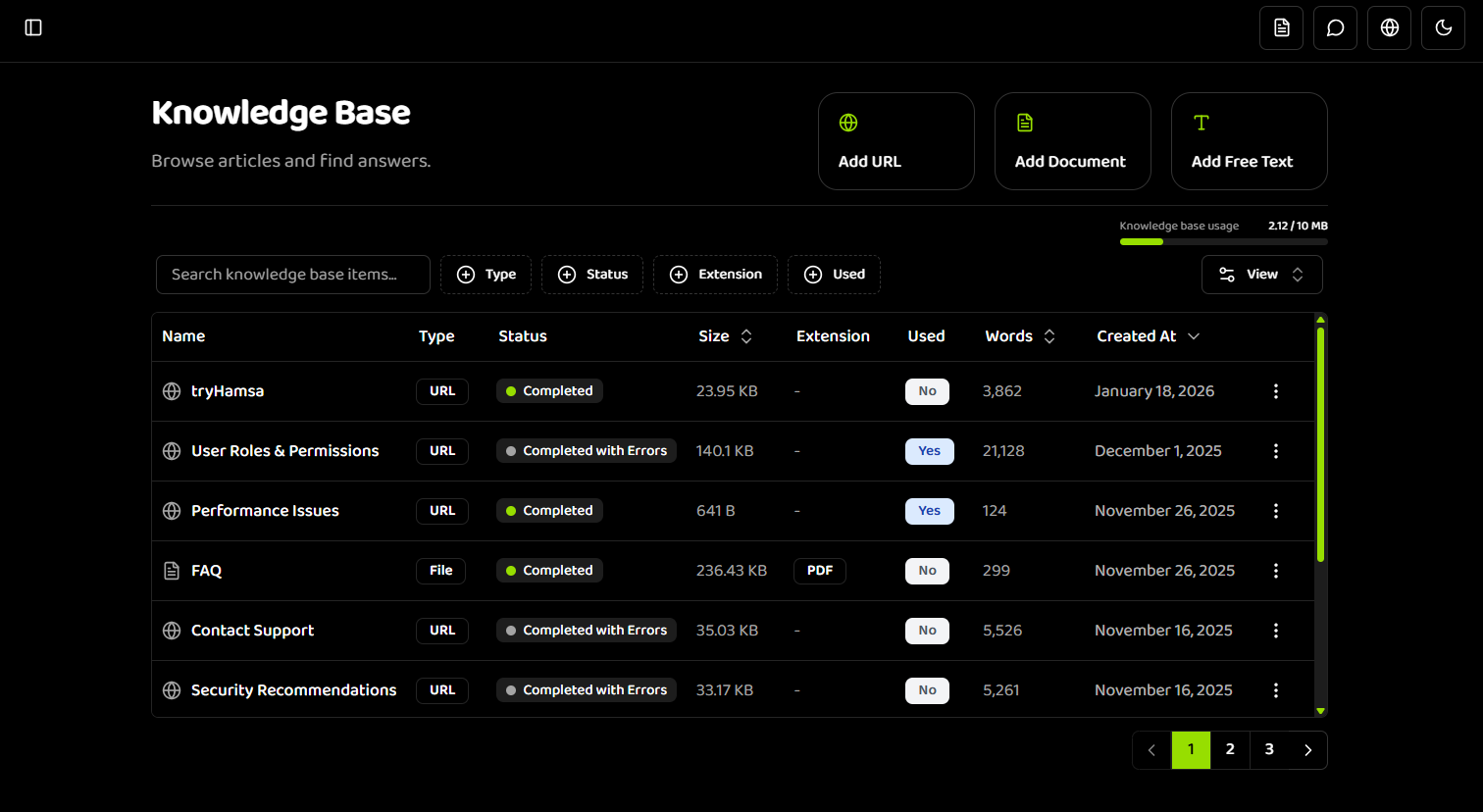
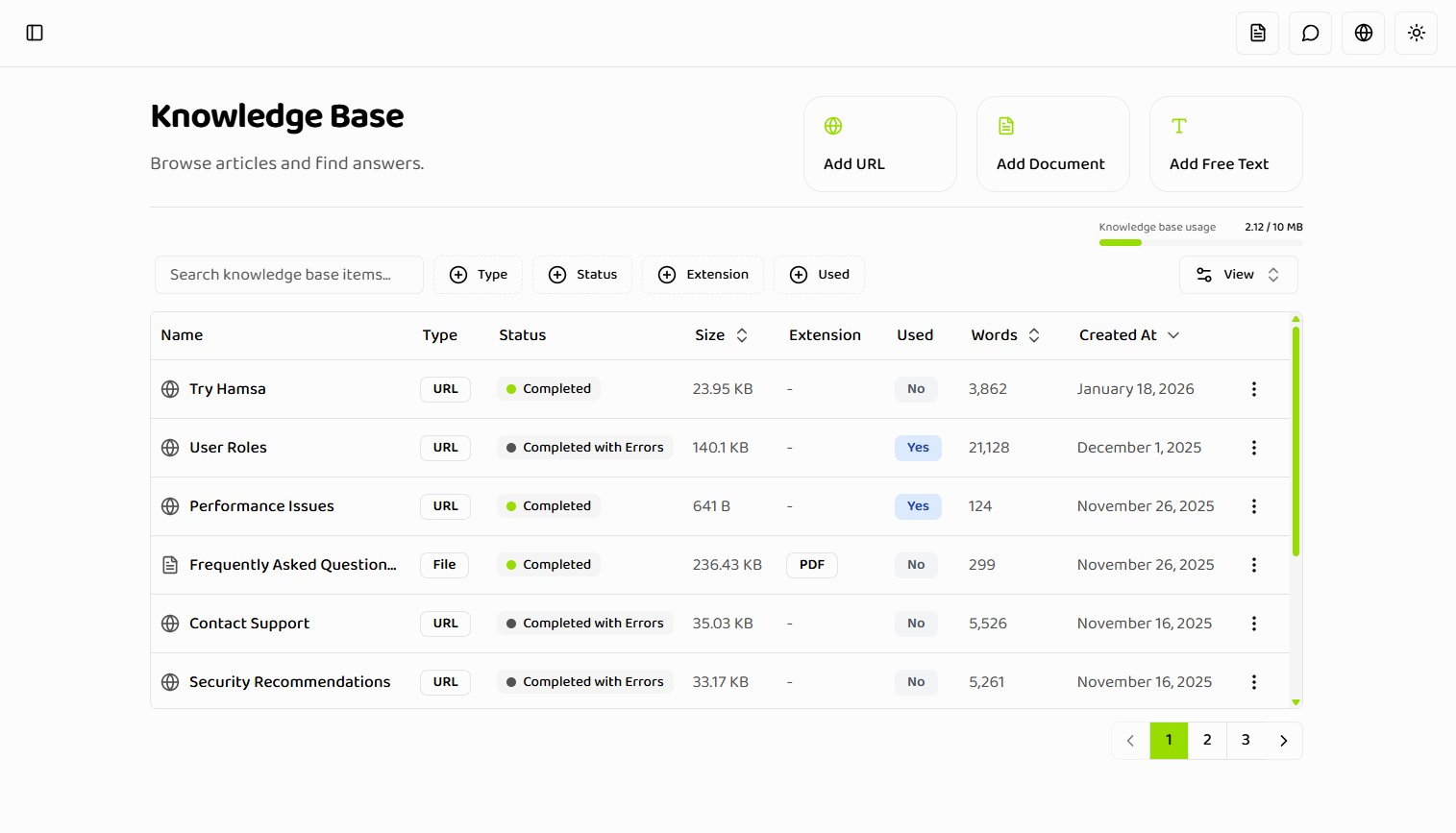
The Knowledge Base list displays all items in a table format with the following columns:
 ### Displayed Information
| Column | Description | Available For |
| ---------------- | --------------------------- | ------------- |
| **Name** | Item name/title | All types |
| **Type** | TEXT, FILE, or URL | All types |
| **Status** | Processing state | All types |
| **Created Date** | When item was created | All types |
| **Word Count** | Number of words in content | All types |
| **File Size** | Size of uploaded file | File only |
| **Extension** | File extension | File only |
| **Used** | Indicator if used in agents | All types |
### Visual Indicators
**Status Colors:**
* 🟡 **PROCESSING**: Item is being processed (yellow indicator)
* 🟢 **PROCESSED**: Item is ready for use (green indicator, shown as "completed" in dashboard)
* 🔴 **FAILED**: Item processing failed (red indicator)
* 🟠 **COMPLETED\_WITH\_ERRORS**: Item processed with warnings (orange indicator)
**API vs Dashboard Terminology:**
The API returns status values like `PROCESSED`, `PROCESSING`, `FAILED`, etc. In the dashboard UI, `PROCESSED` is displayed as "completed" for better user experience. API users should always use the API status values (`PROCESSED`) when working with the API endpoints.
**Usage Indicator:**
* ✓ **Used**: Item is assigned to one or more agents
* — **Not Used**: Item is not currently used
## Search Functionality
### Searching by Name
The search bar allows real-time searching by item name:
1. **Enter Search Query**
* Type in the search bar at the top
* Search is case-insensitive
* Searches item names only
2. **View Results**
* Results update as you type
* Matching items are highlighted
* Non-matching items are hidden
3. **Clear Search**
* Click the X button or clear the search field
* All items are shown again
**Example Searches:**
```
"return policy" → Finds items with "return policy" in name
"FAQ" → Finds all FAQ-related items
"2024" → Finds items with "2024" in name
```
Use descriptive names when creating items to make searching easier. Include keywords that you'll search for later.
## Filtering Options
The Knowledge Base supports multiple filter types that can be combined:
### Filter by Type
Filter items by their content type:
**Options:**
* **All Types** (default)
* **TEXT** only
* **FILE** only
* **URL** only
**Use Case:**
* Find all text items for quick review
* Locate all uploaded documents
* View only URL-based items
### Filter by Status
Filter items by their processing status:
**Options:**
* **All Statuses** (default)
* **PROCESSED** - Ready for use (shown as "completed" in dashboard, returned as `PROCESSED` from API)
* **PROCESSING** - Currently being processed
* **FAILED** - Processing failed
* **COMPLETED\_WITH\_ERRORS** - Processed with warnings
* **UPLOAD\_FAILURE** - Upload failed
* **READING\_FAILURE** - File reading failed
* **INGESTION\_FAILURE** - Content ingestion failed
**Use Case:**
* Find items that need attention (failed statuses)
* See which items are still processing
* View only ready-to-use items
When using the API, filter by `PROCESSED` status. The dashboard displays this as "completed" for better user experience, but the API always returns `PROCESSED`.
### Filter by Extension
Filter file items by their file extension:
**Options:**
* **All Extensions** (default)
* **PDF** (`.pdf`)
* **Word** (`.docx`)
* **Word Legacy** (`.doc`)
* **Text** (`.txt`)
* **HTML** (`.html`)
* **EPUB** (`.epub`)
Extension filter only works with FILE type items. If you select TEXT or URL types along with an extension filter, you'll see a conflict error.
### Filter by Usage
Filter items by whether they're used in agents:
**Options:**
* **All Items** (default)
* **Used in agents** - Assigned to one or more agents
* **Not used in agents** - Not currently assigned
**Use Case:**
* Identify unused items for deletion
* Find items currently in use
* Review which items need to be assigned
### Filter Conflicts
**Type + Extension Conflict:**
If you select both a type filter (TEXT or URL) and an extension filter:
* Error message is displayed
* API calls are blocked
* Clear one of the conflicting filters
**Resolution:**
* Select FILE type only when using extension filter
* Remove TEXT/URL from type filter
* Clear extension filter when filtering by TEXT/URL
## Sorting Options
Sort items by different criteria:
### Sort by Created Date
**Options:**
* **Newest First** (default)
* **Oldest First**
**Use Case:**
* Find recently created items
* Review oldest items for cleanup
* Track item creation timeline
### Sort by Word Count
**Options:**
* **Most Words First**
* **Fewest Words First**
**Use Case:**
* Identify comprehensive items
* Find short items that may need expansion
* Review content depth
### Sort by File Size
**Options:**
* **Largest First**
* **Smallest First**
**Available For:** File items only
**Use Case:**
* Identify large files consuming storage
* Find small files for review
* Monitor storage usage
## Item Actions Menu
Each item has an actions menu (⋮) with the following options:
### Edit Title
Change the item's display name:
1. Click the **Actions** menu (⋮) on the item
2. Select **"Edit Title"**
3. Enter new name (1-100 characters)
4. Click **"Save Changes"**
Editing the title doesn't affect the item's content, only its display name. Content cannot be edited after creation.
### Download Item
Download the original content:
**Text Items:**
* Downloads as `.txt` file
* Contains the text content
**File Items:**
* Downloads original file in its format
* Preserves original file extension
**URL Items:**
* Downloads extracted content as `.txt` file
* Contains scraped web content
**Process:**
1. Click the **Actions** menu (⋮)
2. Select **"Download"**
3. File downloads to your computer
### Delete Item
Remove an item from your knowledge base:
**Process:**
1. Click the **Actions** menu (⋮)
2. Select **"Delete"**
3. Type `DELETE` to confirm
4. Click **"Confirm Deletion"**
**Deletion Protection:**
Items used in agents cannot be deleted. You must first remove the item from all agents that use it. This prevents accidentally breaking agent knowledge.
**If Item is in Use:**
* Delete action is disabled or shows warning
* Message indicates which agents use the item
* Remove from agents first, then delete
### Activate/Deactivate
Control item availability without deleting:
**Active:**
* Item is available for agents to use
* Appears in agent knowledge base selection
* Can be assigned to agents
**Inactive:**
* Item is hidden from agent selection
* Cannot be assigned to new agents
* Still exists in knowledge base
* Can be reactivated later
**Toggle Process:**
1. Click the **Actions** menu (⋮)
2. Select **"Activate"** or **"Deactivate"**
3. Status updates immediately
Use Inactive status to temporarily hide outdated information without losing it permanently. This is useful for seasonal content or content under review.
## Item Details Drawer
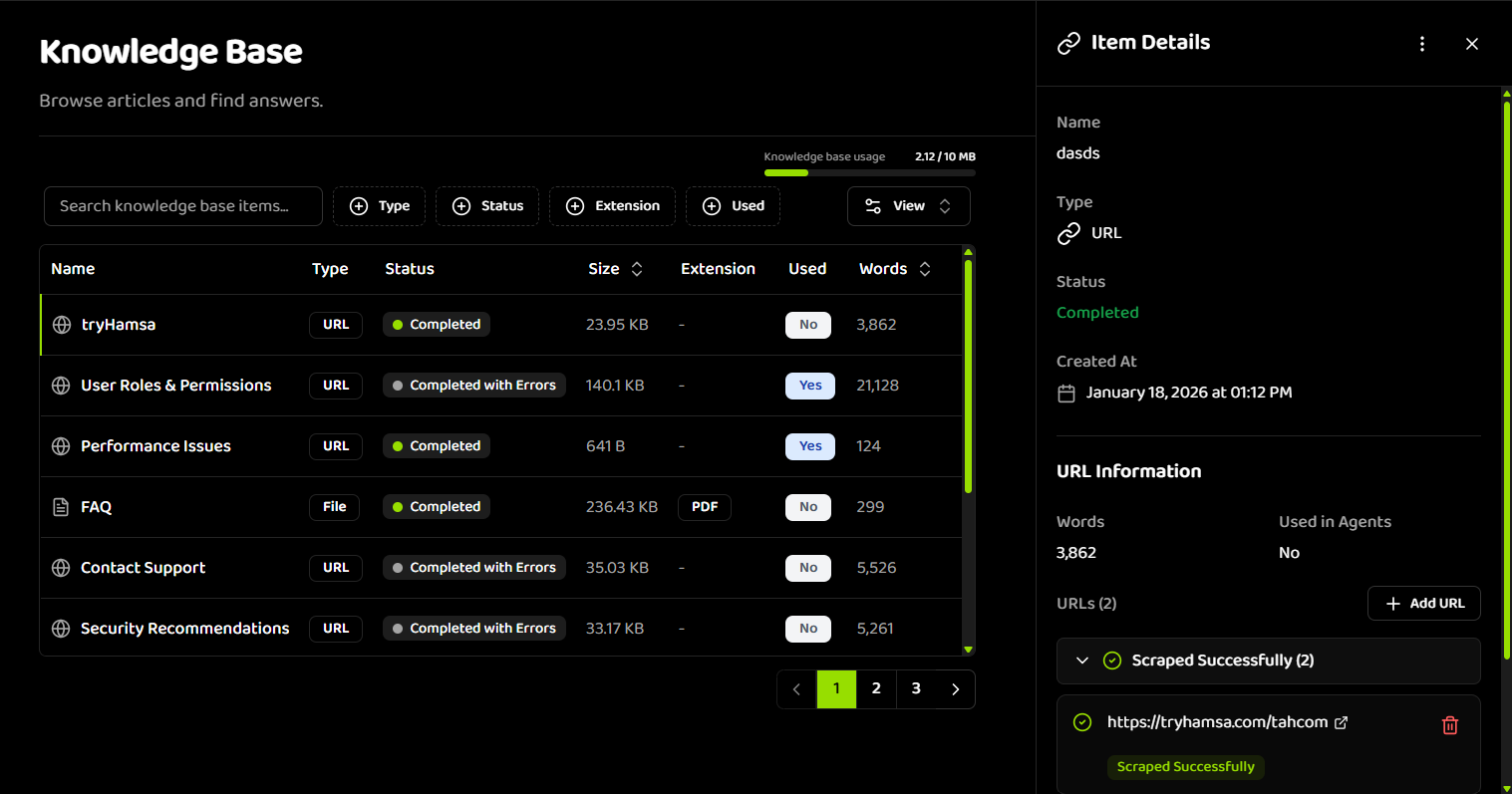
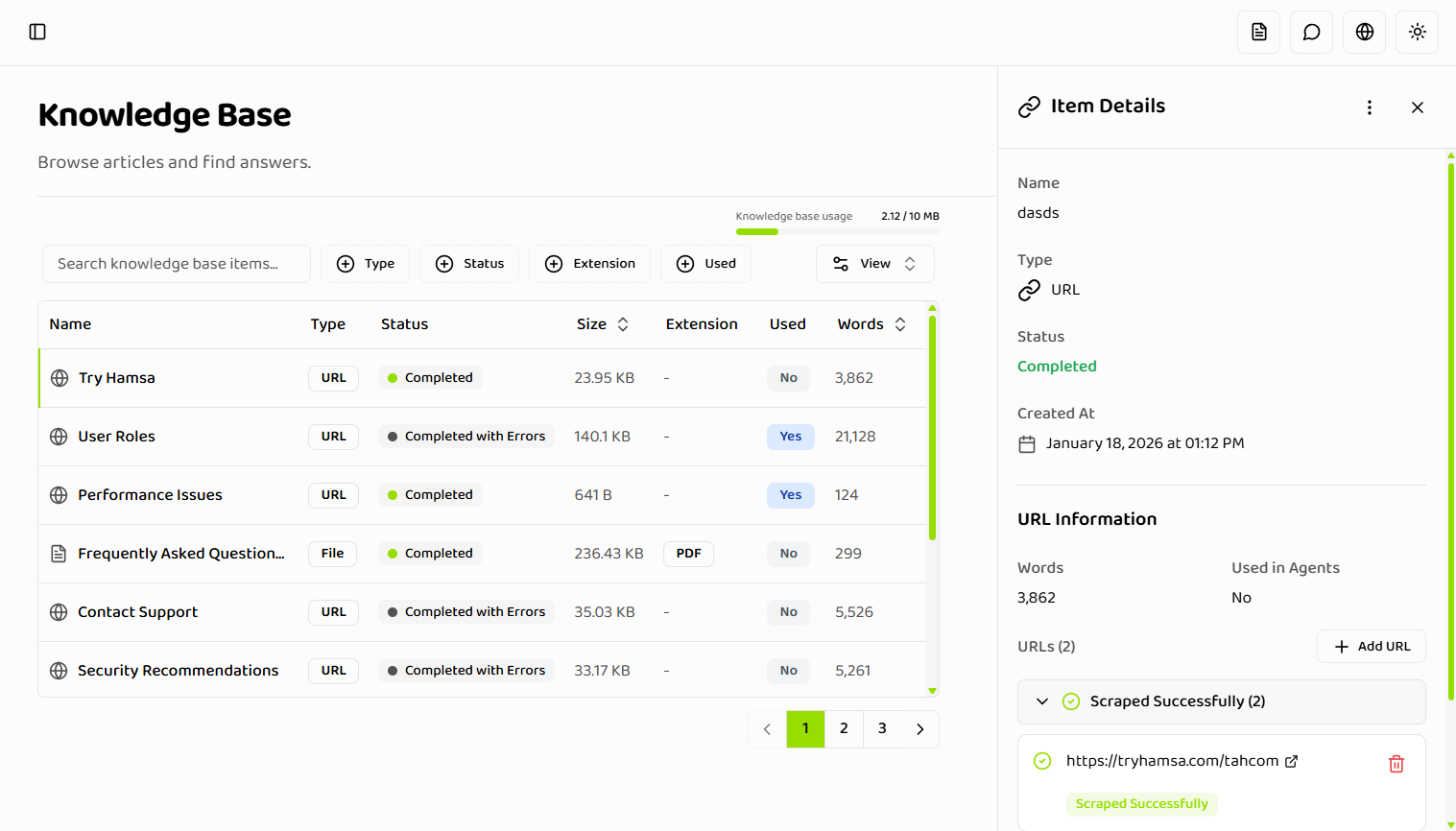
Click any item to open the details drawer:
### Displayed Information
| Column | Description | Available For |
| ---------------- | --------------------------- | ------------- |
| **Name** | Item name/title | All types |
| **Type** | TEXT, FILE, or URL | All types |
| **Status** | Processing state | All types |
| **Created Date** | When item was created | All types |
| **Word Count** | Number of words in content | All types |
| **File Size** | Size of uploaded file | File only |
| **Extension** | File extension | File only |
| **Used** | Indicator if used in agents | All types |
### Visual Indicators
**Status Colors:**
* 🟡 **PROCESSING**: Item is being processed (yellow indicator)
* 🟢 **PROCESSED**: Item is ready for use (green indicator, shown as "completed" in dashboard)
* 🔴 **FAILED**: Item processing failed (red indicator)
* 🟠 **COMPLETED\_WITH\_ERRORS**: Item processed with warnings (orange indicator)
**API vs Dashboard Terminology:**
The API returns status values like `PROCESSED`, `PROCESSING`, `FAILED`, etc. In the dashboard UI, `PROCESSED` is displayed as "completed" for better user experience. API users should always use the API status values (`PROCESSED`) when working with the API endpoints.
**Usage Indicator:**
* ✓ **Used**: Item is assigned to one or more agents
* — **Not Used**: Item is not currently used
## Search Functionality
### Searching by Name
The search bar allows real-time searching by item name:
1. **Enter Search Query**
* Type in the search bar at the top
* Search is case-insensitive
* Searches item names only
2. **View Results**
* Results update as you type
* Matching items are highlighted
* Non-matching items are hidden
3. **Clear Search**
* Click the X button or clear the search field
* All items are shown again
**Example Searches:**
```
"return policy" → Finds items with "return policy" in name
"FAQ" → Finds all FAQ-related items
"2024" → Finds items with "2024" in name
```
Use descriptive names when creating items to make searching easier. Include keywords that you'll search for later.
## Filtering Options
The Knowledge Base supports multiple filter types that can be combined:
### Filter by Type
Filter items by their content type:
**Options:**
* **All Types** (default)
* **TEXT** only
* **FILE** only
* **URL** only
**Use Case:**
* Find all text items for quick review
* Locate all uploaded documents
* View only URL-based items
### Filter by Status
Filter items by their processing status:
**Options:**
* **All Statuses** (default)
* **PROCESSED** - Ready for use (shown as "completed" in dashboard, returned as `PROCESSED` from API)
* **PROCESSING** - Currently being processed
* **FAILED** - Processing failed
* **COMPLETED\_WITH\_ERRORS** - Processed with warnings
* **UPLOAD\_FAILURE** - Upload failed
* **READING\_FAILURE** - File reading failed
* **INGESTION\_FAILURE** - Content ingestion failed
**Use Case:**
* Find items that need attention (failed statuses)
* See which items are still processing
* View only ready-to-use items
When using the API, filter by `PROCESSED` status. The dashboard displays this as "completed" for better user experience, but the API always returns `PROCESSED`.
### Filter by Extension
Filter file items by their file extension:
**Options:**
* **All Extensions** (default)
* **PDF** (`.pdf`)
* **Word** (`.docx`)
* **Word Legacy** (`.doc`)
* **Text** (`.txt`)
* **HTML** (`.html`)
* **EPUB** (`.epub`)
Extension filter only works with FILE type items. If you select TEXT or URL types along with an extension filter, you'll see a conflict error.
### Filter by Usage
Filter items by whether they're used in agents:
**Options:**
* **All Items** (default)
* **Used in agents** - Assigned to one or more agents
* **Not used in agents** - Not currently assigned
**Use Case:**
* Identify unused items for deletion
* Find items currently in use
* Review which items need to be assigned
### Filter Conflicts
**Type + Extension Conflict:**
If you select both a type filter (TEXT or URL) and an extension filter:
* Error message is displayed
* API calls are blocked
* Clear one of the conflicting filters
**Resolution:**
* Select FILE type only when using extension filter
* Remove TEXT/URL from type filter
* Clear extension filter when filtering by TEXT/URL
## Sorting Options
Sort items by different criteria:
### Sort by Created Date
**Options:**
* **Newest First** (default)
* **Oldest First**
**Use Case:**
* Find recently created items
* Review oldest items for cleanup
* Track item creation timeline
### Sort by Word Count
**Options:**
* **Most Words First**
* **Fewest Words First**
**Use Case:**
* Identify comprehensive items
* Find short items that may need expansion
* Review content depth
### Sort by File Size
**Options:**
* **Largest First**
* **Smallest First**
**Available For:** File items only
**Use Case:**
* Identify large files consuming storage
* Find small files for review
* Monitor storage usage
## Item Actions Menu
Each item has an actions menu (⋮) with the following options:
### Edit Title
Change the item's display name:
1. Click the **Actions** menu (⋮) on the item
2. Select **"Edit Title"**
3. Enter new name (1-100 characters)
4. Click **"Save Changes"**
Editing the title doesn't affect the item's content, only its display name. Content cannot be edited after creation.
### Download Item
Download the original content:
**Text Items:**
* Downloads as `.txt` file
* Contains the text content
**File Items:**
* Downloads original file in its format
* Preserves original file extension
**URL Items:**
* Downloads extracted content as `.txt` file
* Contains scraped web content
**Process:**
1. Click the **Actions** menu (⋮)
2. Select **"Download"**
3. File downloads to your computer
### Delete Item
Remove an item from your knowledge base:
**Process:**
1. Click the **Actions** menu (⋮)
2. Select **"Delete"**
3. Type `DELETE` to confirm
4. Click **"Confirm Deletion"**
**Deletion Protection:**
Items used in agents cannot be deleted. You must first remove the item from all agents that use it. This prevents accidentally breaking agent knowledge.
**If Item is in Use:**
* Delete action is disabled or shows warning
* Message indicates which agents use the item
* Remove from agents first, then delete
### Activate/Deactivate
Control item availability without deleting:
**Active:**
* Item is available for agents to use
* Appears in agent knowledge base selection
* Can be assigned to agents
**Inactive:**
* Item is hidden from agent selection
* Cannot be assigned to new agents
* Still exists in knowledge base
* Can be reactivated later
**Toggle Process:**
1. Click the **Actions** menu (⋮)
2. Select **"Activate"** or **"Deactivate"**
3. Status updates immediately
Use Inactive status to temporarily hide outdated information without losing it permanently. This is useful for seasonal content or content under review.
## Item Details Drawer
Click any item to open the details drawer:
 ### Drawer Sections
**Basic Information:**
* Item name
* Type (TEXT, FILE, URL)
* Status with detailed information
* Created date
* Last updated date
**Usage Indicator:**
* Shows if item is used in agents
* Lists which agents use the item (if any)
**Type-Specific Information:**
**File Items:**
* File size
* File extension
* Download button
* Original filename
**Text Items:**
* Full text content
* Word count
* Character count
* Download button
**URL Items:**
* Grouped URLs by domain
* Per-URL status
* Scraping status for each URL
* Error messages for failed URLs
* Delete individual URLs
* Add more URLs (up to 100 total)
### URL Item Management
In the URL item drawer, you can:
**View URLs:**
* See all URLs in the item
* Grouped by domain for easy navigation
* Status indicator for each URL
**Delete URLs:**
* Remove individual URLs from the item
* Useful for cleaning up failed URLs
* Maintains other URLs in the item
**Add URLs:**
* Add more URLs to existing item
* Maximum 100 URLs per item
* Same validation as creating new URL items
## Bulk Operations
While bulk operations aren't currently supported, you can:
**Efficient Management:**
* Use filters to narrow down items
* Sort to group similar items
* Use search to find specific items
* Delete multiple items individually
**Best Practices:**
* Filter by "Not used" to find items for cleanup
* Sort by "Oldest First" to review old items
* Use status filters to find failed items
## Storage Management
### Viewing Storage Usage
The system displays:
* Current storage usage
* Storage limit for your plan
* Visual progress indicator
* Percentage used
### Managing Storage
**When Approaching Limit:**
* Review and delete unused items
* Deactivate items instead of deleting
* Consider upgrading your plan
**Storage Optimization:**
* Delete failed items that can't be fixed
* Remove duplicate items
* Archive old items you no longer need
* Compress large files before uploading
## Troubleshooting
### Items Not Appearing
**Possible Causes:**
* Filters are applied (check filter settings)
* Search query is too specific
* Item is inactive
* Item failed to process
**Solutions:**
* Clear all filters
* Clear search query
* Check item status
* Verify item is active
### Cannot Delete Item
**Possible Causes:**
* Item is used in one or more agents
* Item is currently processing
* Network error
**Solutions:**
* Remove item from all agents first
* Wait for processing to complete
* Check network connection and retry
### Filter Not Working
**Possible Causes:**
* Filter conflict (Type + Extension)
* No items match filter criteria
* Filter not applied correctly
**Solutions:**
* Check for filter conflicts
* Verify items exist that match criteria
* Clear and reapply filters
## Next Steps
* **[Status Lifecycle](./status-lifecycle)** - Understand processing states
* **[Creating Items](./creating-items)** - Learn how to create new items
* **[Best Practices](./best-practices)** - Optimize your knowledge base
## Related Documentation
Learn how to create knowledge base items
Understand processing states and errors
Optimize your knowledge base management
### Drawer Sections
**Basic Information:**
* Item name
* Type (TEXT, FILE, URL)
* Status with detailed information
* Created date
* Last updated date
**Usage Indicator:**
* Shows if item is used in agents
* Lists which agents use the item (if any)
**Type-Specific Information:**
**File Items:**
* File size
* File extension
* Download button
* Original filename
**Text Items:**
* Full text content
* Word count
* Character count
* Download button
**URL Items:**
* Grouped URLs by domain
* Per-URL status
* Scraping status for each URL
* Error messages for failed URLs
* Delete individual URLs
* Add more URLs (up to 100 total)
### URL Item Management
In the URL item drawer, you can:
**View URLs:**
* See all URLs in the item
* Grouped by domain for easy navigation
* Status indicator for each URL
**Delete URLs:**
* Remove individual URLs from the item
* Useful for cleaning up failed URLs
* Maintains other URLs in the item
**Add URLs:**
* Add more URLs to existing item
* Maximum 100 URLs per item
* Same validation as creating new URL items
## Bulk Operations
While bulk operations aren't currently supported, you can:
**Efficient Management:**
* Use filters to narrow down items
* Sort to group similar items
* Use search to find specific items
* Delete multiple items individually
**Best Practices:**
* Filter by "Not used" to find items for cleanup
* Sort by "Oldest First" to review old items
* Use status filters to find failed items
## Storage Management
### Viewing Storage Usage
The system displays:
* Current storage usage
* Storage limit for your plan
* Visual progress indicator
* Percentage used
### Managing Storage
**When Approaching Limit:**
* Review and delete unused items
* Deactivate items instead of deleting
* Consider upgrading your plan
**Storage Optimization:**
* Delete failed items that can't be fixed
* Remove duplicate items
* Archive old items you no longer need
* Compress large files before uploading
## Troubleshooting
### Items Not Appearing
**Possible Causes:**
* Filters are applied (check filter settings)
* Search query is too specific
* Item is inactive
* Item failed to process
**Solutions:**
* Clear all filters
* Clear search query
* Check item status
* Verify item is active
### Cannot Delete Item
**Possible Causes:**
* Item is used in one or more agents
* Item is currently processing
* Network error
**Solutions:**
* Remove item from all agents first
* Wait for processing to complete
* Check network connection and retry
### Filter Not Working
**Possible Causes:**
* Filter conflict (Type + Extension)
* No items match filter criteria
* Filter not applied correctly
**Solutions:**
* Check for filter conflicts
* Verify items exist that match criteria
* Clear and reapply filters
## Next Steps
* **[Status Lifecycle](./status-lifecycle)** - Understand processing states
* **[Creating Items](./creating-items)** - Learn how to create new items
* **[Best Practices](./best-practices)** - Optimize your knowledge base
## Related Documentation
Learn how to create knowledge base items
Understand processing states and errors
Optimize your knowledge base management