> ## Documentation Index
> Fetch the complete documentation index at: https://docs.tryhamsa.com/llms.txt
> Use this file to discover all available pages before exploring further.
# URL Items
> Import web content from URLs and sitemaps
## Overview
URL items allow you to import content from web pages.
 ## When to Use URL Items
URL items are ideal for:
* Product pages
* Online documentation
* Blog articles
* Support articles
* Public knowledge bases
* Frequently updated content
## Requirements
| Field | Requirement | Validation |
| -------------- | ----------- | ---------------------------------------------- |
| **Link Name** | Required | 1-100 characters |
| **Link (URL)** | Required | Valid HTTPS URL, valid domain, not a media URL |
## URL Validation Rules
**Required:**
* Must start with `https://`
* Must be a valid URL format
* Must have a valid domain name or IP address
**Not Supported:**
* HTTP URLs (must use HTTPS)
* Media file URLs (`.mp3`, `.mp4`, `.wav`, `.jpg`, `.png`, etc.)
* Download links to media files
* URLs requiring authentication
## Single URL Creation
**Step-by-Step Process:**
1. **Navigate to Knowledge Base**
* Go to the [Knowledge Base section](https://agents.tryhamsa.com/app/knowledge-base)
* Click **"Add URL"** button
2. **Enter URL Details**
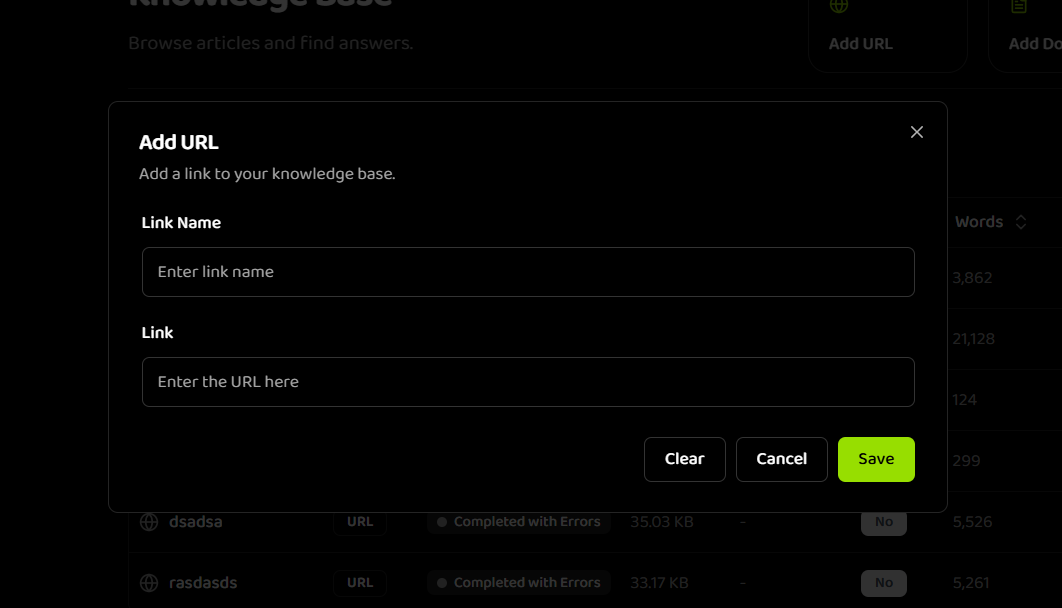
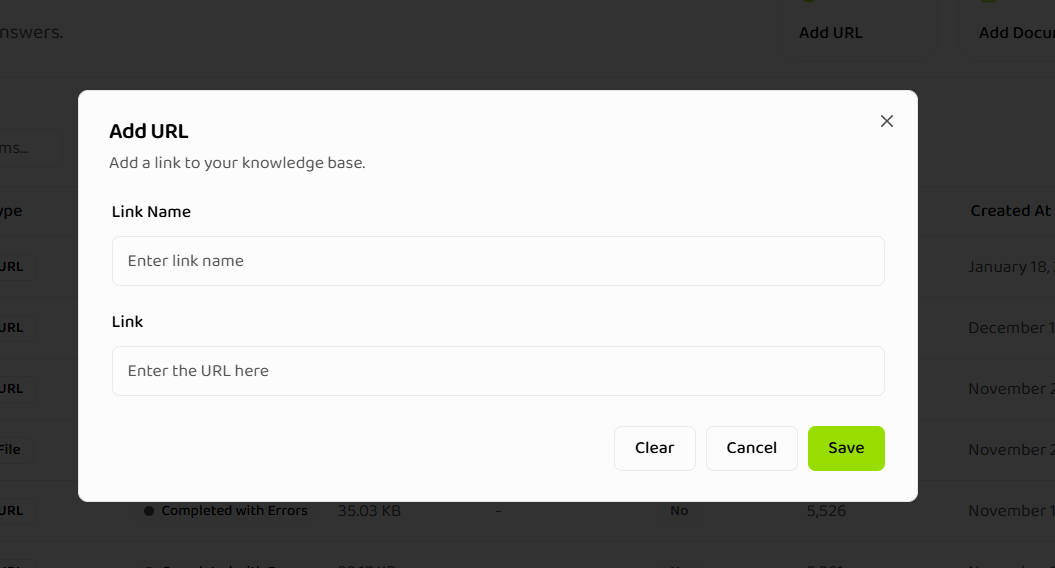
* The "Add URL" modal opens
* **Link Name**: Enter a descriptive name (1-100 characters)
* Example: "Product Catalog - Q1 2024"
* Example: "API Documentation v2"
* **Link (URL)**: Enter the HTTPS URL
* Example: `https://www.example.com/products`
* Example: `https://docs.example.com/api/getting-started`
3. **Save and Discover Links**
* Click **"Save"** button
* Button text changes to **"Processing..."**
* System automatically discovers the sitemap and crawls for links
* The **"Select URLs from Sitemap"** modal appears automatically
4. **Select URLs from Sitemap**
* Review the discovered URLs in the modal
* **Search URLs**: Use the search bar to find specific URLs
* **Add Custom URL**: Click the "Add custom URL..." field to manually add additional URLs
* **Select URLs**:
* Check individual URLs to select them
* Use "Invert Selection" to toggle all selections
* Selection counter shows "X/100 items selected" (maximum 100 URLs per item)
5. **Save and Process**
* Click **"Save"** button in the sitemap selection modal
* Item is saved and processing begins
* Processing depends on the content and nested links
The system fetches web page content at the time of creation. If the web page updates later, you'll need to delete and re-add the URL to get fresh content.
## Sitemap Selection Modal
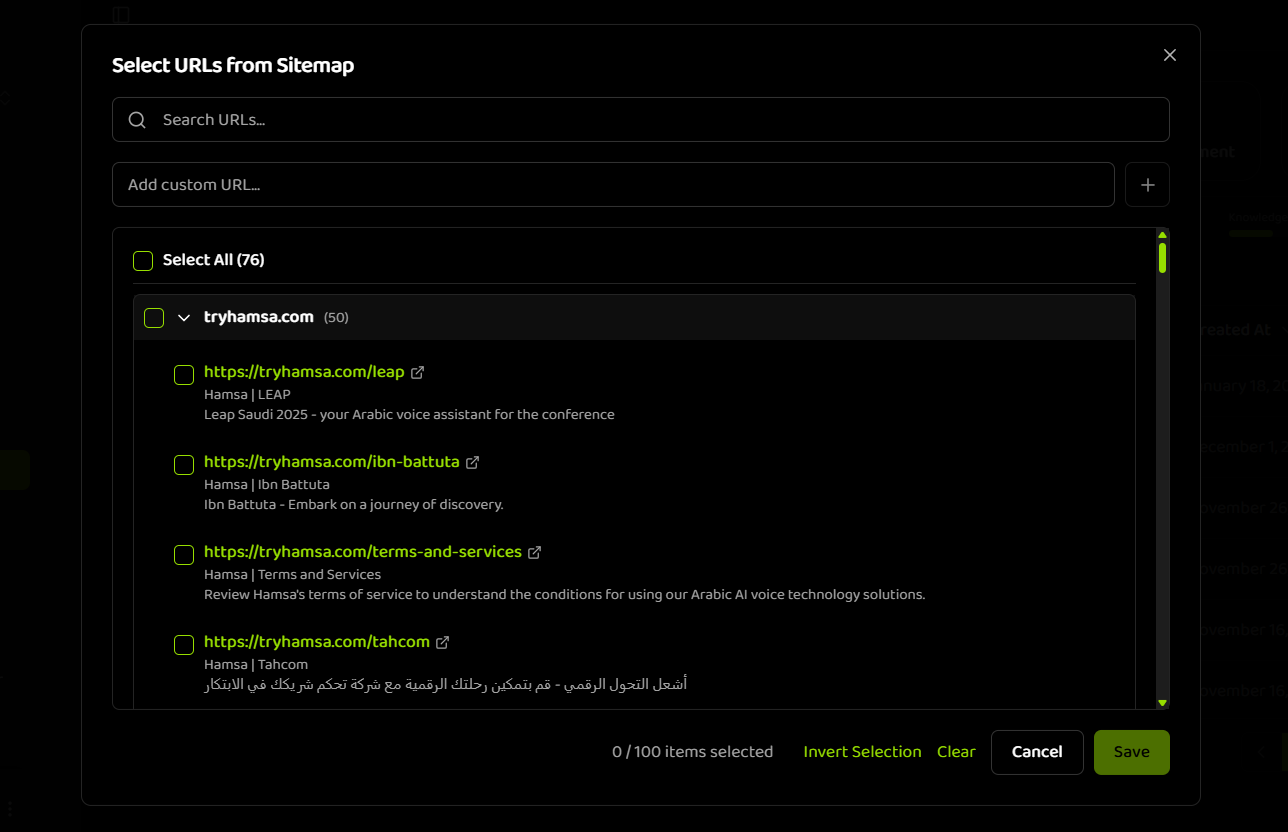
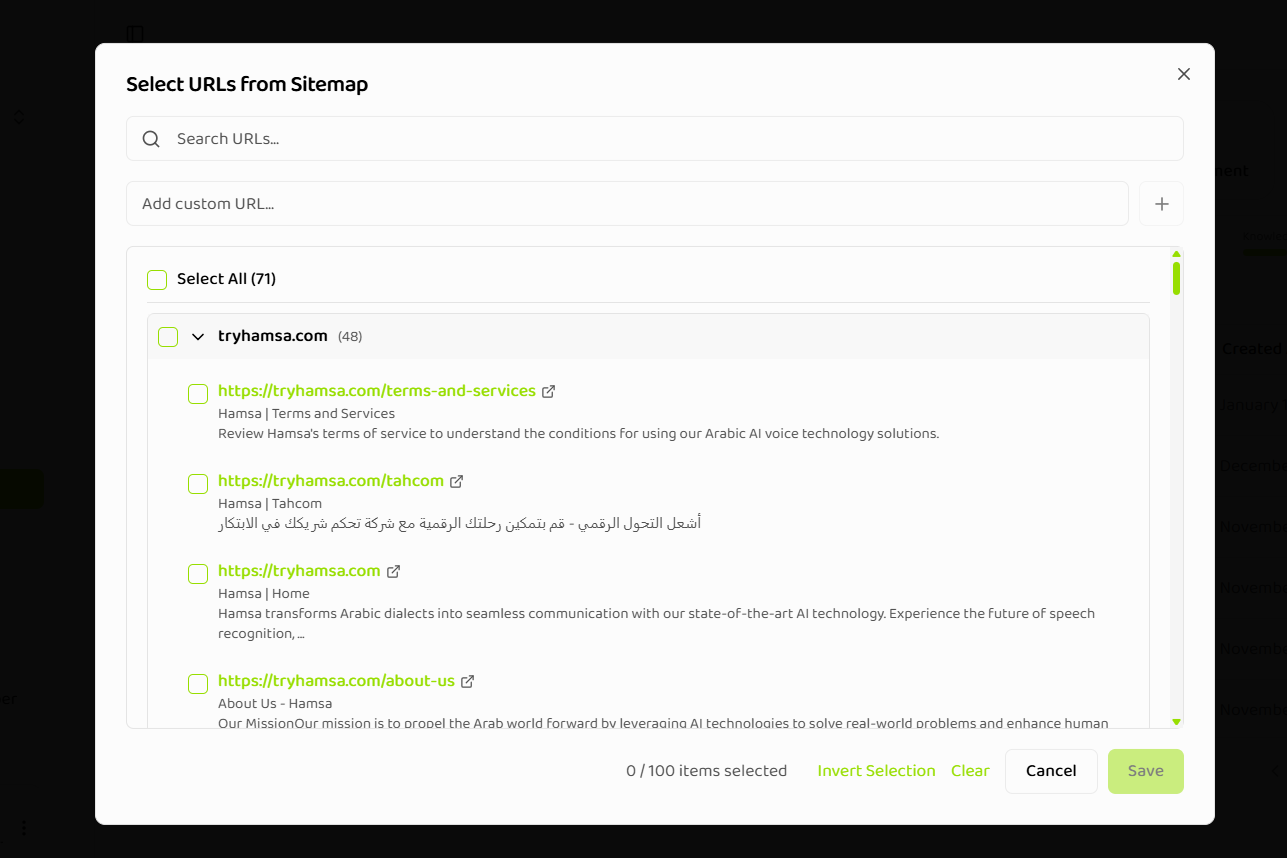
After entering a URL and clicking "Save", the system automatically discovers and displays available links:
## When to Use URL Items
URL items are ideal for:
* Product pages
* Online documentation
* Blog articles
* Support articles
* Public knowledge bases
* Frequently updated content
## Requirements
| Field | Requirement | Validation |
| -------------- | ----------- | ---------------------------------------------- |
| **Link Name** | Required | 1-100 characters |
| **Link (URL)** | Required | Valid HTTPS URL, valid domain, not a media URL |
## URL Validation Rules
**Required:**
* Must start with `https://`
* Must be a valid URL format
* Must have a valid domain name or IP address
**Not Supported:**
* HTTP URLs (must use HTTPS)
* Media file URLs (`.mp3`, `.mp4`, `.wav`, `.jpg`, `.png`, etc.)
* Download links to media files
* URLs requiring authentication
## Single URL Creation
**Step-by-Step Process:**
1. **Navigate to Knowledge Base**
* Go to the [Knowledge Base section](https://agents.tryhamsa.com/app/knowledge-base)
* Click **"Add URL"** button
2. **Enter URL Details**
* The "Add URL" modal opens
* **Link Name**: Enter a descriptive name (1-100 characters)
* Example: "Product Catalog - Q1 2024"
* Example: "API Documentation v2"
* **Link (URL)**: Enter the HTTPS URL
* Example: `https://www.example.com/products`
* Example: `https://docs.example.com/api/getting-started`
3. **Save and Discover Links**
* Click **"Save"** button
* Button text changes to **"Processing..."**
* System automatically discovers the sitemap and crawls for links
* The **"Select URLs from Sitemap"** modal appears automatically
4. **Select URLs from Sitemap**
* Review the discovered URLs in the modal
* **Search URLs**: Use the search bar to find specific URLs
* **Add Custom URL**: Click the "Add custom URL..." field to manually add additional URLs
* **Select URLs**:
* Check individual URLs to select them
* Use "Invert Selection" to toggle all selections
* Selection counter shows "X/100 items selected" (maximum 100 URLs per item)
5. **Save and Process**
* Click **"Save"** button in the sitemap selection modal
* Item is saved and processing begins
* Processing depends on the content and nested links
The system fetches web page content at the time of creation. If the web page updates later, you'll need to delete and re-add the URL to get fresh content.
## Sitemap Selection Modal
After entering a URL and clicking "Save", the system automatically discovers and displays available links:
 **Modal Features:**
* **Search URLs**: Use the search bar to filter and find specific URLs from the discovered links
* **Add Custom URL**: Manually add additional URLs that aren't in the sitemap using the "Add custom URL..." field
* **URL List**:
* Each URL shows the full URL in green text
* Display title and description for each URL
* Checkboxes to select/deselect URLs
* External link icon next to each URL
* **Selection Counter**: Shows "X/100 items selected" at the bottom (maximum 100 URLs per item)
* **Actions**:
* **Invert Selection**: Toggle all current selections
* **Clear**: Remove all selections
* **Cancel**: Close without saving
* **Save**: Save selected URLs and begin processing
Sitemap fetching uses Server-Sent Events (SSE) for real-time progress updates. If the sitemap endpoint is unavailable, the system falls back to a legacy endpoint.
## Sitemap Behavior
**How It Works:**
* System locates sitemap.xml at common paths
* Parses sitemap to extract URLs
* Groups URLs by domain
* Streams results in real-time
**Limitations:**
* Maximum 100 URLs per knowledge base item
* Large sitemaps may take time to process
* Some sites may block scraping
* Requires publicly accessible sitemap
If a website blocks scraping or requires authentication, the URL will fail to process. Use public, accessible pages only.
## URL Processing Details
Each URL in a URL item includes:
* **URL**: The web page address
* **Scraping Status**: Current processing state
* **Processing State**: Detailed status information
* **Error Message**: Failure reason if processing fails
* **Failure Reason**: Specific error details
## URL Item Examples
**Example 1: Single Product Page**
```
Name: "Product X - Specifications"
URL: https://www.example.com/products/product-x
```
**Example 2: Documentation Section**
```
Name: "API Getting Started Guide"
URL: https://docs.example.com/api/getting-started
```
**Example 3: Multiple Pages via Sitemap**
```
Base URL: https://docs.example.com
Fetched URLs:
- https://docs.example.com/api/authentication
- https://docs.example.com/api/endpoints
- https://docs.example.com/api/errors
- ... (up to 100 URLs)
```
## Related Documentation
Overview of all item creation types
Learn how to create text content
Learn how to upload documents
Understand URL processing states
**Modal Features:**
* **Search URLs**: Use the search bar to filter and find specific URLs from the discovered links
* **Add Custom URL**: Manually add additional URLs that aren't in the sitemap using the "Add custom URL..." field
* **URL List**:
* Each URL shows the full URL in green text
* Display title and description for each URL
* Checkboxes to select/deselect URLs
* External link icon next to each URL
* **Selection Counter**: Shows "X/100 items selected" at the bottom (maximum 100 URLs per item)
* **Actions**:
* **Invert Selection**: Toggle all current selections
* **Clear**: Remove all selections
* **Cancel**: Close without saving
* **Save**: Save selected URLs and begin processing
Sitemap fetching uses Server-Sent Events (SSE) for real-time progress updates. If the sitemap endpoint is unavailable, the system falls back to a legacy endpoint.
## Sitemap Behavior
**How It Works:**
* System locates sitemap.xml at common paths
* Parses sitemap to extract URLs
* Groups URLs by domain
* Streams results in real-time
**Limitations:**
* Maximum 100 URLs per knowledge base item
* Large sitemaps may take time to process
* Some sites may block scraping
* Requires publicly accessible sitemap
If a website blocks scraping or requires authentication, the URL will fail to process. Use public, accessible pages only.
## URL Processing Details
Each URL in a URL item includes:
* **URL**: The web page address
* **Scraping Status**: Current processing state
* **Processing State**: Detailed status information
* **Error Message**: Failure reason if processing fails
* **Failure Reason**: Specific error details
## URL Item Examples
**Example 1: Single Product Page**
```
Name: "Product X - Specifications"
URL: https://www.example.com/products/product-x
```
**Example 2: Documentation Section**
```
Name: "API Getting Started Guide"
URL: https://docs.example.com/api/getting-started
```
**Example 3: Multiple Pages via Sitemap**
```
Base URL: https://docs.example.com
Fetched URLs:
- https://docs.example.com/api/authentication
- https://docs.example.com/api/endpoints
- https://docs.example.com/api/errors
- ... (up to 100 URLs)
```
## Related Documentation
Overview of all item creation types
Learn how to create text content
Learn how to upload documents
Understand URL processing states