> ## Documentation Index
> Fetch the complete documentation index at: https://docs.tryhamsa.com/llms.txt
> Use this file to discover all available pages before exploring further.
# File Items
> Upload documents to add to your knowledge base
## Overview
File items allow you to upload documents that will be processed and indexed.
 ## When to Use File Items
File items are ideal for:
* Product manuals and documentation
* Technical specifications
* Policy documents
* Training materials
* Comprehensive guides
## Supported File Formats
| Format | Extension | Max Size | Processing Time |
| -------------------- | --------- | -------- | --------------- |
| PDF | `.pdf` | 21 MB | Depends on file |
| Word Document | `.docx` | 21 MB | Depends on file |
| Word Document Legacy | `.doc` | 21 MB | Depends on file |
| Text File | `.txt` | 21 MB | Depends on file |
| HTML File | `.html` | 21 MB | Depends on file |
| EPUB | `.epub` | 21 MB | Depends on file |
## Requirements
| Field | Requirement | Validation |
| ----------------- | ----------- | ------------------------------------------------------------------------ |
| **Document Name** | Required | Auto-filled from filename, editable (1-100 chars), shows character count |
| **Files** | Required | At least one file, max 21MB per file |
## Step-by-Step Process
1. **Navigate to Knowledge Base**
* Go to the [Knowledge Base section](https://agents.tryhamsa.com/app/knowledge-base)
* Click **"Add Document"** button
2. **Upload Files**
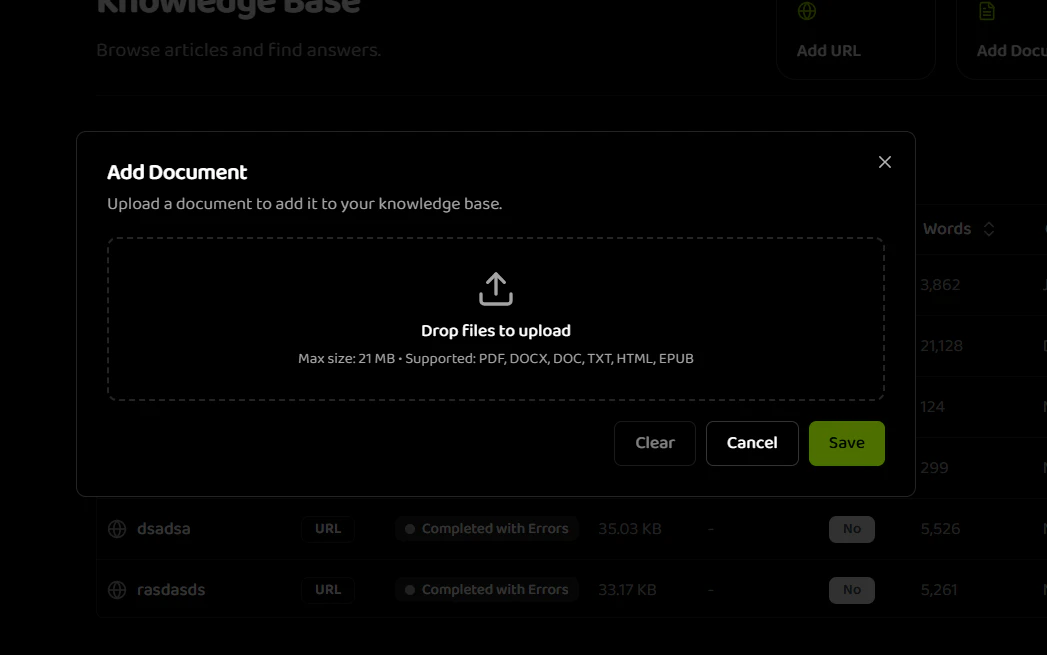
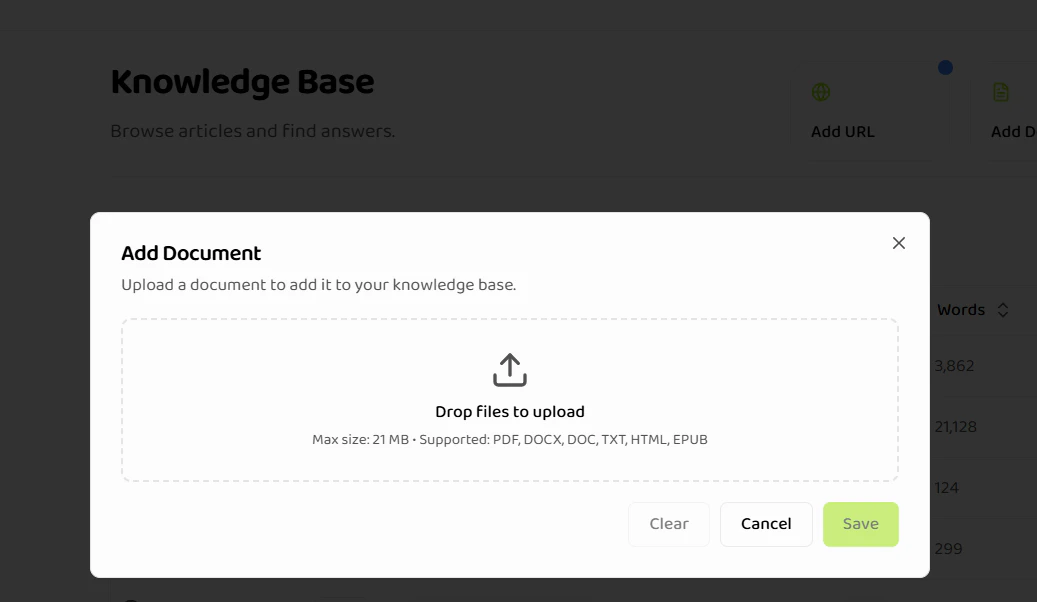
* The "Add Document" modal opens
* **Drag and Drop**: Drag files into the upload area (shows "Drop files to upload")
* **Click to Browse**: Click the upload area to select files from your computer
* **Supported formats**: PDF, DOCX, DOC, TXT, HTML, EPUB
* **Max size**: 21 MB per file
3. **Review Uploaded File**
* Once uploaded, the file appears with:
* File icon and type indicator
* Filename
* File size
* Remove button (X icon) to delete the file
4. **Edit Document Name**
* Document name is auto-filled from the filename
* Edit the name in the "Document Name" field (1-100 characters)
* Character counter shows current length (e.g., "27/100")
* File extension (e.g., ".docx") is displayed next to the name field
5. **Save or Cancel**
* Click **"Save"** to create the knowledge base item
* Click **"Cancel"** to close without saving
* Click **"Clear"** to remove the uploaded file and start over
* Processing begins automatically after saving
Each uploaded file becomes a separate knowledge base item. You can upload multiple files in one session, but they're processed individually.
## File Upload Best Practices
**File Preparation:**
* Ensure files are not password-protected
* Verify files open correctly on your computer
* Check file size (max 21MB per file)
* Use clear, descriptive filenames
**Content Quality:**
* Use well-formatted documents with clear headings
* Ensure text is extractable (not just images)
* Avoid complex layouts that may not parse well
* Include relevant metadata in filenames
**Example Filenames:**
```
Good: "Product_Manual_2024.pdf"
Good: "Return_Policy_Q1_2024.docx"
Bad: "doc1.pdf"
Bad: "file_final_final_v2.pdf"
```
## File Processing
After upload, files go through these stages:
1. **Upload**: File is uploaded to the server
2. **Reading**: Content is extracted from the file
3. **Ingestion**: Content is indexed for retrieval
4. **PROCESSED**: Item is ready for use (shown as "completed" in dashboard)
If a file fails at any stage, you'll see an error status. Common issues include password-protected files, corrupted files, or unsupported formats.
## Related Documentation
Overview of all item creation types
Learn how to create text content
Learn how to import web content
Understand file processing states
## When to Use File Items
File items are ideal for:
* Product manuals and documentation
* Technical specifications
* Policy documents
* Training materials
* Comprehensive guides
## Supported File Formats
| Format | Extension | Max Size | Processing Time |
| -------------------- | --------- | -------- | --------------- |
| PDF | `.pdf` | 21 MB | Depends on file |
| Word Document | `.docx` | 21 MB | Depends on file |
| Word Document Legacy | `.doc` | 21 MB | Depends on file |
| Text File | `.txt` | 21 MB | Depends on file |
| HTML File | `.html` | 21 MB | Depends on file |
| EPUB | `.epub` | 21 MB | Depends on file |
## Requirements
| Field | Requirement | Validation |
| ----------------- | ----------- | ------------------------------------------------------------------------ |
| **Document Name** | Required | Auto-filled from filename, editable (1-100 chars), shows character count |
| **Files** | Required | At least one file, max 21MB per file |
## Step-by-Step Process
1. **Navigate to Knowledge Base**
* Go to the [Knowledge Base section](https://agents.tryhamsa.com/app/knowledge-base)
* Click **"Add Document"** button
2. **Upload Files**
* The "Add Document" modal opens
* **Drag and Drop**: Drag files into the upload area (shows "Drop files to upload")
* **Click to Browse**: Click the upload area to select files from your computer
* **Supported formats**: PDF, DOCX, DOC, TXT, HTML, EPUB
* **Max size**: 21 MB per file
3. **Review Uploaded File**
* Once uploaded, the file appears with:
* File icon and type indicator
* Filename
* File size
* Remove button (X icon) to delete the file
4. **Edit Document Name**
* Document name is auto-filled from the filename
* Edit the name in the "Document Name" field (1-100 characters)
* Character counter shows current length (e.g., "27/100")
* File extension (e.g., ".docx") is displayed next to the name field
5. **Save or Cancel**
* Click **"Save"** to create the knowledge base item
* Click **"Cancel"** to close without saving
* Click **"Clear"** to remove the uploaded file and start over
* Processing begins automatically after saving
Each uploaded file becomes a separate knowledge base item. You can upload multiple files in one session, but they're processed individually.
## File Upload Best Practices
**File Preparation:**
* Ensure files are not password-protected
* Verify files open correctly on your computer
* Check file size (max 21MB per file)
* Use clear, descriptive filenames
**Content Quality:**
* Use well-formatted documents with clear headings
* Ensure text is extractable (not just images)
* Avoid complex layouts that may not parse well
* Include relevant metadata in filenames
**Example Filenames:**
```
Good: "Product_Manual_2024.pdf"
Good: "Return_Policy_Q1_2024.docx"
Bad: "doc1.pdf"
Bad: "file_final_final_v2.pdf"
```
## File Processing
After upload, files go through these stages:
1. **Upload**: File is uploaded to the server
2. **Reading**: Content is extracted from the file
3. **Ingestion**: Content is indexed for retrieval
4. **PROCESSED**: Item is ready for use (shown as "completed" in dashboard)
If a file fails at any stage, you'll see an error status. Common issues include password-protected files, corrupted files, or unsupported formats.
## Related Documentation
Overview of all item creation types
Learn how to create text content
Learn how to import web content
Understand file processing states