> ## Documentation Index
> Fetch the complete documentation index at: https://docs.tryhamsa.com/llms.txt
> Use this file to discover all available pages before exploring further.
# Live Calls
> Monitor active calls in real-time, join conversations as a silent listener, and view live transcription
The Live Calls tab shows all currently active voice AI conversations. You can monitor ongoing calls, join as a silent listener, and view live transcription and performance metrics.
 ## Accessing Live Calls
1. Navigate to **Dashboard** from the main menu
2. Click the **Live calls** tab
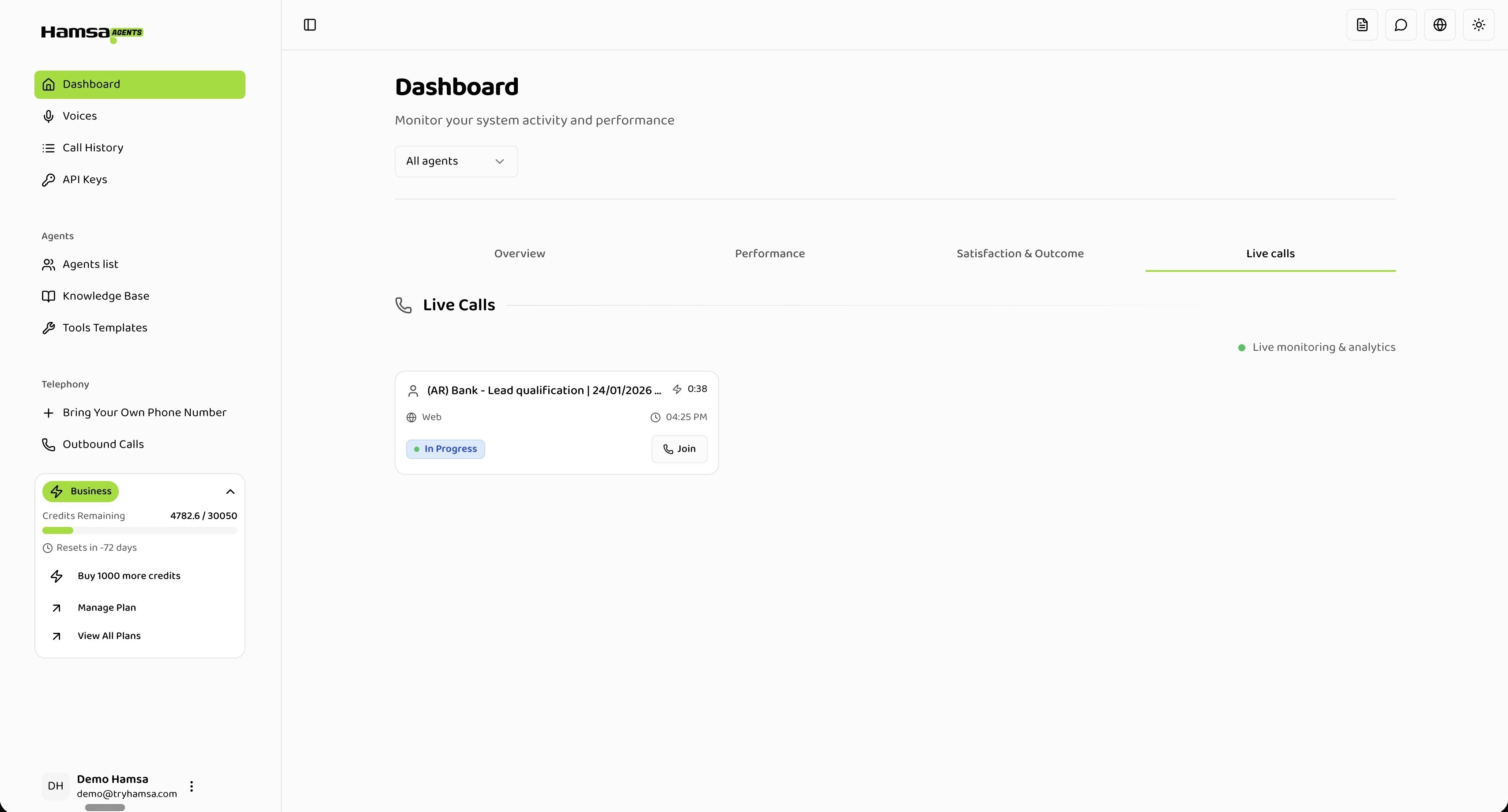
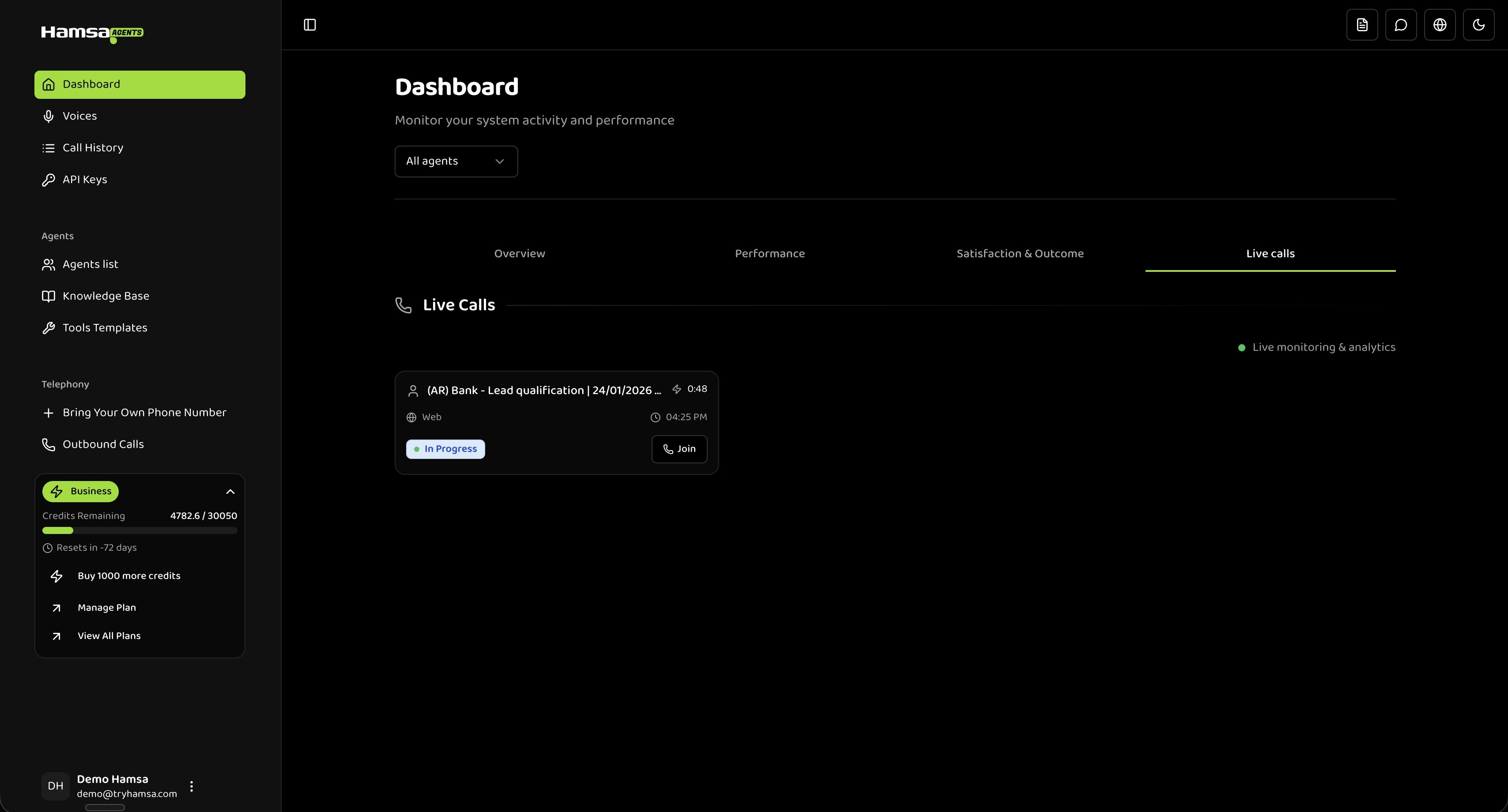
The view refreshes automatically every 10 seconds, showing all calls currently in progress. Use the **Agent Filter** dropdown to show calls for a specific agent or all agents.
Only calls with status "IN\_PROGRESS" appear here. Completed calls move to Call History.
## Call Cards
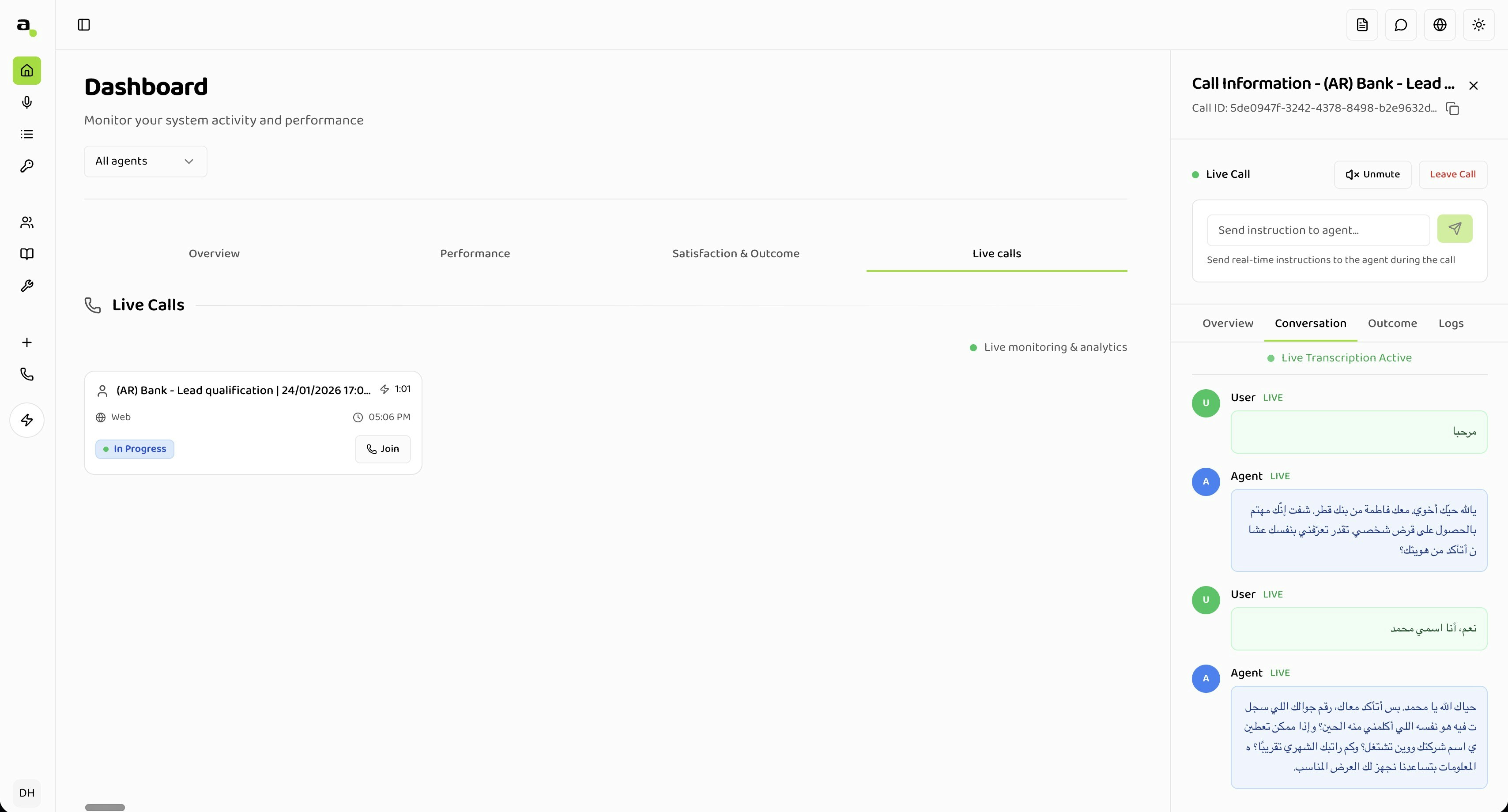
Each active call is displayed as a card showing:
* **Agent name**: The voice agent handling the call
* **Timestamp**: When the call started
* **Duration**: Live counter showing elapsed time
* **Channel**: Phone, Web, or WhatsApp
* **Status**: "In Progress" indicator
* **Join button**: Click to listen in on the call
## Joining a Call
You can join any active call as a silent listener — the caller and agent are not aware you're listening.
### How to Join
1. Click the **Join** button on a call card
2. The call details drawer opens on the right
3. Click **Join Call** in the drawer header
4. You're now connected and can hear both sides of the conversation
### While Listening
* **Live audio**: Hear both the caller and agent in real-time
* **Live transcription**: See the conversation transcribed as it happens, with speaker labels (User/Agent)
* **Performance metrics**: View ASR, LLM, TTS, and latency metrics updating in real-time
### Leaving a Call
* Click **Leave Call** in the drawer header, or
* Close the drawer (X button)
The caller's conversation continues normally after you leave.
When a call ends while you're listening, the drawer closes automatically with a notification.
## Call Details Drawer
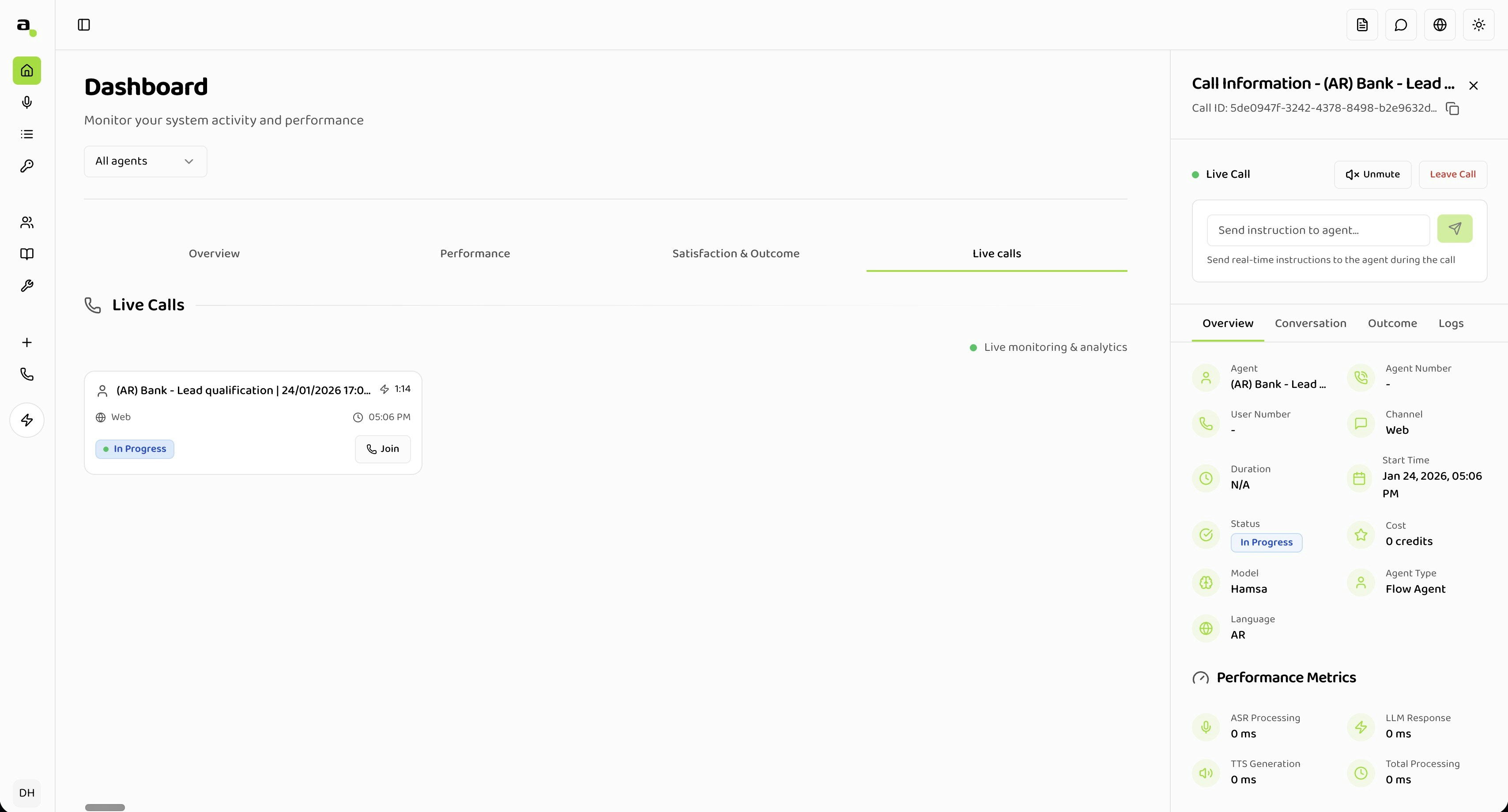
The drawer opens on the right side of the screen and contains detailed information about the call.
## Accessing Live Calls
1. Navigate to **Dashboard** from the main menu
2. Click the **Live calls** tab
The view refreshes automatically every 10 seconds, showing all calls currently in progress. Use the **Agent Filter** dropdown to show calls for a specific agent or all agents.
Only calls with status "IN\_PROGRESS" appear here. Completed calls move to Call History.
## Call Cards
Each active call is displayed as a card showing:
* **Agent name**: The voice agent handling the call
* **Timestamp**: When the call started
* **Duration**: Live counter showing elapsed time
* **Channel**: Phone, Web, or WhatsApp
* **Status**: "In Progress" indicator
* **Join button**: Click to listen in on the call
## Joining a Call
You can join any active call as a silent listener — the caller and agent are not aware you're listening.
### How to Join
1. Click the **Join** button on a call card
2. The call details drawer opens on the right
3. Click **Join Call** in the drawer header
4. You're now connected and can hear both sides of the conversation
### While Listening
* **Live audio**: Hear both the caller and agent in real-time
* **Live transcription**: See the conversation transcribed as it happens, with speaker labels (User/Agent)
* **Performance metrics**: View ASR, LLM, TTS, and latency metrics updating in real-time
### Leaving a Call
* Click **Leave Call** in the drawer header, or
* Close the drawer (X button)
The caller's conversation continues normally after you leave.
When a call ends while you're listening, the drawer closes automatically with a notification.
## Call Details Drawer
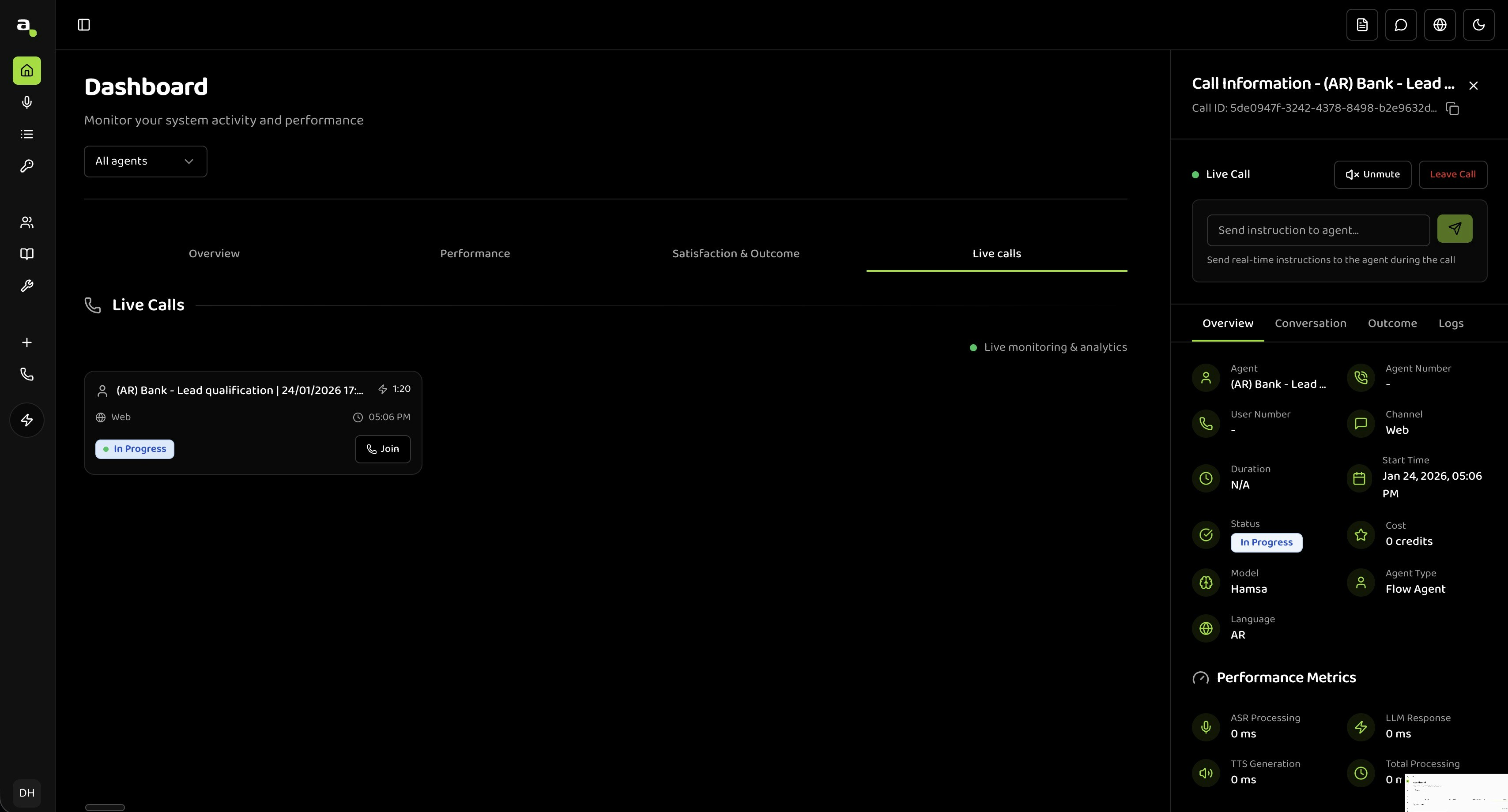
The drawer opens on the right side of the screen and contains detailed information about the call.
 ### Overview
* Session ID, status, start time, and duration
* Channel type
* Performance metrics (ASR, LLM, TTS, Latency) updating in real-time
### Overview
* Session ID, status, start time, and duration
* Channel type
* Performance metrics (ASR, LLM, TTS, Latency) updating in real-time
 ### Conversation
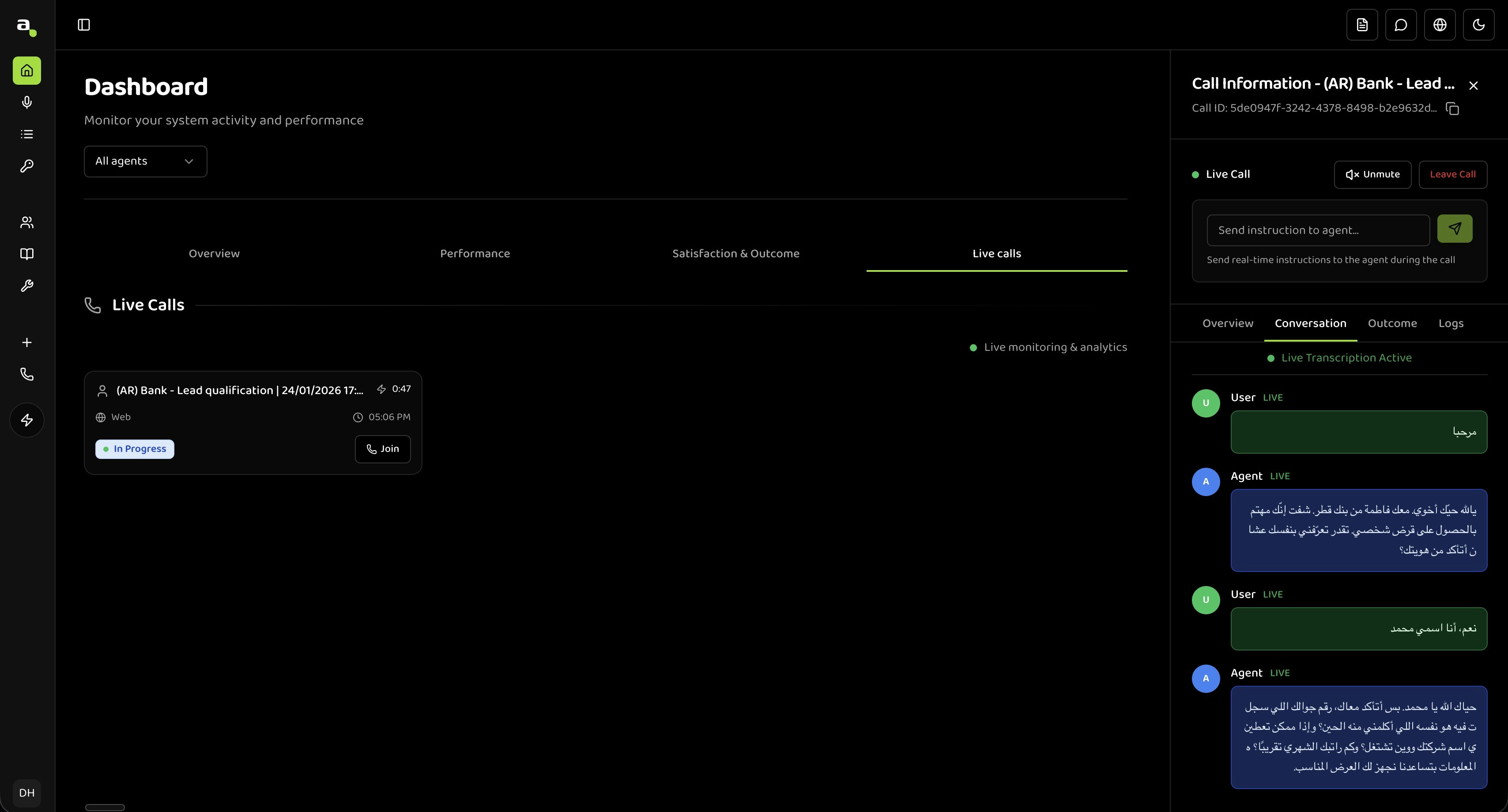
* Full live transcript with speaker labels and timestamps
* Auto-scrolls to the latest message
* After the call ends, an audio recording becomes available with playback controls
### Outcome
Populates after the call ends:
* AI-generated call summary
* Sentiment analysis
* Resolution status (Resolved / Escalated)
## Auto-Refresh
The call list refreshes every 10 seconds automatically. Auto-refresh pauses when you open a call details drawer and resumes when you close it.
## Troubleshooting
### No Calls Showing
* Check the agent filter — it may be set to an agent with no active calls
* Calls older than 10 minutes are no longer shown
* Verify calls are actually being made to your agents
### Can't Join or Hear Audio
* Ensure your browser allows microphone/audio permissions for the site
* Check your system volume and audio output device
* Use a recent version of Chrome, Firefox, or Edge
* Verify your network doesn't block WebRTC connections
If issues persist, try leaving and rejoining, or refresh the page.
### Transcription Not Appearing
Live transcription typically appears 2-3 seconds after speech. If nothing appears:
* Wait a few seconds after joining — connection may still be establishing
* Check that someone is actually speaking
* Close and reopen the drawer
## Privacy Note
You join calls as a silent listener — the caller is not notified. Ensure your use of call monitoring complies with applicable laws and your company's privacy policies. Consider including a monitoring disclosure in your agent's greeting.
## Related
View overall system metrics and statistics
Search and review completed call recordings
Analyze detailed performance data
Track customer satisfaction and sentiment
### Conversation
* Full live transcript with speaker labels and timestamps
* Auto-scrolls to the latest message
* After the call ends, an audio recording becomes available with playback controls
### Outcome
Populates after the call ends:
* AI-generated call summary
* Sentiment analysis
* Resolution status (Resolved / Escalated)
## Auto-Refresh
The call list refreshes every 10 seconds automatically. Auto-refresh pauses when you open a call details drawer and resumes when you close it.
## Troubleshooting
### No Calls Showing
* Check the agent filter — it may be set to an agent with no active calls
* Calls older than 10 minutes are no longer shown
* Verify calls are actually being made to your agents
### Can't Join or Hear Audio
* Ensure your browser allows microphone/audio permissions for the site
* Check your system volume and audio output device
* Use a recent version of Chrome, Firefox, or Edge
* Verify your network doesn't block WebRTC connections
If issues persist, try leaving and rejoining, or refresh the page.
### Transcription Not Appearing
Live transcription typically appears 2-3 seconds after speech. If nothing appears:
* Wait a few seconds after joining — connection may still be establishing
* Check that someone is actually speaking
* Close and reopen the drawer
## Privacy Note
You join calls as a silent listener — the caller is not notified. Ensure your use of call monitoring complies with applicable laws and your company's privacy policies. Consider including a monitoring disclosure in your agent's greeting.
## Related
View overall system metrics and statistics
Search and review completed call recordings
Analyze detailed performance data
Track customer satisfaction and sentiment