> ## Documentation Index
> Fetch the complete documentation index at: https://docs.tryhamsa.com/llms.txt
> Use this file to discover all available pages before exploring further.
# Viewing Calls
> Filter, search, sort, and paginate call history with comprehensive controls
## Overview
The Call History list view provides comprehensive controls for viewing, filtering, searching, and managing call records. All settings are preserved in URL parameters for easy sharing and bookmarking.
## List View
The call history list displays all calls in a sortable table format with the following columns:
### Displayed Columns
| Column | Description | Default Visible |
| ----------------- | ------------------------------------------ | --------------- |
| **Time** | Call timestamp (relative or absolute) | Yes |
| **Agent** | Voice Agent name with ID | Yes |
| **Channel** | Channel type (Web, Telephone) with icon | Yes |
| **Duration** | Call duration in readable format | Yes |
| **Status** | Current call status with color-coded badge | Yes |
| **Cost** | Cost in credits | Yes |
| **Agent Number** | Agent phone number | No (hidden) |
| **Client Number** | Client/user phone number | No (hidden) |
| **Timestamp** | Full timestamp | No (hidden) |
### Row Interactions
**Click Behavior:**
* Click any row to open call details drawer
* Exception: PENDING calls do not open drawer
* Drawer shows comprehensive call information
**Actions Menu:**
* Available for completed calls
* View details option
* Additional actions as available
## Filtering

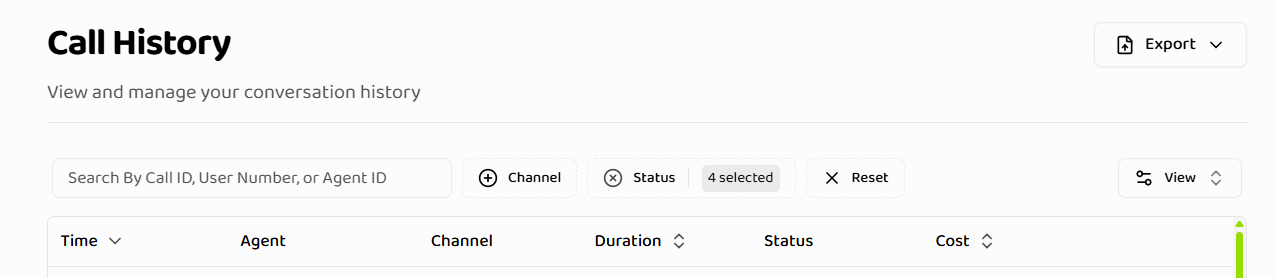 ### Date Range Filter
Date range filtering supports multiple presets:
| Preset | Description |
| -------------- | -------------------------------------- |
| **All** | No date filter (all time) |
| **Last Hour** | Calls from the past hour |
| **Today** | Calls from today |
| **Yesterday** | Calls from yesterday |
| **This Week** | Calls from Sunday to today |
| **This Month** | Calls from the first of month to today |
| **Custom** | User-selected date range |
**Custom Date Range:**
* Select start and end dates from calendar
* Two-month calendar view
* Future dates are disabled
### Date Range Filter
Date range filtering supports multiple presets:
| Preset | Description |
| -------------- | -------------------------------------- |
| **All** | No date filter (all time) |
| **Last Hour** | Calls from the past hour |
| **Today** | Calls from today |
| **Yesterday** | Calls from yesterday |
| **This Week** | Calls from Sunday to today |
| **This Month** | Calls from the first of month to today |
| **Custom** | User-selected date range |
**Custom Date Range:**
* Select start and end dates from calendar
* Two-month calendar view
* Future dates are disabled
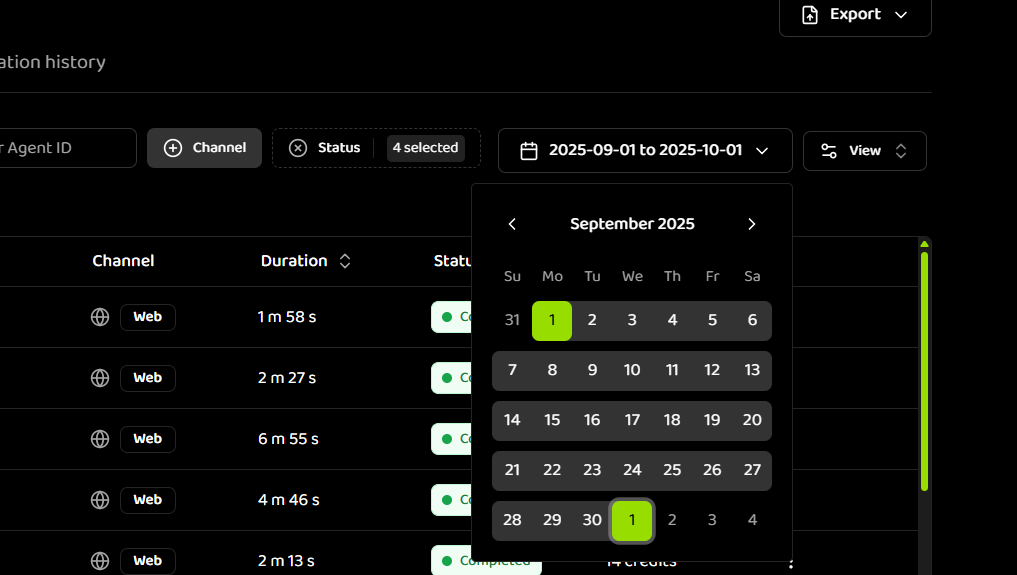
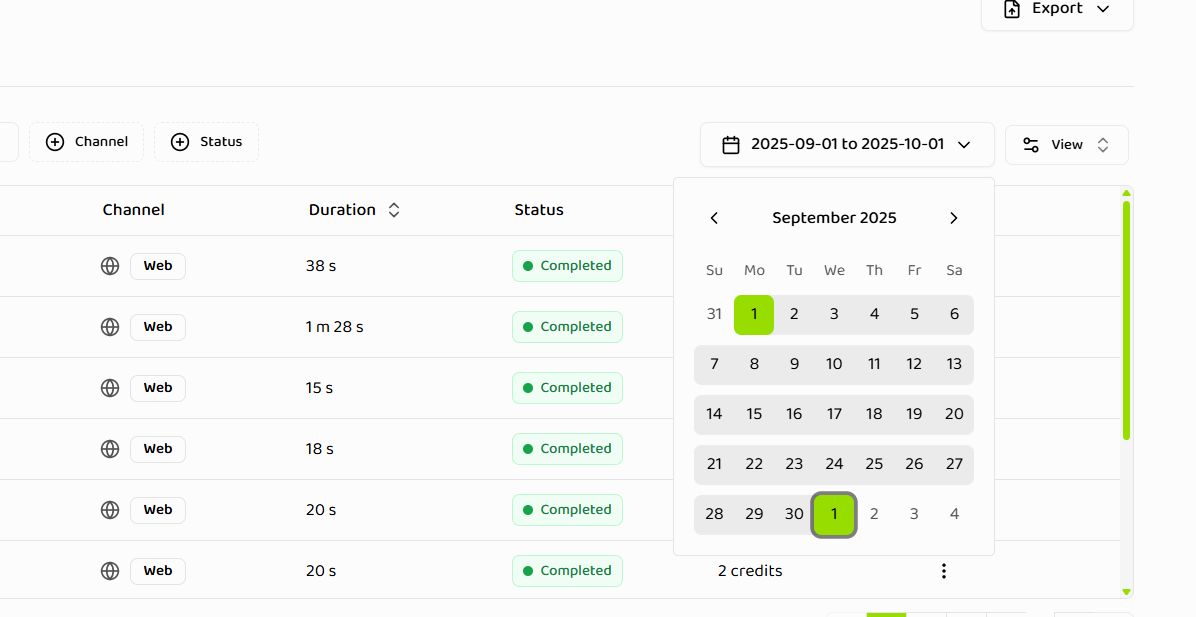 * Start date: beginning of day (00:00:00.000)
* End date: end of day (23:59:59.999)
* Click "Done" to apply selection
**Date Range Behavior:**
* "All" removes date filtering entirely
* Presets are calculated based on user's timezone
* Custom ranges respect timezone settings
* Date range is stored in URL query parameters
### Status Filter
Filter by one or more call statuses:
**Available Statuses:**
* **COMPLETED** - Call completed successfully
* **PENDING** - Call is queued or waiting
* **FAILED** - Call encountered an error
* **IN\_PROGRESS** - Call is actively in progress
* **NO\_ANSWER** - Recipient did not answer
* **FORWARDED** - Call was forwarded
**Status Filter Behavior:**
* Multiple statuses can be selected
* Filter values stored in URL query parameters
* Default statuses applied on first load (COMPLETED, FAILED, IN\_PROGRESS, FORWARDED)
* Filter persists across page navigation
### Duration Filter
Filter calls by how long they lasted:
**Conditions available:**
* Is between (range)
* Is greater than (minimum)
* Is less than (maximum)
* Is equal to (exact)
**How to use:**
1. Click the **Duration** filter button
2. Select condition type
3. Enter value(s) in seconds
4. Click Apply
### Channel Type Filter
Filter by communication channel:
**Available Channels:**
* **Web** - Web-based calls
* **Telephone** - Phone calls
**Channel Filter Behavior:**
* Multiple channels can be selected
* Filter stored in URL query parameters
* Empty values show all channels
* Visual icons distinguish channel types
### Agent Filter
Filter by Voice Agent:
**Selection:**
* Select from dropdown of available agents
* Shows agent name with truncation for long names
* Tooltip shows full name on hover
* Empty state shown if no agents available
**Agent Filter Behavior:**
* Single agent selection
* Filter stored in URL query parameters
* Agents loaded from project's voice agents
* Filter persists across navigation
### Filter Reset
**Reset Button:**
* Clears all column filters
* Resets date range to "All"
* Preserves pagination and sorting
* URL query parameters updated
**Process:**
1. Click "Reset" button
2. All filters cleared
3. Date range set to "All"
4. Status filters reset to defaults
5. Channel and agent filters cleared
## Searching
### Search Functionality
**Search Bar:**
* Located in table toolbar
* Real-time search as you type
* Searches across multiple fields
**Search Fields:**
* **Call ID** - Unique call identifier
* **User Number** - User/client phone number
* **Agent ID** - Voice Agent identifier
**Search Behavior:**
* Case-insensitive matching
* Search term stored in URL query parameters
* Pagination resets when search is active
* Search persists across page navigation
### Search Results
**Display:**
* Filtered results displayed immediately
* Empty state shown if no matches
* Search term highlighted in results (if applicable)
* Result count displayed
**Empty State:**
* "No search results" message
* Clear search option
* Suggests checking filters
## Sorting
### Sortable Columns
The following columns can be sorted:
* **Time** - Call timestamp
* **Duration** - Call duration
* **Cost** - Call cost in credits
### Sort Behavior
**Interaction:**
* Click column header to toggle sort direction
* Ascending (↑) or Descending (↓)
* Sort state stored in URL query parameters
* Default sort: time descending (most recent first)
**Limitations:**
* Only one column can be sorted at a time
* Clicking different column changes sort
* Clicking same column toggles direction
## Pagination
### Pagination Controls
**Default Settings:**
* Default page size: 10 items per page
* Page size configurable via URL query parameters
* Page number stored in URL
* Per-page count stored in URL
**Controls:**
* Previous/Next page buttons
* Page number input
* Page size selector
* Total count display
### Pagination Behavior
**Display:**
* Total count displayed
* Filtered count shown when filters are active
* Current page and total pages shown
* Page navigation via table controls
**URL Management:**
* URL updates reflect current page state
* Page number in query parameters
* Page size in query parameters
* Shareable URLs preserve pagination
## Export Functionality
### Export Current Page
**Behavior:**
* Exports only the calls visible on the current page
* Respects current page size
* Includes all visible columns
* CSV format
**Use Case:**
* Quick export of visible calls
* Limited dataset export
* Current view snapshot
### Export with Filters
**Behavior:**
* Exports all calls matching current filters
* Includes all filtered results (not just current page)
* Respects all active filters
* CSV format
**Use Case:**
* Export filtered dataset
* Bulk data export
* Analysis-ready data
**Export Process:**
1. Apply desired filters
2. Click "Export" button
3. Select "Export Filtered" or "Export Current Page"
4. CSV file downloads
5. File includes all filtered data
## Column Visibility
### Hidden Columns
The following columns are hidden by default:
* **Agent Number** - Agent phone number
* **Client Number** - Client/user phone number
* **Timestamp** - Full timestamp
### Toggle Visibility
**Controls:**
* Column visibility menu
* Toggle individual columns
* Show/hide as needed
* Preferences not persisted (resets on refresh)
## Duration Formatting
Duration is displayed in human-readable format:
**Formatting:**
* **Seconds**: "30s", "45s" (under 60 seconds)
* **Minutes**: "2m 30s", "15m" (60 seconds to 59 minutes)
* **Hours**: "1h 30m", "2h" (60+ minutes)
**Examples:**
```
30 seconds → "30s"
2 minutes 30 seconds → "2m 30s"
1 hour 30 minutes → "1h 30m"
```
## Cost Formatting
Cost is displayed in credits with proper formatting:
**Formatting:**
* Integer values: "5 credits", "10 credits"
* Decimal values: "5.5 credits", "10.25 credits"
* Consistent decimal precision
## Status Badges
Status is displayed with color-coded badges:
**Status Colors:**
* **COMPLETED** - Green
* **IN\_PROGRESS** - Blue
* **PENDING** - Yellow
* **FAILED** - Red
* **NO\_ANSWER** - Orange
* **FORWARDED** - Purple
## Channel Display
Channels are displayed with icons and badges:
**Web Channel:**
* Web icon
* "Web" badge
* Distinct styling
**Telephone Channel:**
* Phone icon
* "Telephone" badge
* Distinct styling
## Empty States
### No Calls
**Displayed When:**
* No calls exist in project
* All calls filtered out
* Project has no call history
**Message:**
* "No calls found"
* Suggests checking filters
* Provides guidance
### No Search Results
**Displayed When:**
* Search returns no matches
* Filters exclude all calls
* Search term too specific
**Message:**
* "No search results"
* Clear search option
* Suggests adjusting filters
## URL State Management
All filters, sorting, and pagination are stored in the URL:
**Benefits:**
* Shareable URLs
* Bookmarkable states
* Browser back/forward support
* Direct navigation to filtered views
**Stored Parameters:**
* Date range
* Status filters
* Channel filters
* Agent filter
* Search term
* Sort column and direction
* Page number
* Page size
## Real-Time Updates
### Active Calls
**Live Updates:**
* Status changes update automatically
* Duration updates in real-time
* New calls appear automatically
* No manual refresh needed
**Visual Indicators:**
* Active calls highlighted
* Real-time status badges
* Live duration counters
* In-progress indicators
## Responsive Design
### Mobile Adaptations
**Layout:**
* Responsive table layout
* Touch-friendly controls
* Optimized for small screens
* Horizontal scroll when needed
### Touch Interactions
**Gestures:**
* Swipe to scroll
* Tap to select
* Long press for actions
* Touch-optimized buttons
## Accessibility
### Keyboard Support
**Navigation:**
* Tab through filters
* Arrow keys for sorting
* Enter to apply filters
* Escape to close dialogs
### Screen Reader Support
**Announcements:**
* Status changes announced
* Filter changes announced
* Search results announced
* Page changes announced
### RTL Support
**Layout:**
* Right-to-left layout support
* Mirrored controls
* Proper text direction
* RTL-friendly icons
## Next Steps
* **[Call Details](./call-details)** - Understand call details drawer and tabs
* **[Best Practices](./best-practices)** - Optimize your call history usage
## Related Documentation
Learn about call details drawer
Optimize call history usage
Understand call history fundamentals
* Start date: beginning of day (00:00:00.000)
* End date: end of day (23:59:59.999)
* Click "Done" to apply selection
**Date Range Behavior:**
* "All" removes date filtering entirely
* Presets are calculated based on user's timezone
* Custom ranges respect timezone settings
* Date range is stored in URL query parameters
### Status Filter
Filter by one or more call statuses:
**Available Statuses:**
* **COMPLETED** - Call completed successfully
* **PENDING** - Call is queued or waiting
* **FAILED** - Call encountered an error
* **IN\_PROGRESS** - Call is actively in progress
* **NO\_ANSWER** - Recipient did not answer
* **FORWARDED** - Call was forwarded
**Status Filter Behavior:**
* Multiple statuses can be selected
* Filter values stored in URL query parameters
* Default statuses applied on first load (COMPLETED, FAILED, IN\_PROGRESS, FORWARDED)
* Filter persists across page navigation
### Duration Filter
Filter calls by how long they lasted:
**Conditions available:**
* Is between (range)
* Is greater than (minimum)
* Is less than (maximum)
* Is equal to (exact)
**How to use:**
1. Click the **Duration** filter button
2. Select condition type
3. Enter value(s) in seconds
4. Click Apply
### Channel Type Filter
Filter by communication channel:
**Available Channels:**
* **Web** - Web-based calls
* **Telephone** - Phone calls
**Channel Filter Behavior:**
* Multiple channels can be selected
* Filter stored in URL query parameters
* Empty values show all channels
* Visual icons distinguish channel types
### Agent Filter
Filter by Voice Agent:
**Selection:**
* Select from dropdown of available agents
* Shows agent name with truncation for long names
* Tooltip shows full name on hover
* Empty state shown if no agents available
**Agent Filter Behavior:**
* Single agent selection
* Filter stored in URL query parameters
* Agents loaded from project's voice agents
* Filter persists across navigation
### Filter Reset
**Reset Button:**
* Clears all column filters
* Resets date range to "All"
* Preserves pagination and sorting
* URL query parameters updated
**Process:**
1. Click "Reset" button
2. All filters cleared
3. Date range set to "All"
4. Status filters reset to defaults
5. Channel and agent filters cleared
## Searching
### Search Functionality
**Search Bar:**
* Located in table toolbar
* Real-time search as you type
* Searches across multiple fields
**Search Fields:**
* **Call ID** - Unique call identifier
* **User Number** - User/client phone number
* **Agent ID** - Voice Agent identifier
**Search Behavior:**
* Case-insensitive matching
* Search term stored in URL query parameters
* Pagination resets when search is active
* Search persists across page navigation
### Search Results
**Display:**
* Filtered results displayed immediately
* Empty state shown if no matches
* Search term highlighted in results (if applicable)
* Result count displayed
**Empty State:**
* "No search results" message
* Clear search option
* Suggests checking filters
## Sorting
### Sortable Columns
The following columns can be sorted:
* **Time** - Call timestamp
* **Duration** - Call duration
* **Cost** - Call cost in credits
### Sort Behavior
**Interaction:**
* Click column header to toggle sort direction
* Ascending (↑) or Descending (↓)
* Sort state stored in URL query parameters
* Default sort: time descending (most recent first)
**Limitations:**
* Only one column can be sorted at a time
* Clicking different column changes sort
* Clicking same column toggles direction
## Pagination
### Pagination Controls
**Default Settings:**
* Default page size: 10 items per page
* Page size configurable via URL query parameters
* Page number stored in URL
* Per-page count stored in URL
**Controls:**
* Previous/Next page buttons
* Page number input
* Page size selector
* Total count display
### Pagination Behavior
**Display:**
* Total count displayed
* Filtered count shown when filters are active
* Current page and total pages shown
* Page navigation via table controls
**URL Management:**
* URL updates reflect current page state
* Page number in query parameters
* Page size in query parameters
* Shareable URLs preserve pagination
## Export Functionality
### Export Current Page
**Behavior:**
* Exports only the calls visible on the current page
* Respects current page size
* Includes all visible columns
* CSV format
**Use Case:**
* Quick export of visible calls
* Limited dataset export
* Current view snapshot
### Export with Filters
**Behavior:**
* Exports all calls matching current filters
* Includes all filtered results (not just current page)
* Respects all active filters
* CSV format
**Use Case:**
* Export filtered dataset
* Bulk data export
* Analysis-ready data
**Export Process:**
1. Apply desired filters
2. Click "Export" button
3. Select "Export Filtered" or "Export Current Page"
4. CSV file downloads
5. File includes all filtered data
## Column Visibility
### Hidden Columns
The following columns are hidden by default:
* **Agent Number** - Agent phone number
* **Client Number** - Client/user phone number
* **Timestamp** - Full timestamp
### Toggle Visibility
**Controls:**
* Column visibility menu
* Toggle individual columns
* Show/hide as needed
* Preferences not persisted (resets on refresh)
## Duration Formatting
Duration is displayed in human-readable format:
**Formatting:**
* **Seconds**: "30s", "45s" (under 60 seconds)
* **Minutes**: "2m 30s", "15m" (60 seconds to 59 minutes)
* **Hours**: "1h 30m", "2h" (60+ minutes)
**Examples:**
```
30 seconds → "30s"
2 minutes 30 seconds → "2m 30s"
1 hour 30 minutes → "1h 30m"
```
## Cost Formatting
Cost is displayed in credits with proper formatting:
**Formatting:**
* Integer values: "5 credits", "10 credits"
* Decimal values: "5.5 credits", "10.25 credits"
* Consistent decimal precision
## Status Badges
Status is displayed with color-coded badges:
**Status Colors:**
* **COMPLETED** - Green
* **IN\_PROGRESS** - Blue
* **PENDING** - Yellow
* **FAILED** - Red
* **NO\_ANSWER** - Orange
* **FORWARDED** - Purple
## Channel Display
Channels are displayed with icons and badges:
**Web Channel:**
* Web icon
* "Web" badge
* Distinct styling
**Telephone Channel:**
* Phone icon
* "Telephone" badge
* Distinct styling
## Empty States
### No Calls
**Displayed When:**
* No calls exist in project
* All calls filtered out
* Project has no call history
**Message:**
* "No calls found"
* Suggests checking filters
* Provides guidance
### No Search Results
**Displayed When:**
* Search returns no matches
* Filters exclude all calls
* Search term too specific
**Message:**
* "No search results"
* Clear search option
* Suggests adjusting filters
## URL State Management
All filters, sorting, and pagination are stored in the URL:
**Benefits:**
* Shareable URLs
* Bookmarkable states
* Browser back/forward support
* Direct navigation to filtered views
**Stored Parameters:**
* Date range
* Status filters
* Channel filters
* Agent filter
* Search term
* Sort column and direction
* Page number
* Page size
## Real-Time Updates
### Active Calls
**Live Updates:**
* Status changes update automatically
* Duration updates in real-time
* New calls appear automatically
* No manual refresh needed
**Visual Indicators:**
* Active calls highlighted
* Real-time status badges
* Live duration counters
* In-progress indicators
## Responsive Design
### Mobile Adaptations
**Layout:**
* Responsive table layout
* Touch-friendly controls
* Optimized for small screens
* Horizontal scroll when needed
### Touch Interactions
**Gestures:**
* Swipe to scroll
* Tap to select
* Long press for actions
* Touch-optimized buttons
## Accessibility
### Keyboard Support
**Navigation:**
* Tab through filters
* Arrow keys for sorting
* Enter to apply filters
* Escape to close dialogs
### Screen Reader Support
**Announcements:**
* Status changes announced
* Filter changes announced
* Search results announced
* Page changes announced
### RTL Support
**Layout:**
* Right-to-left layout support
* Mirrored controls
* Proper text direction
* RTL-friendly icons
## Next Steps
* **[Call Details](./call-details)** - Understand call details drawer and tabs
* **[Best Practices](./best-practices)** - Optimize your call history usage
## Related Documentation
Learn about call details drawer
Optimize call history usage
Understand call history fundamentals