> ## Documentation Index
> Fetch the complete documentation index at: https://docs.tryhamsa.com/llms.txt
> Use this file to discover all available pages before exploring further.
# Call Details
> Comprehensive call information with overview, conversation, logs, and outcomes
## Overview
The Call Details drawer provides comprehensive information about individual calls, including conversation transcripts, logs, outcomes, and metadata. It's accessible by clicking any call in the call history list.
## Accessing Call Details
### Opening the Drawer
**Methods:**
* Click any call row in the list
* Click "View Details" from actions menu
* Exception: PENDING calls do not open drawer
**Drawer Behavior:**
* Opens as side panel
* Overlays the call history list
* Can be closed via X button or outside click
* Preserves scroll position
## Drawer Tabs
The call details drawer includes four main tabs:
### Overview Tab
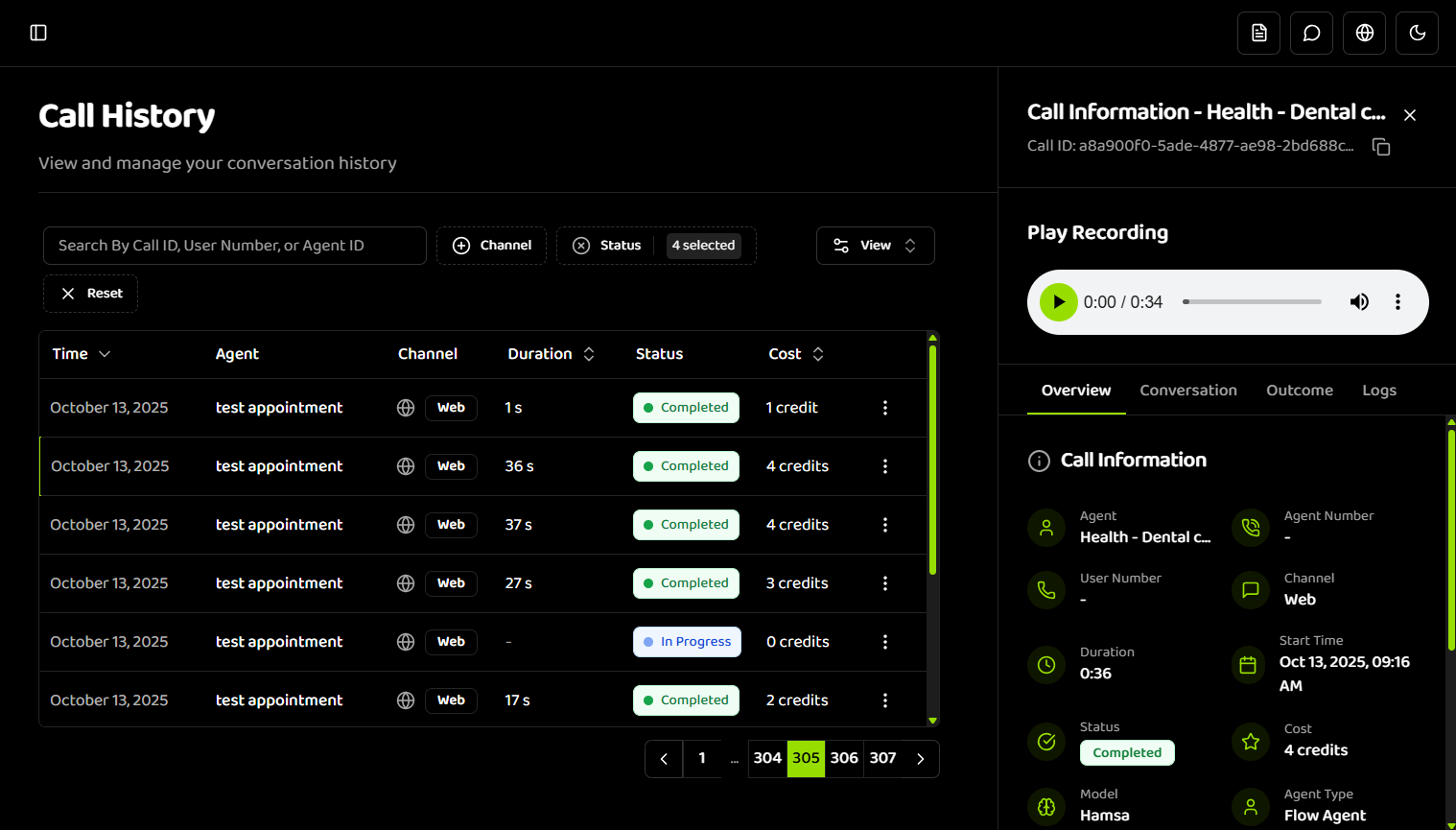
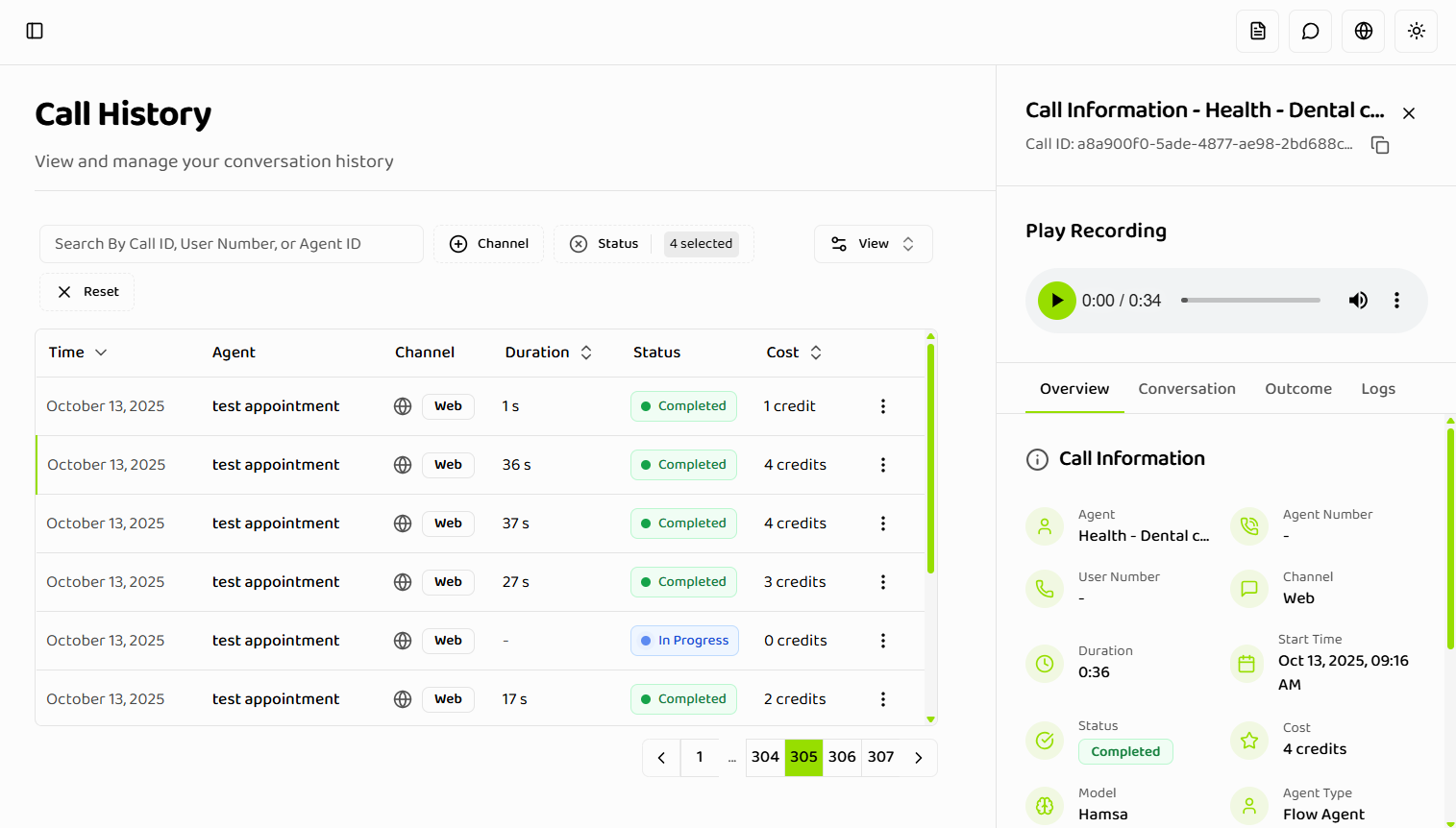 **Information Displayed:**
* Call metadata (time, duration, cost)
* Agent information
* Channel type
* Status and outcome
* Call parameters (user number, agent number)
* Basic call statistics
**Use Cases:**
* Quick call summary
* Basic information review
* Status verification
* Cost tracking
### Conversation Tab
**Content:**
* Full conversation transcript
* Speaker identification
* Timestamps for each message
* Message formatting
* Real-time updates for active calls
**Features:**
* Scrollable transcript
* Search within transcript
* Copy transcript option
* Export conversation
**For Active Calls:**
* Live transcription updates
* Real-time message display
* Auto-scroll to latest
* Live indicator
* **Send Real-Time Instructions**: After joining the call via "Start Live Monitoring", use the "Send instruction to agent..." input field to send prompts during the ongoing call
### Logs Tab
**Information:**
* System logs and events
* Call flow events
* Error messages
* Debug information
* Timestamped entries
**Use Cases:**
* Troubleshooting issues
* Understanding call flow
* Debugging problems
* System event tracking
### Outcome Tab
**Content:**
* Call outcome summary
* Results and conclusions
* Outcome parameters
* Structured data
* Outcome metadata
**Use Cases:**
* Review call results
* Extract structured data
* Analyze outcomes
* Track success metrics
## Monitor The Call
For active calls (IN\_PROGRESS status), you can join the call as a listener to monitor the conversation in real-time.
### Before Joining
**Information Displayed:**
* Call metadata (time, duration, cost)
* Agent information
* Channel type
* Status and outcome
* Call parameters (user number, agent number)
* Basic call statistics
**Use Cases:**
* Quick call summary
* Basic information review
* Status verification
* Cost tracking
### Conversation Tab
**Content:**
* Full conversation transcript
* Speaker identification
* Timestamps for each message
* Message formatting
* Real-time updates for active calls
**Features:**
* Scrollable transcript
* Search within transcript
* Copy transcript option
* Export conversation
**For Active Calls:**
* Live transcription updates
* Real-time message display
* Auto-scroll to latest
* Live indicator
* **Send Real-Time Instructions**: After joining the call via "Start Live Monitoring", use the "Send instruction to agent..." input field to send prompts during the ongoing call
### Logs Tab
**Information:**
* System logs and events
* Call flow events
* Error messages
* Debug information
* Timestamped entries
**Use Cases:**
* Troubleshooting issues
* Understanding call flow
* Debugging problems
* System event tracking
### Outcome Tab
**Content:**
* Call outcome summary
* Results and conclusions
* Outcome parameters
* Structured data
* Outcome metadata
**Use Cases:**
* Review call results
* Extract structured data
* Analyze outcomes
* Track success metrics
## Monitor The Call
For active calls (IN\_PROGRESS status), you can join the call as a listener to monitor the conversation in real-time.
### Before Joining
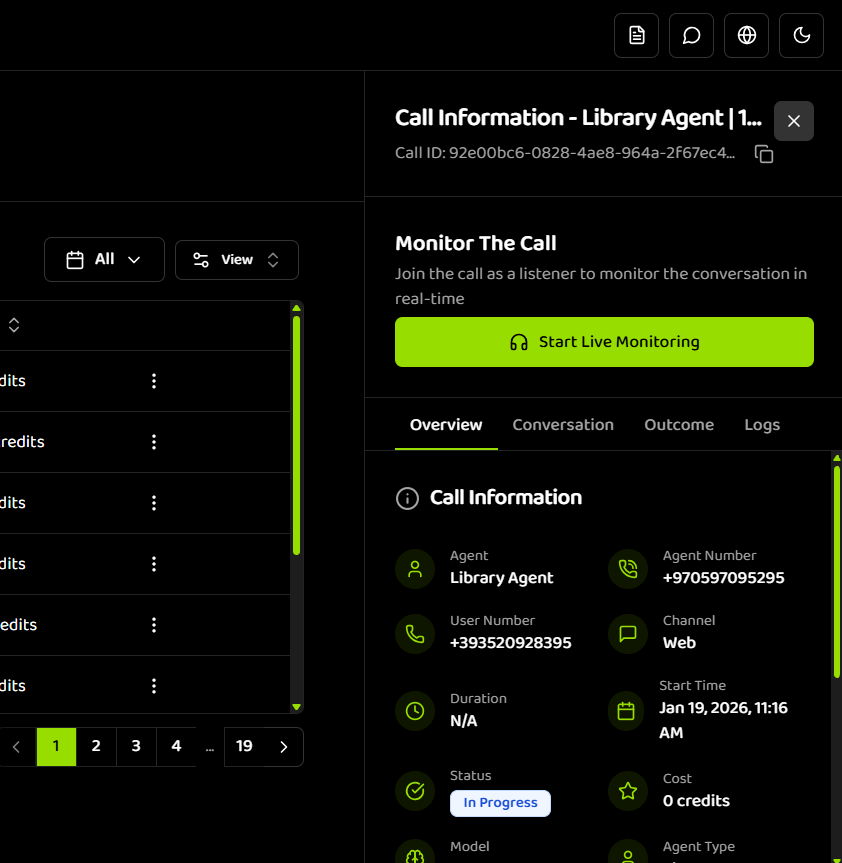
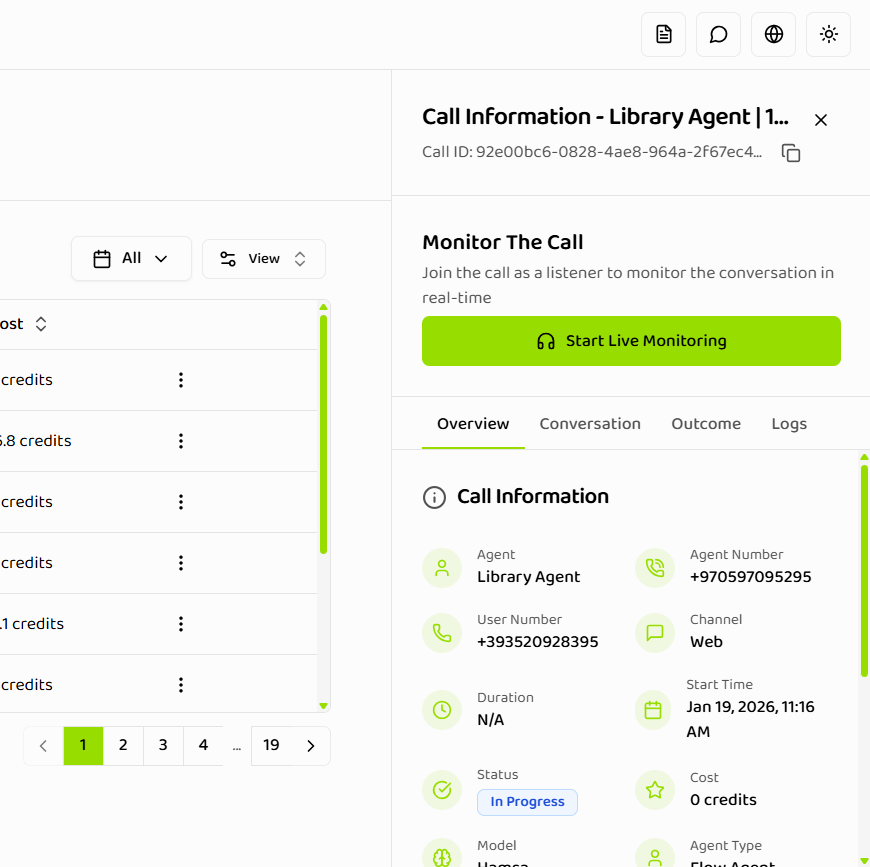 **Monitor The Call Section:**
* Appears in the call details drawer for active calls
* Description: "Join the call as a listener to monitor the conversation in real-time"
* **"Start Live Monitoring"** button - Click to join the call
### After Joining
**Monitor The Call Section:**
* Appears in the call details drawer for active calls
* Description: "Join the call as a listener to monitor the conversation in real-time"
* **"Start Live Monitoring"** button - Click to join the call
### After Joining
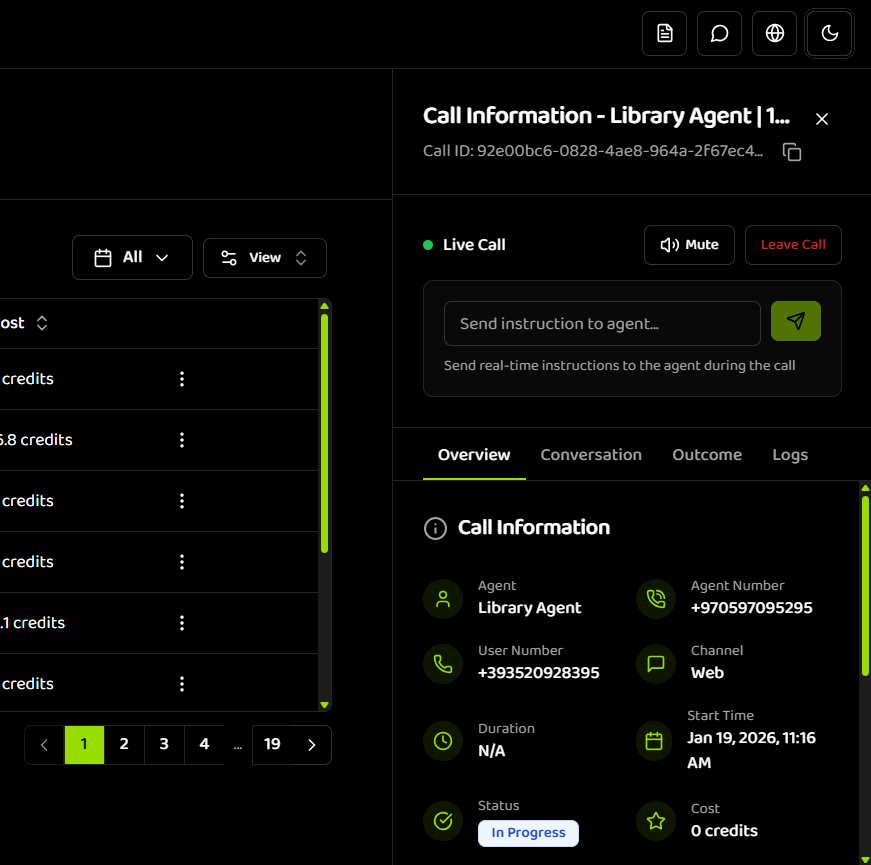
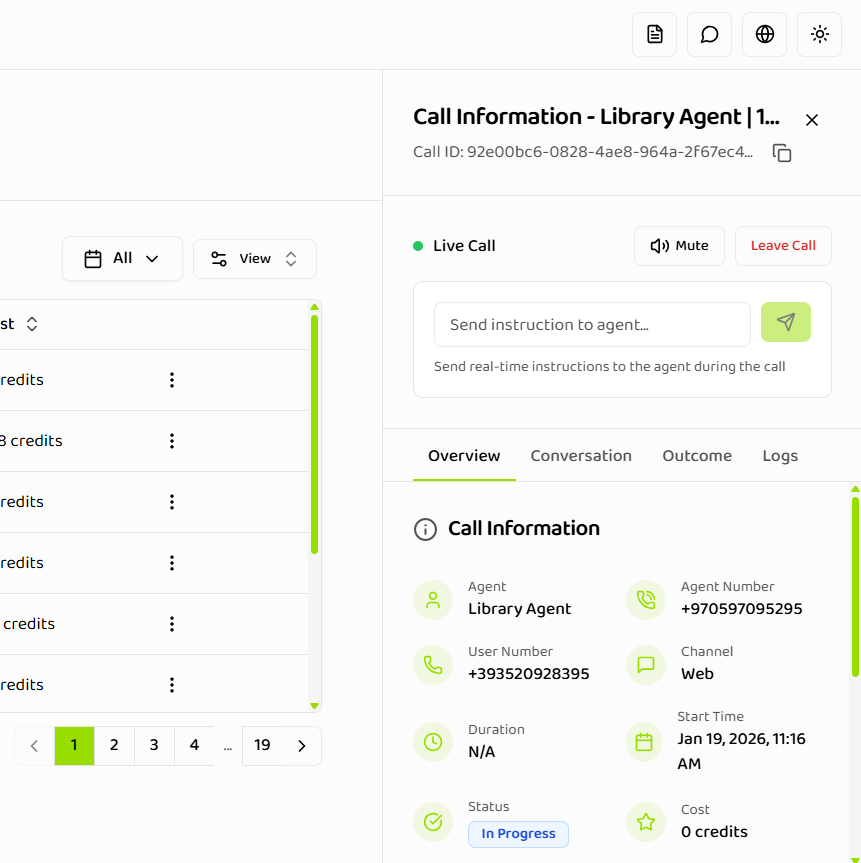 **Interface Updates:**
* **"Live Call"** indicator appears with green dot
* **Audio controls** become available:
* **Mute** button (speaker icon) - Mute/unmute the call audio
* **Leave Call** button (red text) - Exit the live monitoring session
* **"Send instruction to agent..."** input field appears below audio controls
* Helper text: "Send real-time instructions to the agent during the call"
* Send button (paper airplane icon) - Submit your instruction
**Benefits:**
* Monitor conversations in real-time
* Hear live audio from the call
* Send real-time instructions to guide the agent
* View live transcription updates in the Conversation tab
Live monitoring is only available for calls with IN\_PROGRESS status. You must join as a listener before you can send real-time instructions to the agent.
## Call Information
### Basic Metadata
**Displayed Information:**
* **Call ID**: Unique identifier
* **Time**: Call timestamp
* **Duration**: Total call duration
* **Status**: Current call status
* **Cost**: Cost in credits
* **Channel**: Communication channel
### Agent Information
**Details:**
* Agent name
* Agent ID (copyable)
* Agent configuration
* Agent settings used
### Channel Information
**Details:**
* Channel type (Web/Telephone)
* Channel-specific metadata
* Connection information
* Channel quality metrics
### Call Parameters
**Parameters:**
* User/Client number
* Agent number
* Additional parameters
* Custom variables
## Real-Time Updates
### Active Calls
**Live Updates:**
* Conversation tab updates in real-time
* New messages appear automatically
* Status changes reflected immediately
* Duration updates live
**Indicators:**
* "Live" badge on active calls
* Real-time transcription indicator
* Auto-scroll to latest message
* Live status updates
### Status Changes
**Updates:**
* Status changes update automatically
* Transition animations
* Visual status indicators
* Real-time badge updates
## Sending Real-Time Instructions
During an ongoing call (IN\_PROGRESS status), you can send real-time prompts or instructions to the agent. **Instructions can only be sent after joining the call as a listener.**
### How to Send Instructions
**Step 1: Join the Call**
1. Open the call details drawer for an active call (IN\_PROGRESS status)
2. In the **Monitor The Call** section, click **"Start Live Monitoring"**
3. You'll join the call as a listener to monitor the conversation in real-time
**Step 2: Send Instructions**
1. After joining, the interface updates to show:
* **"Live Call"** indicator with green dot
* Audio controls (Mute, Leave Call)
* **"Send instruction to agent..."** input field appears below the audio controls
2. Type your instruction or prompt in the input field
3. Click the send button (paper airplane icon) to send the instruction to the agent
**What You'll See:**
* **Before joining**: "Start Live Monitoring" button in the Monitor The Call section
* **After joining**: "Live Call" indicator, audio controls, and "Send instruction to agent..." input field
* Helper text: "Send real-time instructions to the agent during the call"
**Use Cases:**
* Provide additional context during the call
* Guide the agent's response to specific questions
* Update information or correct misunderstandings
* Escalate or change call direction
* Provide real-time coaching or corrections
Real-time instructions are only available for calls with IN\_PROGRESS status. You must first join the call using "Start Live Monitoring" before the instruction input field becomes available.
## Conversation Transcript
### Transcript Format
**Structure:**
* Speaker identification
* Message content
* Timestamps
* Message types
**Example:**
```
[10:30:15] Agent: Hello, how can I help you today?
[10:30:20] User: I need help with my account
[10:30:25] Agent: I'd be happy to help. What's your account number?
```
### Transcript Features
**Functionality:**
* Scrollable view
* Search within transcript
* Copy to clipboard
* Export transcript
* Print option
**For Active Calls:**
* Live updates
* Auto-scroll
* New message indicators
* Real-time display
## Call Logs
### Log Entries
**Types:**
* System events
* Call flow events
* Error messages
* Debug information
* Status changes
**Format:**
* Timestamped entries
* Event type
* Event description
* Additional details
### Log Analysis
**Use Cases:**
* Troubleshooting
* Understanding call flow
* Debugging issues
* System monitoring
## Call Outcomes
### Outcome Information
**Content:**
* Outcome summary
* Structured results
* Outcome parameters
* Success indicators
* Result data
### Outcome Types
**Varieties:**
* Success outcomes
* Failure outcomes
* Partial outcomes
* Custom outcomes
## Join Active Call
### Join as Listener
**Functionality:**
* Join active calls as listener
* Real-time monitoring
* No interruption to call
* Listen-only mode
**Access:**
* Available for IN\_PROGRESS calls
* "Join Call" button in drawer
* Opens call interface
* Listener mode activated
**Use Cases:**
* Quality monitoring
* Training purposes
* Support assistance
* Real-time oversight
## Export Options
### Export Conversation
**Options:**
* Export transcript
* Export as text
* Export as PDF
* Copy to clipboard
### Export Logs
**Options:**
* Export log entries
* Export as text
* Export as JSON
* Copy logs
## Drawer Navigation
### Tab Navigation
**Methods:**
* Click tab headers
* Keyboard shortcuts
* Tab order navigation
* Direct tab access
### Closing Drawer
**Methods:**
* Click X button
* Click outside drawer
* Press Escape key
* Navigate away
## Limitations
### PENDING Calls
**Restriction:**
* PENDING calls do not open drawer
* No details available yet
* Wait for call to start
* Refresh to check status
### Export Constraints
**Limitations:**
* Export size limits
* Format restrictions
* Data availability
* Performance considerations
## Next Steps
* **[Viewing Calls](./viewing-calls)** - Learn how to filter and search calls
* **[Best Practices](./best-practices)** - Optimize call review process
## Related Documentation
Learn how to filter and search calls
Optimize call review and analysis
Understand call history fundamentals
**Interface Updates:**
* **"Live Call"** indicator appears with green dot
* **Audio controls** become available:
* **Mute** button (speaker icon) - Mute/unmute the call audio
* **Leave Call** button (red text) - Exit the live monitoring session
* **"Send instruction to agent..."** input field appears below audio controls
* Helper text: "Send real-time instructions to the agent during the call"
* Send button (paper airplane icon) - Submit your instruction
**Benefits:**
* Monitor conversations in real-time
* Hear live audio from the call
* Send real-time instructions to guide the agent
* View live transcription updates in the Conversation tab
Live monitoring is only available for calls with IN\_PROGRESS status. You must join as a listener before you can send real-time instructions to the agent.
## Call Information
### Basic Metadata
**Displayed Information:**
* **Call ID**: Unique identifier
* **Time**: Call timestamp
* **Duration**: Total call duration
* **Status**: Current call status
* **Cost**: Cost in credits
* **Channel**: Communication channel
### Agent Information
**Details:**
* Agent name
* Agent ID (copyable)
* Agent configuration
* Agent settings used
### Channel Information
**Details:**
* Channel type (Web/Telephone)
* Channel-specific metadata
* Connection information
* Channel quality metrics
### Call Parameters
**Parameters:**
* User/Client number
* Agent number
* Additional parameters
* Custom variables
## Real-Time Updates
### Active Calls
**Live Updates:**
* Conversation tab updates in real-time
* New messages appear automatically
* Status changes reflected immediately
* Duration updates live
**Indicators:**
* "Live" badge on active calls
* Real-time transcription indicator
* Auto-scroll to latest message
* Live status updates
### Status Changes
**Updates:**
* Status changes update automatically
* Transition animations
* Visual status indicators
* Real-time badge updates
## Sending Real-Time Instructions
During an ongoing call (IN\_PROGRESS status), you can send real-time prompts or instructions to the agent. **Instructions can only be sent after joining the call as a listener.**
### How to Send Instructions
**Step 1: Join the Call**
1. Open the call details drawer for an active call (IN\_PROGRESS status)
2. In the **Monitor The Call** section, click **"Start Live Monitoring"**
3. You'll join the call as a listener to monitor the conversation in real-time
**Step 2: Send Instructions**
1. After joining, the interface updates to show:
* **"Live Call"** indicator with green dot
* Audio controls (Mute, Leave Call)
* **"Send instruction to agent..."** input field appears below the audio controls
2. Type your instruction or prompt in the input field
3. Click the send button (paper airplane icon) to send the instruction to the agent
**What You'll See:**
* **Before joining**: "Start Live Monitoring" button in the Monitor The Call section
* **After joining**: "Live Call" indicator, audio controls, and "Send instruction to agent..." input field
* Helper text: "Send real-time instructions to the agent during the call"
**Use Cases:**
* Provide additional context during the call
* Guide the agent's response to specific questions
* Update information or correct misunderstandings
* Escalate or change call direction
* Provide real-time coaching or corrections
Real-time instructions are only available for calls with IN\_PROGRESS status. You must first join the call using "Start Live Monitoring" before the instruction input field becomes available.
## Conversation Transcript
### Transcript Format
**Structure:**
* Speaker identification
* Message content
* Timestamps
* Message types
**Example:**
```
[10:30:15] Agent: Hello, how can I help you today?
[10:30:20] User: I need help with my account
[10:30:25] Agent: I'd be happy to help. What's your account number?
```
### Transcript Features
**Functionality:**
* Scrollable view
* Search within transcript
* Copy to clipboard
* Export transcript
* Print option
**For Active Calls:**
* Live updates
* Auto-scroll
* New message indicators
* Real-time display
## Call Logs
### Log Entries
**Types:**
* System events
* Call flow events
* Error messages
* Debug information
* Status changes
**Format:**
* Timestamped entries
* Event type
* Event description
* Additional details
### Log Analysis
**Use Cases:**
* Troubleshooting
* Understanding call flow
* Debugging issues
* System monitoring
## Call Outcomes
### Outcome Information
**Content:**
* Outcome summary
* Structured results
* Outcome parameters
* Success indicators
* Result data
### Outcome Types
**Varieties:**
* Success outcomes
* Failure outcomes
* Partial outcomes
* Custom outcomes
## Join Active Call
### Join as Listener
**Functionality:**
* Join active calls as listener
* Real-time monitoring
* No interruption to call
* Listen-only mode
**Access:**
* Available for IN\_PROGRESS calls
* "Join Call" button in drawer
* Opens call interface
* Listener mode activated
**Use Cases:**
* Quality monitoring
* Training purposes
* Support assistance
* Real-time oversight
## Export Options
### Export Conversation
**Options:**
* Export transcript
* Export as text
* Export as PDF
* Copy to clipboard
### Export Logs
**Options:**
* Export log entries
* Export as text
* Export as JSON
* Copy logs
## Drawer Navigation
### Tab Navigation
**Methods:**
* Click tab headers
* Keyboard shortcuts
* Tab order navigation
* Direct tab access
### Closing Drawer
**Methods:**
* Click X button
* Click outside drawer
* Press Escape key
* Navigate away
## Limitations
### PENDING Calls
**Restriction:**
* PENDING calls do not open drawer
* No details available yet
* Wait for call to start
* Refresh to check status
### Export Constraints
**Limitations:**
* Export size limits
* Format restrictions
* Data availability
* Performance considerations
## Next Steps
* **[Viewing Calls](./viewing-calls)** - Learn how to filter and search calls
* **[Best Practices](./best-practices)** - Optimize call review process
## Related Documentation
Learn how to filter and search calls
Optimize call review and analysis
Understand call history fundamentals