> ## Documentation Index
> Fetch the complete documentation index at: https://docs.tryhamsa.com/llms.txt
> Use this file to discover all available pages before exploring further.
# Overview
> Batch outbound calls executed by Voice Agents with scheduling and recipient management
## Overview
Batch Calls enable you to execute batch outbound calls using your Voice Agents. Each batch call manages a set of recipients, tracks call progress, and provides comprehensive control over execution.
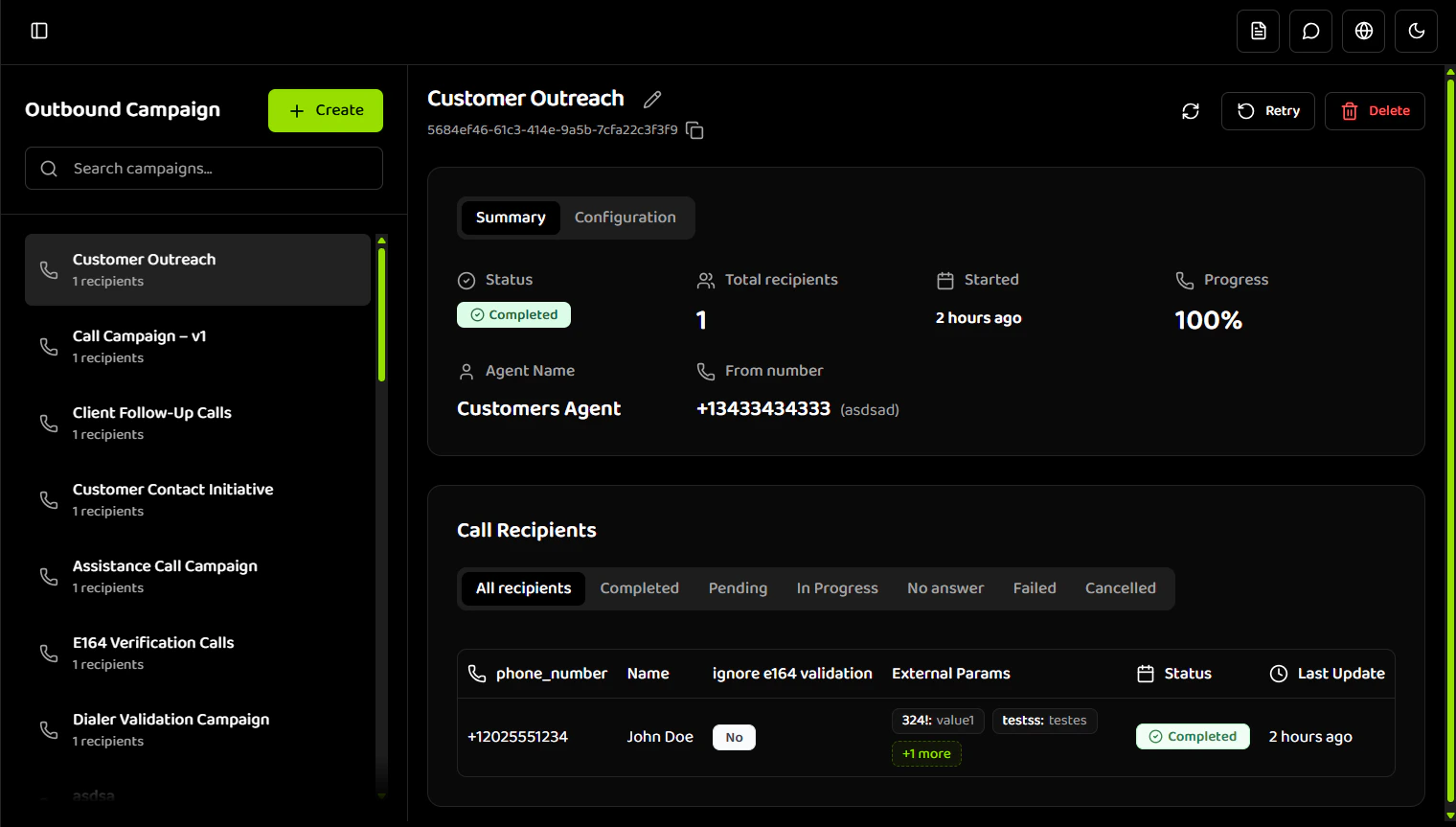
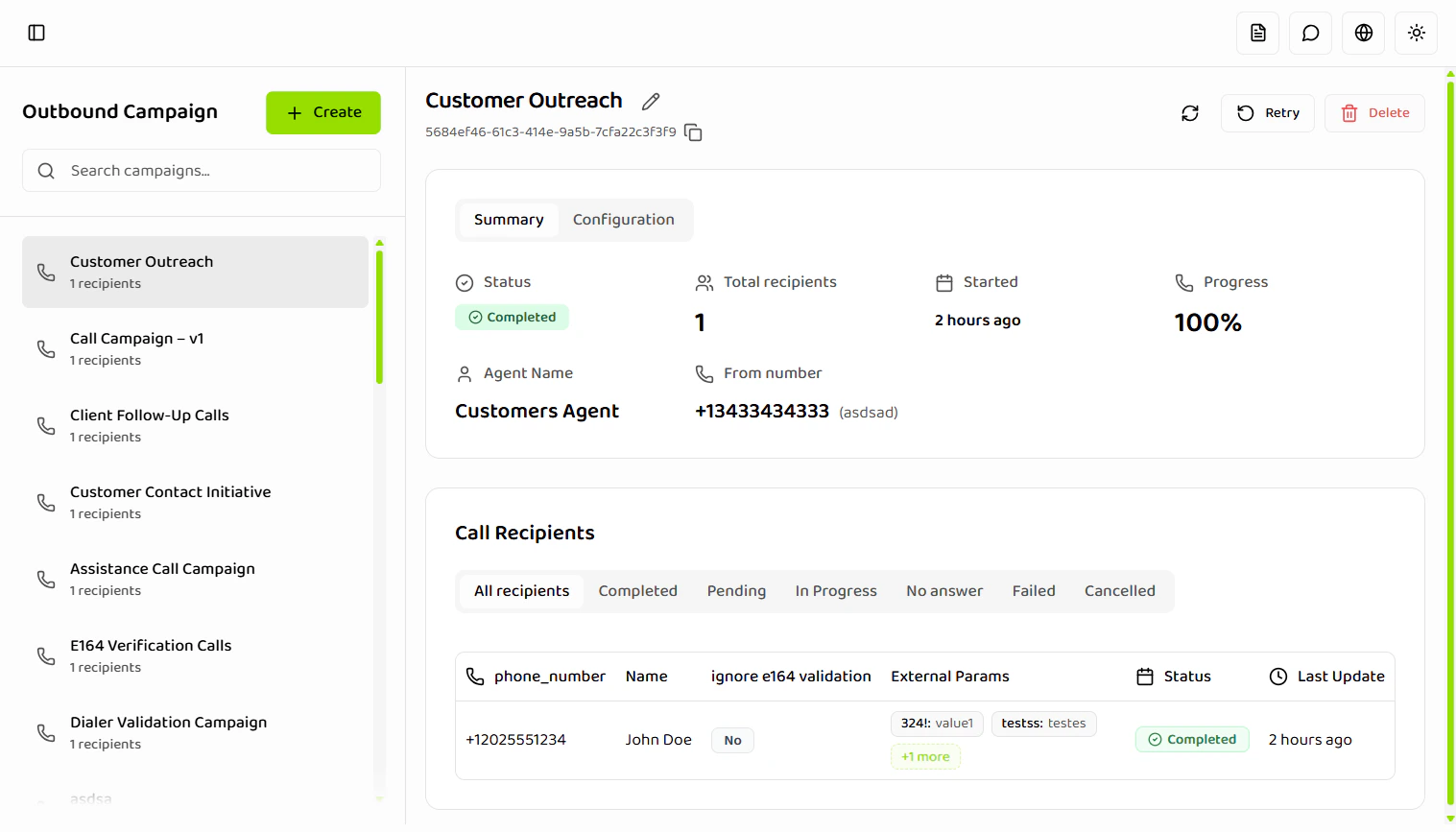 **Batch Calls enable you to:**
* Execute batch outbound calls to multiple recipients
* Schedule batch calls for specific times
* Track individual call statuses
* Personalize calls with dynamic variables
* Manage batch call execution (pause, resume, retry, cancel)
## What is an Batch Call?
An Batch Call represents a batch of outbound calls executed by the Hamsa platform. Each batch call uses one Voice Agent and one outbound phone number to call one or more recipients.
### Key Capabilities
**Batch Call Management**
* Create batch calls with CSV recipient uploads
* Schedule batch calls for future execution
* Monitor batch call progress in real-time
* Control batch call execution (pause, resume, cancel)
**Recipient Management**
* Upload recipients via CSV file
* Validate recipient data before execution
* Track individual call statuses
* Retry failed or unanswered calls
**Scheduling & Control**
* Schedule batch calls for specific dates and times
* Define time ranges when calls can run
* Set allowed days of the week
* Automatic execution within constraints
**Dynamic Personalization**
* Pass custom variables per recipient
* Personalize agent responses
* No validation on dynamic variables
* Variables only used if agent references them
## Batch Call Lifecycle
Batch Calls move through the following states depending on their send type:
| Status | Description |
| ------------- | ---------------------------------------------------------------------------------------------------------- |
| **SCHEDULED** | Batch call is scheduled to run (Send Now: picked up by worker every minute; Schedule: at future date/time) |
| **PENDING** | Batch call is created but not yet started (legacy/retry flows) |
| **RUNNING** | Batch call is actively placing calls (shown as "In Progress" in dashboard) |
| **PAUSED** | Batch call execution is temporarily stopped by user action |
| **COMPLETED** | All recipients have been processed successfully |
| **CANCELLED** | Batch call was manually stopped by user action |
| **FAILED** | Batch call encountered a fatal error during execution |
### Lifecycle Flow
**Send Now:**
* SCHEDULED (scheduled to run; queue and worker fetch every minute) → RUNNING (when picked up) → COMPLETED/FAILED
* User can PAUSE during RUNNING → PAUSED → Resume to RUNNING
* User can CANCEL at any time → CANCELLED
* From FAILED/CANCELLED/COMPLETED: Retry → SCHEDULED → continues
**Schedule:**
* SCHEDULED (waiting for scheduled time; worker fetches every minute) → RUNNING (when time arrives and worker picks it up) → COMPLETED/FAILED
* Once RUNNING, follows the same flow as Send Now
**Concurrency Impact:**
* Batch calls respect account-level concurrent call limits
* Multiple batch calls share the concurrency pool
* Batch calls queue and execute as capacity becomes available
* Execution continues until all recipients are processed
Batch Calls are not indefinite and always reach a terminal state. They execute automatically and progress until completion or cancellation.
**Note:** The API returns `RUNNING` status, but in the dashboard it is displayed as "In Progress". All other status values match between API and dashboard.
## Prerequisites
Before creating an batch call, you must have:
**Voice Agent**
* At least one Voice Agent created and configured
* Agent must be in the Voice Agents section
* Agent should be tested and ready for use
**Outbound Phone Number**
* At least one outbound phone number configured
* Number must be available in your account
* Number must support outbound calling
**Concurrency**
* Concurrency is handled automatically by the system
* No user management required
* Based on your subscription plan limits
* Batch Calls always start regardless of current capacity
## Batch Call Components
### Basic Information
Each batch call requires:
* **Batch Call Name**: 1-100 characters (required)
* **From Number**: A configured outbound phone number (required)
* **Voice Agent**: A previously created voice agent (required)
### Recipients
Recipients are added via CSV upload:
* At least one valid recipient required
* CSV file with phone numbers and optional data
* Validation before batch call creation
* Support for dynamic variables
### Scheduling
Batch Calls can be:
* **Send Now**: Starts immediately
* **Schedule**: Starts at selected date & time with timezone
### Time Constraints
All batch calls must define:
* Daily start and end time
* Allowed days of the week
* Calls outside range are deferred, not skipped
## Concurrency Behavior
Concurrency defines the maximum number of calls that may run in parallel for an batch call.
**How It Works:**
* Limits are defined by your subscription plan
* Users do not see or manage live availability
* Batch calls are created as SCHEDULED; the queue and worker fetch them every minute, then they run
* Calls are queued and executed as capacity becomes available
**Example:**
```
Plan allows 2 concurrent calls:
- Only 1 is available at batch call start
- Batch call starts immediately with 1 call
- Second call starts automatically when capacity frees up
```
Batch Calls never fail or pause due to concurrency limits. They always start and calls execute as capacity becomes available.
## Batch Call Actions
Available actions depend on batch call status:
| Action | Availability | Description |
| ---------- | -------------------------------------------- | -------------------------------- |
| **Rename** | Always | Change batch call name |
| **Reload** | Always | Fetch latest data from server |
| **Pause** | RUNNING | Temporarily stop execution |
| **Resume** | PAUSED | Continue paused batch call |
| **Retry** | FAILED, CANCELLED, COMPLETED (with failures) | Retry failed or unanswered calls |
| **Cancel** | SCHEDULED, PENDING, RUNNING, PAUSED | Stop batch call permanently |
| **Delete** | Always | Remove batch call |
Pause, Resume, Retry, and Cancel actions require confirmation dialogs to prevent accidental actions.
## Recipient Call Statuses
Each recipient in an batch call has a call status:
| Status | Meaning |
| ---------------- | ----------------------------- |
| **PENDING** | Waiting to be processed |
| **QUEUED** | In queue waiting for capacity |
| **IN\_PROGRESS** | Call is currently in progress |
| **COMPLETED** | Call completed successfully |
| **FAILED** | Call failed |
| **NO\_ANSWER** | Recipient did not answer |
## Dynamic Variables
Dynamic variables enable per-recipient personalization:
**How It Works:**
* Additional CSV columns become dynamic variables
* Passed as key-value pairs to the agent
* No validation applied
* Editable during CSV validation
**Important:**
* Variables are only used if the Voice Agent explicitly references them
* If a variable is not used by the agent, it is ignored
* No error is raised if variables are unused
* Call behavior is unaffected by unused variables
**Example:**
| phone\_number | name | plan | language |
| ------------- | ---- | ----- | -------- |
| +12025551234 | John | Pro | EN |
| +12025551235 | Jane | Basic | ES |
In this example, `plan` and `language` are dynamic variables that can be referenced by the agent.
## Getting Started
1. **Create a Voice Agent** - Ensure you have a configured agent ready
2. **Configure Phone Number** - Set up an outbound phone number
3. **Create Batch Call** - Use the Batch Calls section to create a new batch call
4. **Upload Recipients** - Upload CSV file with recipient data
5. **Schedule & Configure** - Set schedule and time constraints
6. **Monitor Progress** - Track batch call execution and recipient statuses
## What's Next?
* **[Creating Batch Calls](./creating-batch-calls)** - Learn how to create batch calls and upload recipients
* **[Managing Batch Calls](./managing-batch-calls)** - Schedule, control, and monitor batch calls
* **[Recipients & Status](./recipients-status)** - Understand recipient management and call statuses
* **[Best Practices](./best-practices)** - Optimize your batch calls for best results
## Related Documentation
Learn about creating and configuring Voice Agents
Configure outbound phone numbers
Monitor batch call performance
Get started with Hamsa platform
**Batch Calls enable you to:**
* Execute batch outbound calls to multiple recipients
* Schedule batch calls for specific times
* Track individual call statuses
* Personalize calls with dynamic variables
* Manage batch call execution (pause, resume, retry, cancel)
## What is an Batch Call?
An Batch Call represents a batch of outbound calls executed by the Hamsa platform. Each batch call uses one Voice Agent and one outbound phone number to call one or more recipients.
### Key Capabilities
**Batch Call Management**
* Create batch calls with CSV recipient uploads
* Schedule batch calls for future execution
* Monitor batch call progress in real-time
* Control batch call execution (pause, resume, cancel)
**Recipient Management**
* Upload recipients via CSV file
* Validate recipient data before execution
* Track individual call statuses
* Retry failed or unanswered calls
**Scheduling & Control**
* Schedule batch calls for specific dates and times
* Define time ranges when calls can run
* Set allowed days of the week
* Automatic execution within constraints
**Dynamic Personalization**
* Pass custom variables per recipient
* Personalize agent responses
* No validation on dynamic variables
* Variables only used if agent references them
## Batch Call Lifecycle
Batch Calls move through the following states depending on their send type:
| Status | Description |
| ------------- | ---------------------------------------------------------------------------------------------------------- |
| **SCHEDULED** | Batch call is scheduled to run (Send Now: picked up by worker every minute; Schedule: at future date/time) |
| **PENDING** | Batch call is created but not yet started (legacy/retry flows) |
| **RUNNING** | Batch call is actively placing calls (shown as "In Progress" in dashboard) |
| **PAUSED** | Batch call execution is temporarily stopped by user action |
| **COMPLETED** | All recipients have been processed successfully |
| **CANCELLED** | Batch call was manually stopped by user action |
| **FAILED** | Batch call encountered a fatal error during execution |
### Lifecycle Flow
**Send Now:**
* SCHEDULED (scheduled to run; queue and worker fetch every minute) → RUNNING (when picked up) → COMPLETED/FAILED
* User can PAUSE during RUNNING → PAUSED → Resume to RUNNING
* User can CANCEL at any time → CANCELLED
* From FAILED/CANCELLED/COMPLETED: Retry → SCHEDULED → continues
**Schedule:**
* SCHEDULED (waiting for scheduled time; worker fetches every minute) → RUNNING (when time arrives and worker picks it up) → COMPLETED/FAILED
* Once RUNNING, follows the same flow as Send Now
**Concurrency Impact:**
* Batch calls respect account-level concurrent call limits
* Multiple batch calls share the concurrency pool
* Batch calls queue and execute as capacity becomes available
* Execution continues until all recipients are processed
Batch Calls are not indefinite and always reach a terminal state. They execute automatically and progress until completion or cancellation.
**Note:** The API returns `RUNNING` status, but in the dashboard it is displayed as "In Progress". All other status values match between API and dashboard.
## Prerequisites
Before creating an batch call, you must have:
**Voice Agent**
* At least one Voice Agent created and configured
* Agent must be in the Voice Agents section
* Agent should be tested and ready for use
**Outbound Phone Number**
* At least one outbound phone number configured
* Number must be available in your account
* Number must support outbound calling
**Concurrency**
* Concurrency is handled automatically by the system
* No user management required
* Based on your subscription plan limits
* Batch Calls always start regardless of current capacity
## Batch Call Components
### Basic Information
Each batch call requires:
* **Batch Call Name**: 1-100 characters (required)
* **From Number**: A configured outbound phone number (required)
* **Voice Agent**: A previously created voice agent (required)
### Recipients
Recipients are added via CSV upload:
* At least one valid recipient required
* CSV file with phone numbers and optional data
* Validation before batch call creation
* Support for dynamic variables
### Scheduling
Batch Calls can be:
* **Send Now**: Starts immediately
* **Schedule**: Starts at selected date & time with timezone
### Time Constraints
All batch calls must define:
* Daily start and end time
* Allowed days of the week
* Calls outside range are deferred, not skipped
## Concurrency Behavior
Concurrency defines the maximum number of calls that may run in parallel for an batch call.
**How It Works:**
* Limits are defined by your subscription plan
* Users do not see or manage live availability
* Batch calls are created as SCHEDULED; the queue and worker fetch them every minute, then they run
* Calls are queued and executed as capacity becomes available
**Example:**
```
Plan allows 2 concurrent calls:
- Only 1 is available at batch call start
- Batch call starts immediately with 1 call
- Second call starts automatically when capacity frees up
```
Batch Calls never fail or pause due to concurrency limits. They always start and calls execute as capacity becomes available.
## Batch Call Actions
Available actions depend on batch call status:
| Action | Availability | Description |
| ---------- | -------------------------------------------- | -------------------------------- |
| **Rename** | Always | Change batch call name |
| **Reload** | Always | Fetch latest data from server |
| **Pause** | RUNNING | Temporarily stop execution |
| **Resume** | PAUSED | Continue paused batch call |
| **Retry** | FAILED, CANCELLED, COMPLETED (with failures) | Retry failed or unanswered calls |
| **Cancel** | SCHEDULED, PENDING, RUNNING, PAUSED | Stop batch call permanently |
| **Delete** | Always | Remove batch call |
Pause, Resume, Retry, and Cancel actions require confirmation dialogs to prevent accidental actions.
## Recipient Call Statuses
Each recipient in an batch call has a call status:
| Status | Meaning |
| ---------------- | ----------------------------- |
| **PENDING** | Waiting to be processed |
| **QUEUED** | In queue waiting for capacity |
| **IN\_PROGRESS** | Call is currently in progress |
| **COMPLETED** | Call completed successfully |
| **FAILED** | Call failed |
| **NO\_ANSWER** | Recipient did not answer |
## Dynamic Variables
Dynamic variables enable per-recipient personalization:
**How It Works:**
* Additional CSV columns become dynamic variables
* Passed as key-value pairs to the agent
* No validation applied
* Editable during CSV validation
**Important:**
* Variables are only used if the Voice Agent explicitly references them
* If a variable is not used by the agent, it is ignored
* No error is raised if variables are unused
* Call behavior is unaffected by unused variables
**Example:**
| phone\_number | name | plan | language |
| ------------- | ---- | ----- | -------- |
| +12025551234 | John | Pro | EN |
| +12025551235 | Jane | Basic | ES |
In this example, `plan` and `language` are dynamic variables that can be referenced by the agent.
## Getting Started
1. **Create a Voice Agent** - Ensure you have a configured agent ready
2. **Configure Phone Number** - Set up an outbound phone number
3. **Create Batch Call** - Use the Batch Calls section to create a new batch call
4. **Upload Recipients** - Upload CSV file with recipient data
5. **Schedule & Configure** - Set schedule and time constraints
6. **Monitor Progress** - Track batch call execution and recipient statuses
## What's Next?
* **[Creating Batch Calls](./creating-batch-calls)** - Learn how to create batch calls and upload recipients
* **[Managing Batch Calls](./managing-batch-calls)** - Schedule, control, and monitor batch calls
* **[Recipients & Status](./recipients-status)** - Understand recipient management and call statuses
* **[Best Practices](./best-practices)** - Optimize your batch calls for best results
## Related Documentation
Learn about creating and configuring Voice Agents
Configure outbound phone numbers
Monitor batch call performance
Get started with Hamsa platform